Everyday use
Writing notes
The note box, how drafts are kept, and how to add titles, dates, flags, tags, people and links while you type.
A note is the basic unit of Mossnote: some text, plus optional extras. Every extra is optional, so the quickest note is just a sentence and a save.
The note box#
The note box lives at the top of Today and of each Day page. Elsewhere, New note (or the n key) opens the same box in a small window.
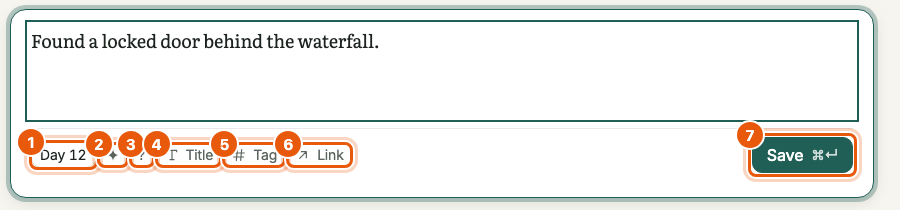
- Type your note. The box grows as you write, up to about 40% of the screen height, then scrolls.
- Press ⌘Enter (CtrlEnter on Windows and Linux) or choose Save.
- The note appears in the list below straight away and the box stays focused for the next one.
Notes can hold up to 50,000 characters and titles up to 200. If you go over, the box says Too long: 50,001 of 50,000 characters and Save is disabled.
Drafts and failed saves#
- Drafts are kept. What you type is saved as a draft as you go. Refresh the page, close the tab or lose your connection and the draft is still there. The Today box, each Day page's box and the New note window keep separate drafts.
- A failed save keeps your text. The box shows Couldn't save. Your text is still here. with a Retry button. Retry reuses the same note identity, so nothing is saved twice.
- If the browser cannot keep drafts (some private windows), the box says Drafts won't be kept in this browser.
- Esc leaves the box without clearing it. The draft stays.
Titles, dates and flags#
- Title
- Choose Title, or type
/title, to show a title field above the text. Enter in the title moves you to the body. A title is shown in bold above the note. - Date
- The chip on the left shows the date the note will carry: the current in-game date, or Add date if none is set. Choose it to pick another date for just this note. Clear date saves it undated. See Dates and the calendar.
- Discovery ✦
- Toggle the star to mark something you found out. Marked notes can be filtered and appear under Recent discoveries on Today.
- Question ?
- Toggle the question mark for something you want to find out. You can leave it open and solve it later. See Questions and discoveries.
Tags, people and links as you type#
Four characters open a small list at the caret. Pick a row with the mouse, or with ↑ ↓ and Enter (or Tab).
| Type | Where it works | What happens |
|---|---|---|
# | At the start of a line or after a space | Lists your tags. Choosing one removes the #… text and adds the tag beside the note. A Create #name row makes a new tag. |
@ | At the start of a line or after a space | Lists people. Choosing one replaces @Ma with the person's name in the text and adds a link to them. Create person ‘Ma’ makes a new person. A name can be up to three words. |
[[ | Anywhere in a line | Searches your notes and, in the Stardew Valley template, your farm entries. Choosing one adds a link and removes the typed text. The list closes at ] or the end of the line. |
/ | At the very start of a line | Opens a command menu: Title, Date, Discovery, Question, Tag, Person, Link. |
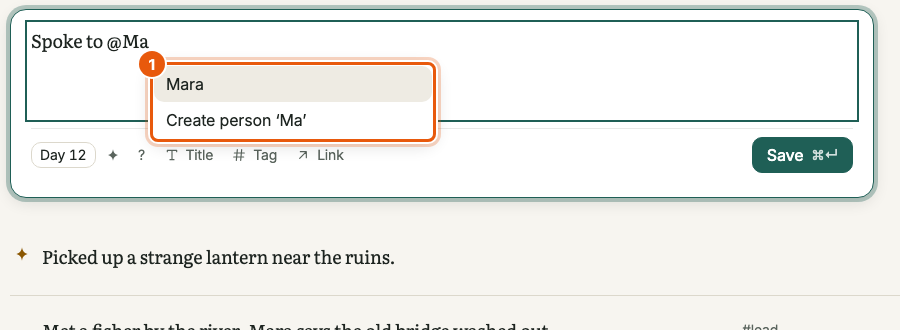
@Ma lists matching people and offers to create a new one.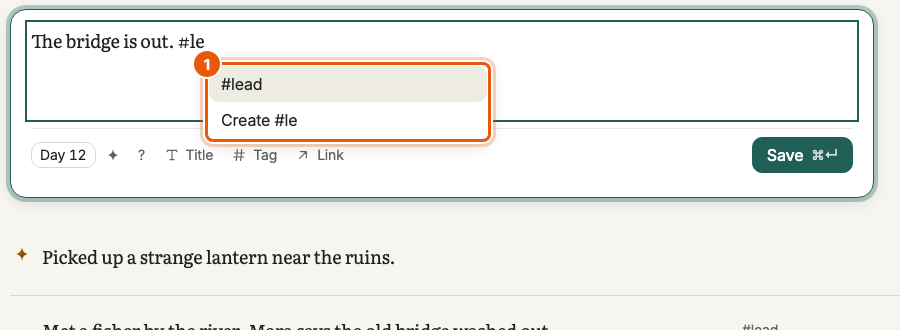
#le lists matching tags and offers to create one.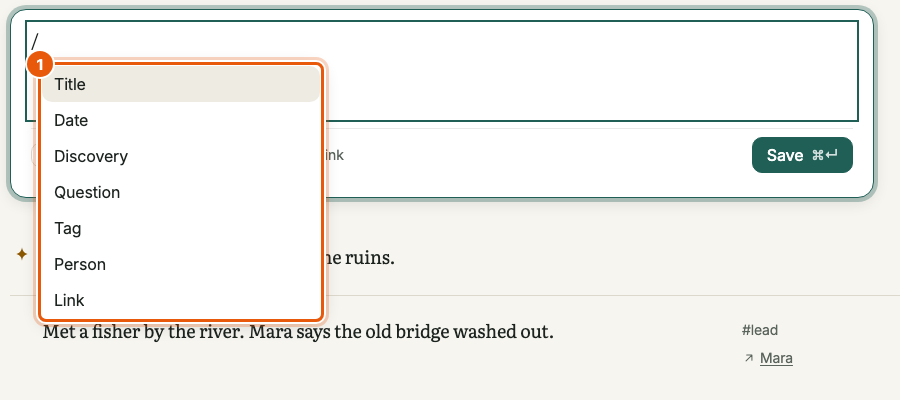
/ at the start of a line opens the command menu.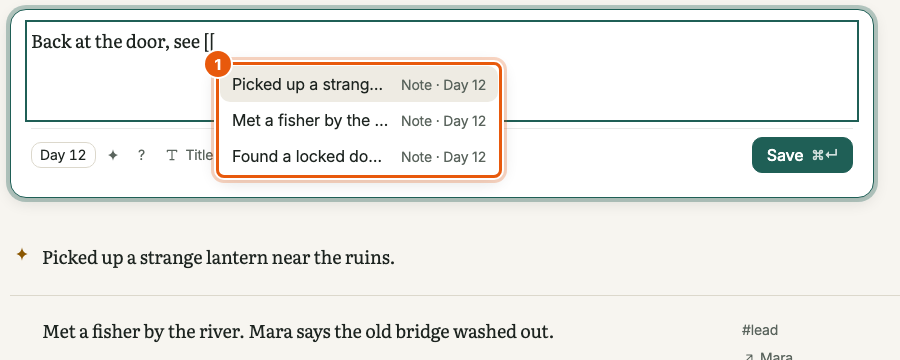
[[ searches notes (and farm entries) to link.The Tag and Link buttons#
If you would rather click, the Tag and Link buttons open the same lists with a search field. Tag lists tags. Link lists notes, people and farm entries together, each labelled with its kind.
Chips#
Chosen tags and links appear as small chips under the text: #lead for a tag and ↗ Mara for a link. Remove one with its ×, or focus it and press Backspace or Delete. A note can carry up to 30 tags and 50 links.
Typing #word or @Name in the middle of a sentence and then pressing Esc, or typing it in a way that does not open the list, leaves it as plain text. Only picking a row creates the tag or the link.
How a note is shown#
Notes keep your line breaks. A small part of Markdown is understood: **bold**, *italic*, `inline code`, bulleted and numbered lists, block quotes and web links that start with http:// or https:// (they open in a new tab). Headings, tables, images, code blocks and raw HTML are shown as plain text. Nothing you type is ever run as code.
On a wide screen a note's date, tags and links sit in a margin to its right. On a narrow screen they sit under the text. A page that is already about one day does not repeat the date on every note.
Editing, titles and the note menu#
Every note has a ⋯ More actions button (it appears when you point at the note, and is always shown on a touch screen).
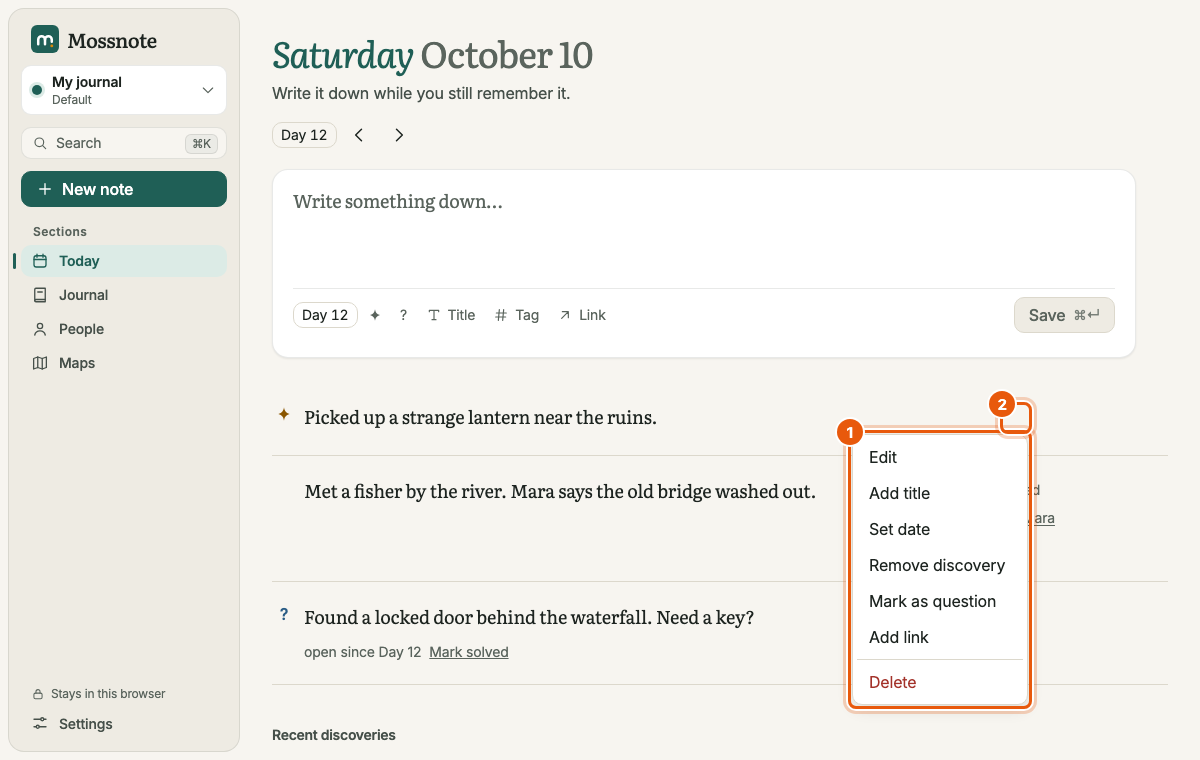
| Menu item | What it does |
|---|---|
| Edit | Edits the note in place. Also: focus the note and press e. |
| Add title / Edit title | Opens the editor with the title field focused. |
| Set date | Changes the note's date. |
| Mark as discovery / Remove discovery | Toggles the ✦ flag. |
| Mark as question / Remove question | Toggles the ? flag. Removing the flag from a solved question asks first, because it also clears the answer. |
| Add link | Opens the editor with the link list open. |
| Delete | Deletes the note. See below. |
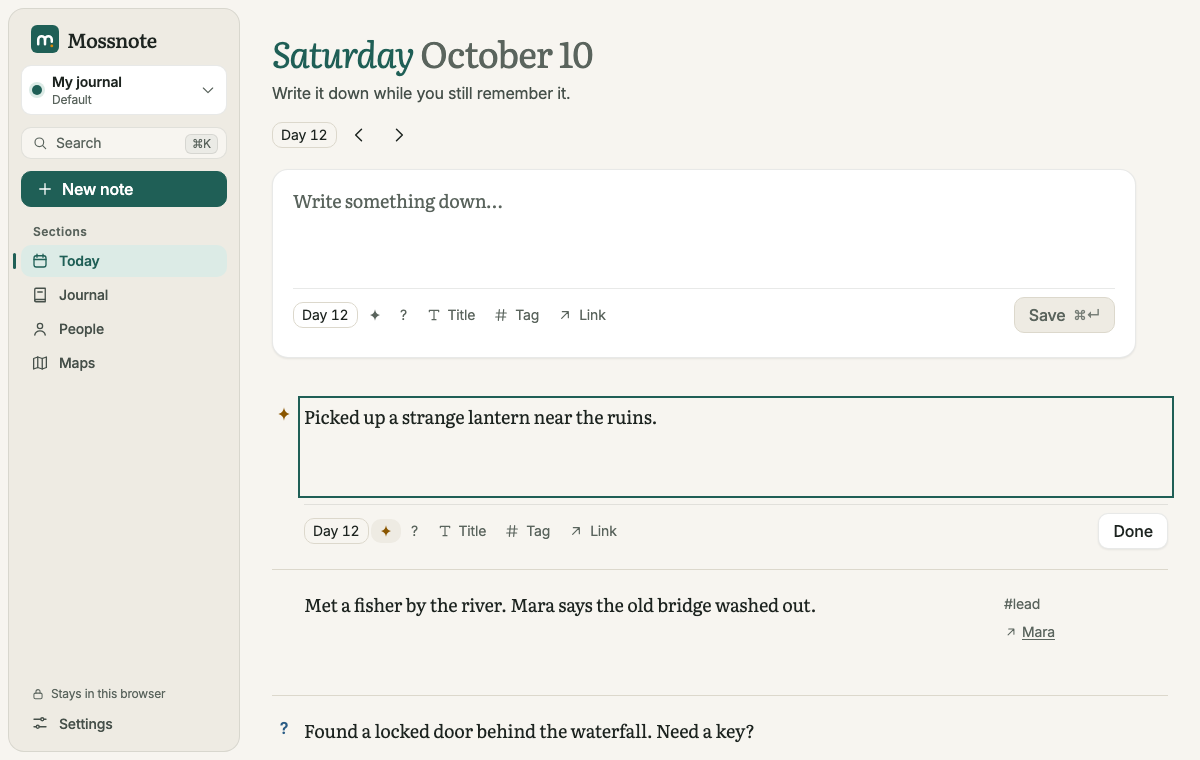
While editing, ⌘Enter finishes. Everything the note box offers (date, flags, title, tags, links, the pickers) works the same way.
Deleting and undoing#
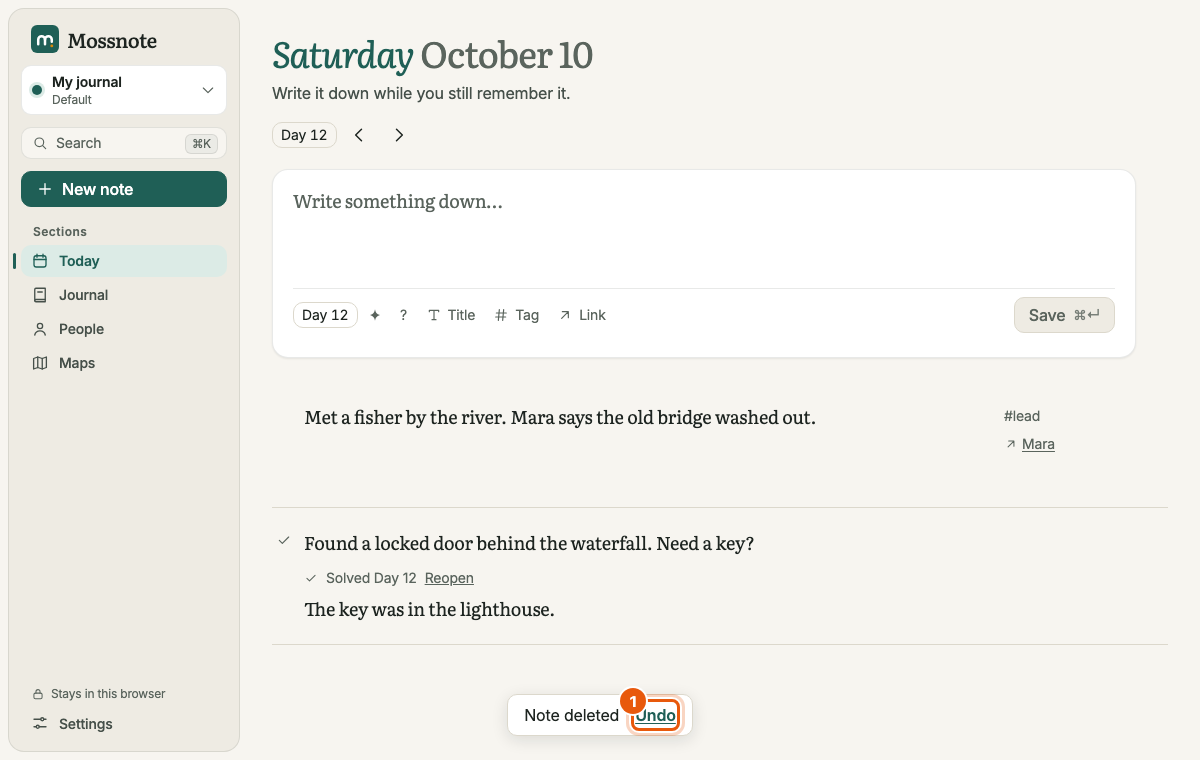
Delete removes the note at once and shows Note deleted with an Undo button. You can also press u while the message is showing. After the message goes, the note is still recoverable: it sits in Settings → Recently deleted for 30 days before it is removed for good.
A note's own page#
A note has its own address (/notes/…). You reach it by following a link to it: from a Recent discoveries entry, a search result, a link chip on another note, or a map marker linked to it. The page shows the note and, under Linked from, any notes whose links point at it.
Write about a person or farm entry#
On a person's page, Write about … opens the New note window with a link to that person already attached, so the note shows up on their page. Farm entries have Write about this in the same way.
Limits at a glance#
| Item | Limit |
|---|---|
| Note text | 50,000 characters |
| Note title | 200 characters |
| Tags on one note | 30 (each tag up to 40 characters) |
| Links on one note | 50 |
| Answer to a question | 2,000 characters |