Tutorials
"Tutorial: solve a mystery"
Track clues across several days with questions, links between notes and search, then close the case with an answer in your own words.
Mysteries in games span many sessions: a clue on one day, a suspect on another, and the answer weeks later. This tutorial shows how to keep the thread. It uses the Default template and made-up notes. Start from your first session if you have no journal yet.
1. Open the case with a question#
- On Today, type
Who left the lantern at the ruins?. - Choose ? and add a tag: type
#mysteryon a new last line, or use the Tag button. - Save with ⌘Enter.
Expected: the note shows a ? and open since Day …. Today gets a link 1 open question.
2. Add clues as you find them#
- Move the day on if the game has: the › button next to the date.
- Write the clue. Mention people with
@so each person's page collects what you learn about them:Footprints lead to the old boathouse. @Marta saw someone there at dusk. - Turn on ✦ if it feels like a real find, and add
#mysteryagain so every clue shares the tag.
3. Connect clues to the question#
Link the new clue to the original question so you can jump between them.
- In the clue's text, type
[[and a few words of the question:[[lantern. - Choose the question note from the list. A link chip is added and the typed text is removed.
- Save. Open the question note's own page (choose its link chip anywhere, or search for it): under Linked from you now see the clue.
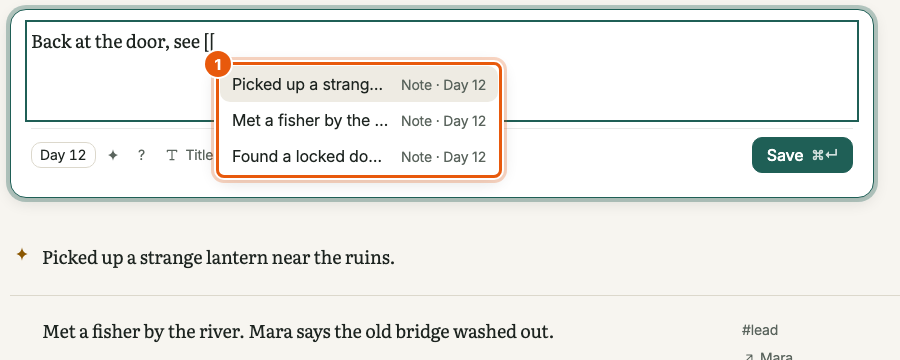
[[ list searches your notes.4. Review the case#
Everything on the case is now one click away:
- All clues: choose the
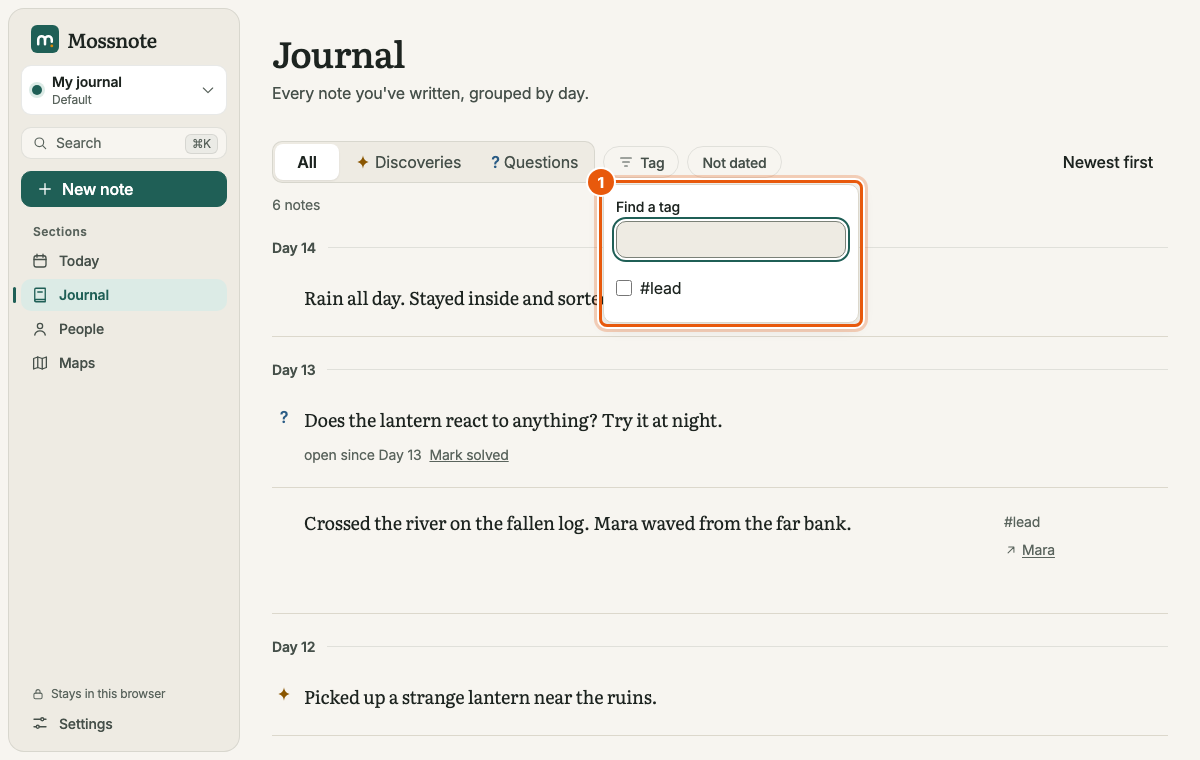
#mysterychip on any note, or pin the tag (Settings → Tags → Pin) so it sits in the sidebar. The Journal shows only those notes, grouped by day. - Open questions: Journal → Questions → Open.
- One person's part: People → Marta lists every note that mentions her.
- Search:
boathouse is:discoveryfinds discoveries that mention the boathouse;#mystery -lanternfinds mystery notes that do not mention the lantern. See Search syntax.
5. Close the case#
- Open the original question (Journal → Questions).
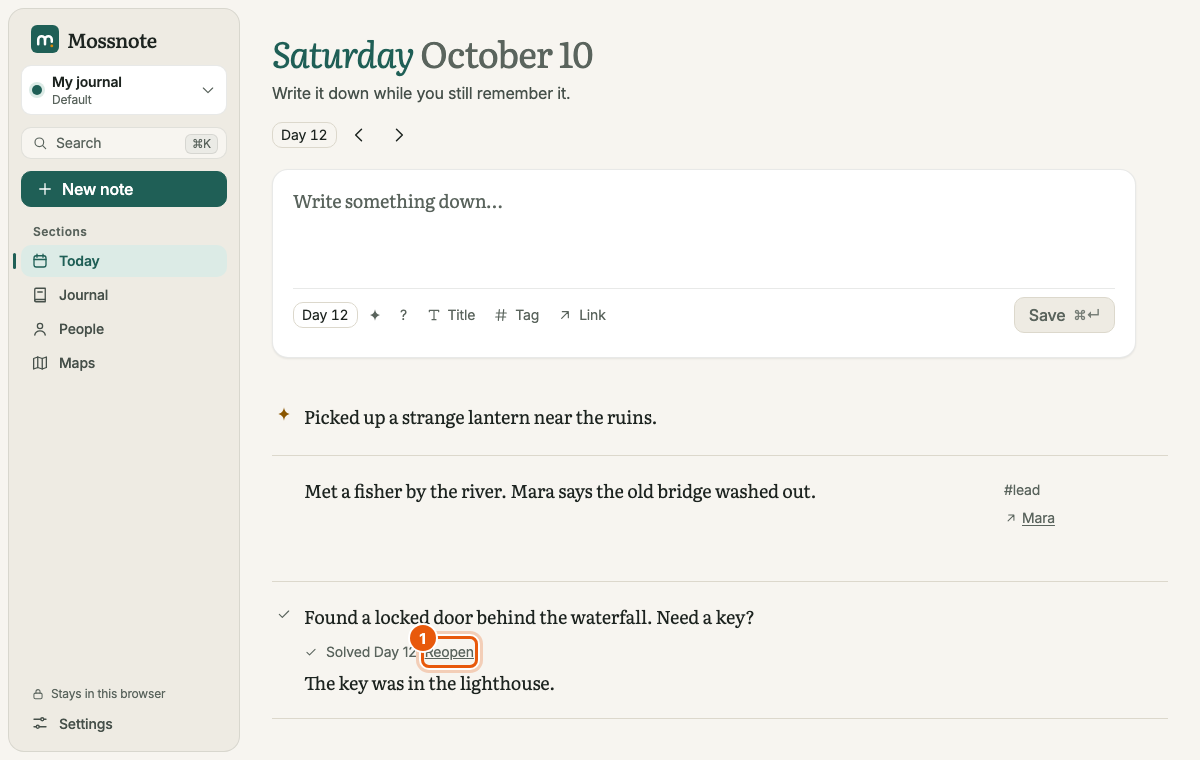
- Choose Mark solved, type the answer, press Enter.
Expected: a ✓, Solved Day … and your answer under the note. The question leaves the open list. Mossnote never suggests an answer; this is yours.
Tips#
- One tag per case beats many. Tags are cheap to add and easy to merge later (Settings → Tags → Merge).
- Use a title on the question note so it is easy to spot in search results.
- Pin the case's map marker to the question, too. See Tutorial: map an area.