Your data
Data and backups
Where your journal is stored, how to export and import it, how snapshots work, and how to get back something you deleted.
Your journal belongs to you and stays with you. This page explains where it lives, how to copy it out, and the safety nets Mossnote keeps for you. Everything is under Settings → Data & backup.
Where your journal lives#
- Computer version
- Each journal is one SQLite file (
<name>.db) in a data folder just for you. The default folder is:Inside are oneSystem Default folder macOS ~/Library/Application Support/Mossnote/Linux $XDG_DATA_HOME/mossnote/(usually~/.local/share/mossnote/)Windows %APPDATA%\Mossnote\.dbper journal, abackups/folder of snapshots and a few small bookkeeping files. Change the folder with--data-dirorMOSS_DATA_DIR. Installing, upgrading or reinstalling Mossnote never touches this folder. - Web version
- Each journal is a database in the browser's own storage on that device. Clearing the site's data, or losing the device, loses it unless you exported a copy. See The web version.
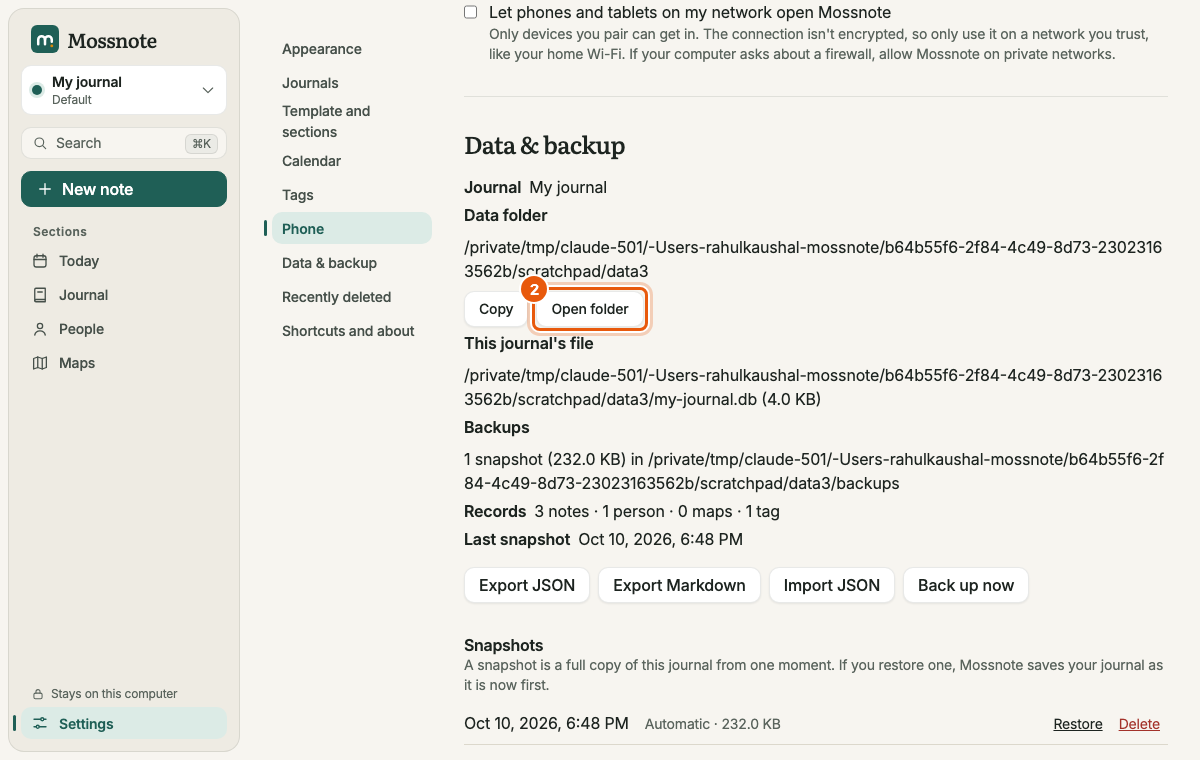
The Data & backup section shows which of the two you have and, on a computer, the exact folder with a Copy button and an Open folder button.
Export#
Exporting makes a file you can keep, read or move.
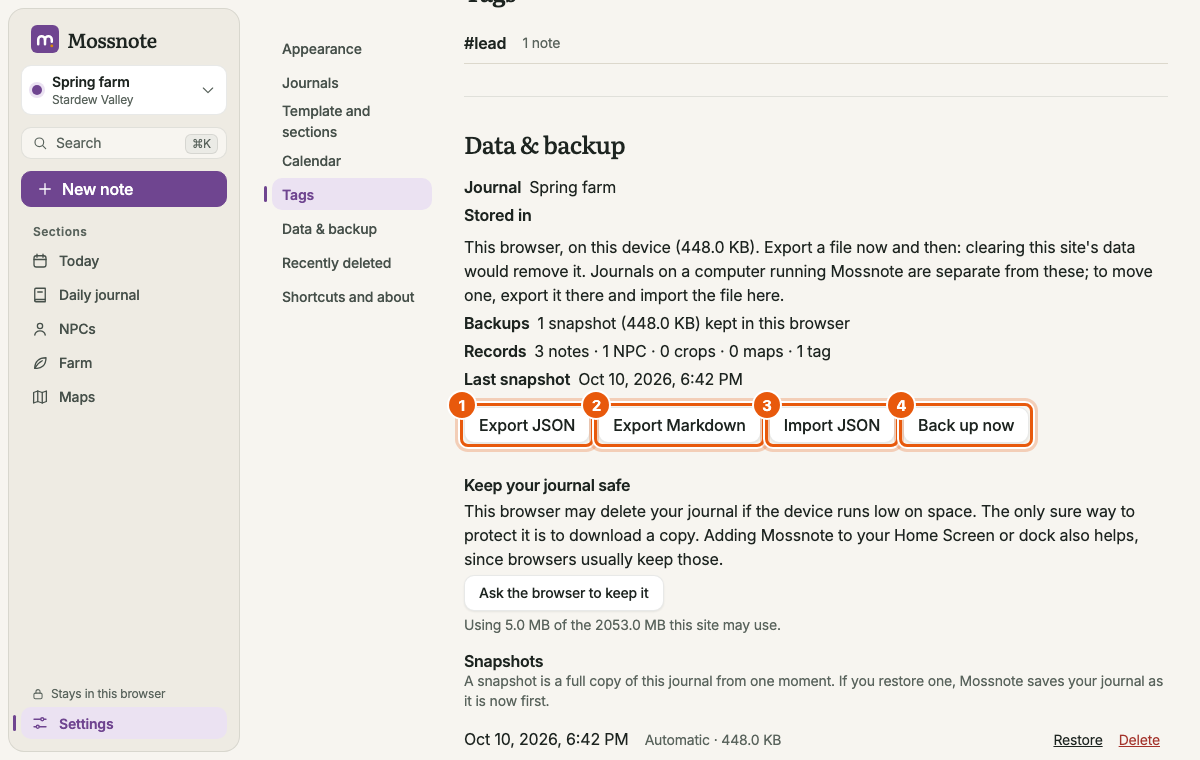
- Export JSON downloads
mossnote-YYYY-MM-DD-HHMM.json, a complete copy that Mossnote can import again. It holds your notes, people, farm entries, maps, tags and settings. It does not hold the older versions kept for each map (History in the map editor). Keep this one as your real backup. Format details. - Export Markdown downloads
mossnote-YYYY-MM-DD.md, a plain-text version you can read anywhere: your journal by day, undated notes, questions (open and solved), people, farm entries and maps. It cannot be imported back. - You can also download any journal, open or not, from Settings → Journals.
Import#
Import replaces everything in the journal that is open with the contents of a JSON file, including the journal's template and calendar, and it clears the version history of every map. Your other journals are untouched. The snapshot taken first still holds everything that was there.
- Choose Import JSON and pick a file made by Export JSON (up to 50 MB).
- Mossnote checks the file without changing anything. If it is not valid, you get a list of what is wrong (up to 20 items) and Nothing was changed., for example That file isn't a Mossnote export.
- If it is valid, you see what it holds: Contains 3 notes, 0 NPCs, 0 maps, 0 tags. Importing replaces everything in “…” only. Choose Replace this journal or Cancel.
- Confirm Replace your journal? Mossnote saves the journal as a snapshot first (Before an import), runs the import in one step, and reloads.
If the import fails part-way, the journal is left as it was and the message names the snapshot that was saved first. To bring a journal back onto the other kind of Mossnote, export it from one and import the file in the other.
A single map has its own export and import: see Exporting a map.
Snapshots#
A snapshot is a full copy of a journal at one moment. They are safe to take while the app runs. Restoring one puts the journal back to that moment.
| Shown as | Made | Kept (per journal) |
|---|---|---|
| Automatic | At start, if the newest snapshot is over 24 hours old (computer version) | The newest 14 (MOSS_BACKUP_KEEP) |
| Before an update | Before an upgrade changes a journal | The newest 3 |
| Before an import | Before an import replaces the journal | The newest 5 |
| Before a restore | Before a snapshot is restored | The newest 5 |
| Made by you | When you choose Back up now, and when you delete a journal | All of them |
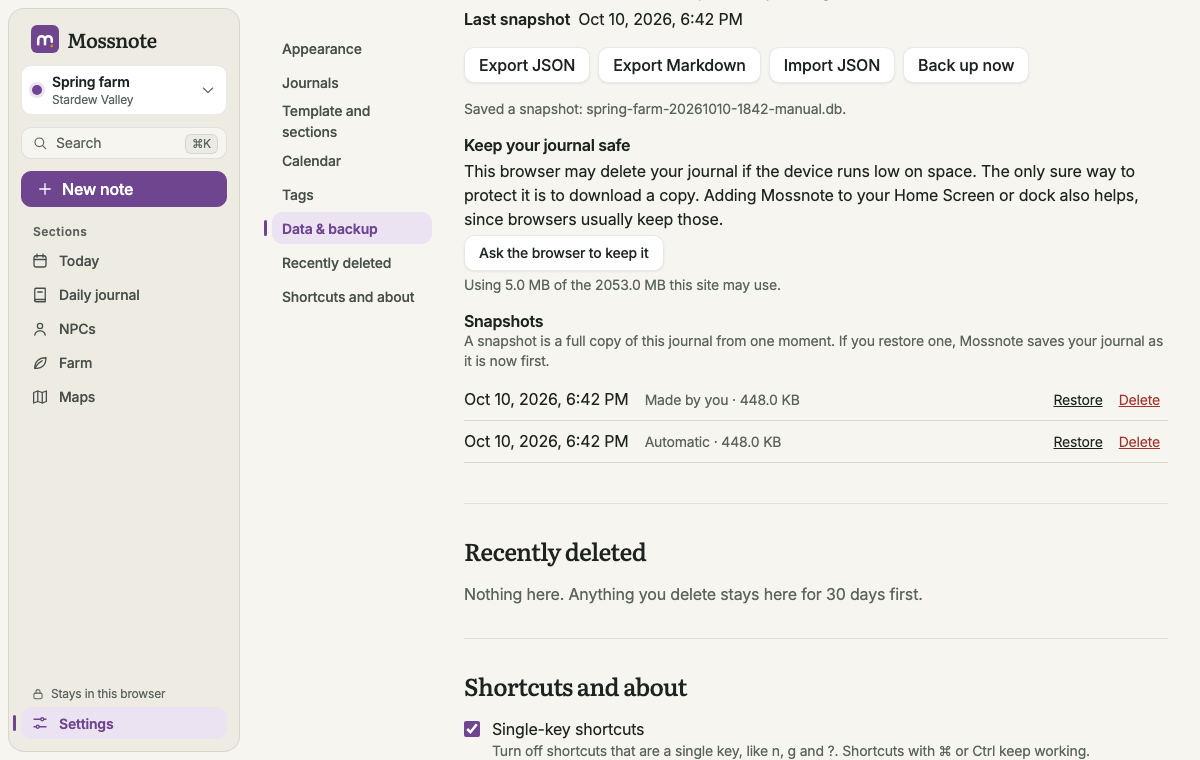
- Back up now makes a snapshot at once and says Saved a snapshot: …. The summary above the buttons shows the last snapshot's time and how many you have.
- Restore asks Restore this snapshot?, saves the journal as it is now first (Before a restore), then goes back. To undo a restore, restore that newer snapshot.
- Delete removes one snapshot; your journal is unaffected.
We tested the full cycle in the web version: Back up now, change the journal, Restore, and the journal returned to the snapshot while a Before a restore snapshot appeared.
Starting safely (computer version)#
- Every start runs an integrity check. If it fails, Mossnote refuses to start and names the newest snapshot. To restore by hand: stop Mossnote, copy the snapshot from
backups/over the journal's.dbfile, delete that journal's.db-waland.db-shmfiles, and start again. - Upgrades. A journal is brought up to date automatically the first time a newer version opens it, after a Before an update snapshot. A journal made by a newer version is left untouched and not opened.
- Going back to an older version of Mossnote is not supported. If you must, restore the Before an update snapshot.
- Only one copy of Mossnote can have a journal open at a time: a lock file next to the journal guards it, and a second copy for the same journal refuses to start.
Recently deleted#
When you delete a note, person, farm entry or map, Mossnote does not destroy it. It moves to Settings → Recently deleted for 30 days, then is removed for good.
- Restore puts the item back, with its tags and links.
- Delete forever (and Delete everything here forever) asks first and cannot be undone.
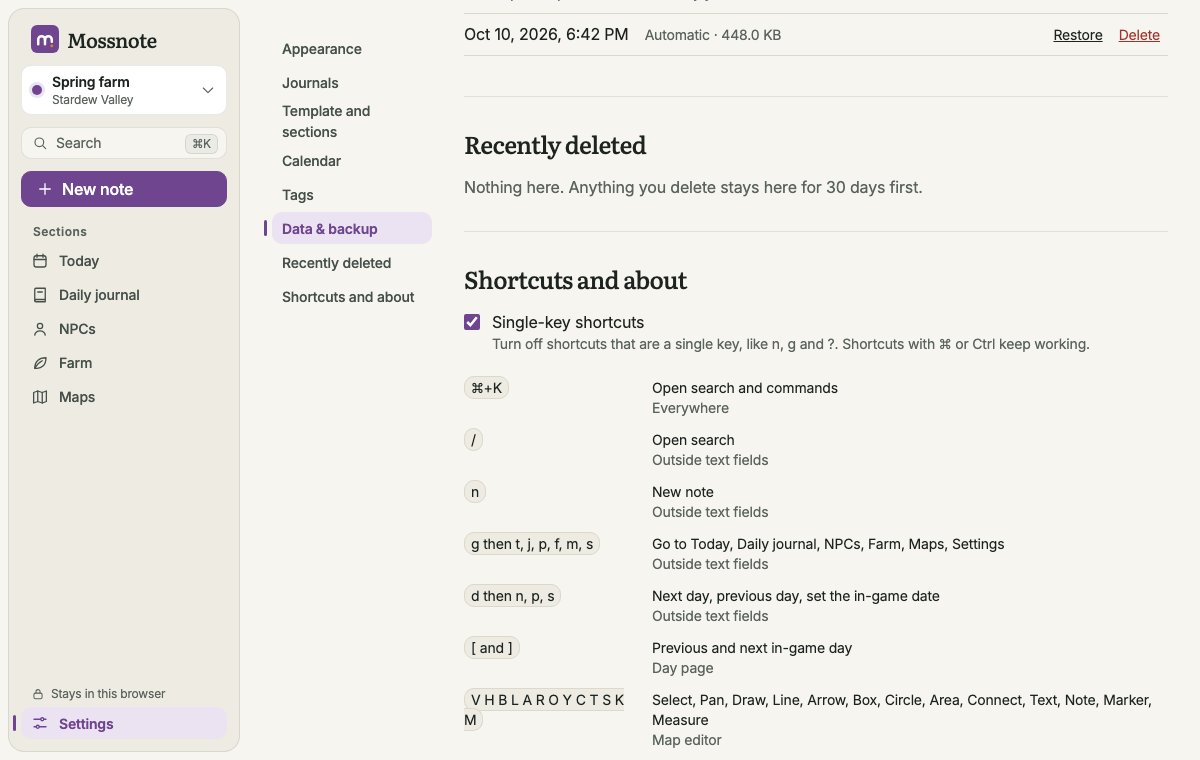
- An empty list says Nothing here. Anything you delete stays here for 30 days first.
- A deleted note shows Note deleted with Undo for a few seconds first. See Deleting and undoing.
- Deleting a whole journal is different: it does not go here. See Deleting a journal.
Privacy#
- Mossnote never sends your notes anywhere. There are no accounts, analytics, crash reports or update checks. The source has an automated check that fails the build if it contains a web address that could be fetched.
- Nothing is shared unless you export a file and send it yourself.
- Phone access (computer version) is off until you turn it on, and then lets only the devices you paired reach your own computer. See Phone access.