Reference
Keyboard shortcuts
Every keyboard shortcut in Mossnote, grouped by where it works, and how to turn the single-key ones off.
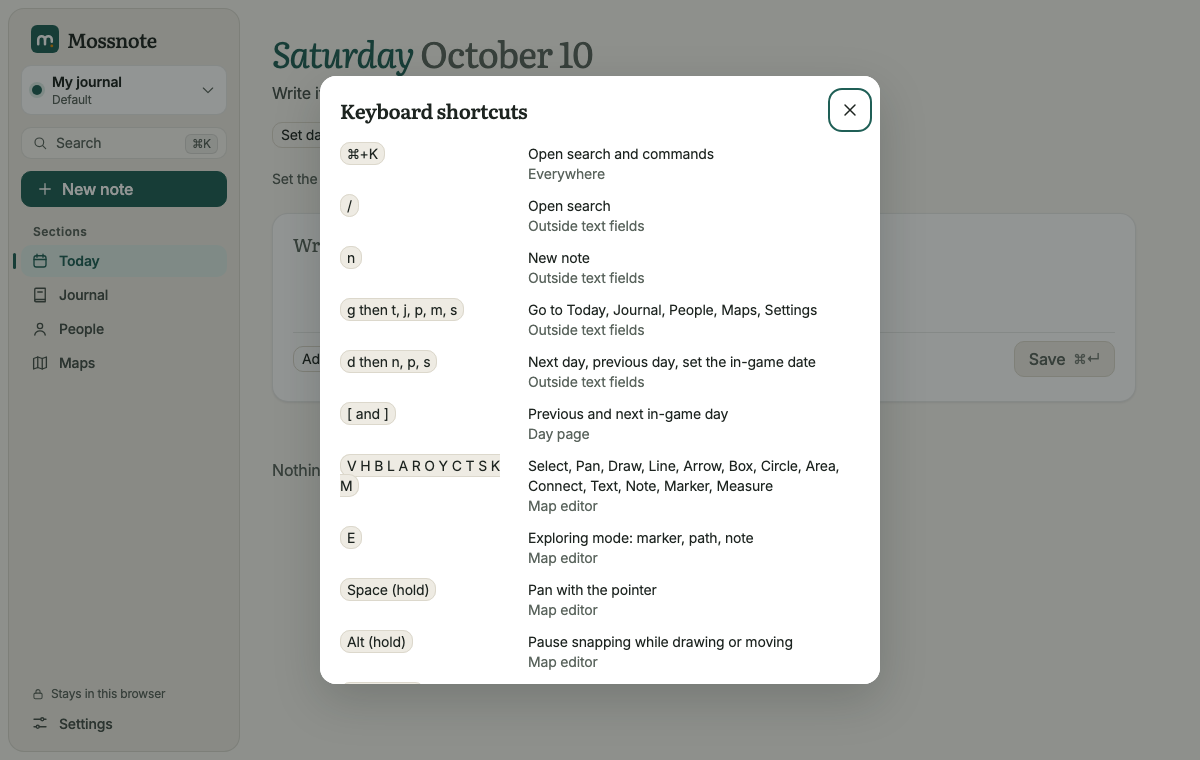
Mossnote can be used entirely from the keyboard. Press ? outside a text box to see this list in the app, or find it in Settings → Shortcuts and about. Shortcuts that use ⌘ (Mac) use Ctrl on Windows and Linux.
A ✓ in the last column means we pressed the keys in the running app and saw the result. Without it, the shortcut comes from the source code and the app's own list, and we did not press it.
Turning single-key shortcuts off#
If a single key gets in your way, for example with a screen reader or voice control, untick Single-key shortcuts in Settings → Shortcuts and about. Shortcuts with ⌘ or Ctrl keep working. The choice is kept in this browser.
Anywhere#
| Keys | What it does | Checked |
|---|---|---|
| ⌘K | Open search and commands (not while the cursor is in a text box) | ✓ |
| / | Open search | ✓ |
| n | New note: focuses the note box on Today; opens the New note window elsewhere | ✓ |
| g then t j p f m s | Go to Today, Journal, People, Farm (only where the template has it), Maps, Settings | ✓ |
| d then n / p / s | Next day, previous day, set the in-game date | |
| [ and ] | Previous and next in-game day (on a Day page) | |
| ? | Show the shortcuts list | ✓ |
| u | Undo, while a message with an Undo button is showing | |
| Esc | Close a dialog, popover, menu or search; leave the note box or editor (the draft stays) | ✓ |
The g and d shortcuts are two-key sequences; press the second key within a second. Every action here also exists as a command in the search window.
Writing and editing notes#
| Keys | Where | What it does | Checked |
|---|---|---|---|
| ⌘Enter | Note box | Save the note | ✓ |
| ⌘Enter | Editing a note | Finish editing | ✓ |
| e | A focused note | Edit it in place | ✓ |
| Esc | A list is open | Close the list and keep your text | |
| ↑ ↓ Enter Tab | A #, @, [[ or / list | Move, choose, choose | ✓ (Enter) |
| Backspace / Delete | A focused chip | Remove the tag or link | |
| Digits, arrows, Enter, Esc | Date picker | Type the day, move, confirm, cancel | ✓ (typing, Enter) |
| ↑ ↓ Enter ⌘Enter | Search window | Move, open, open all results |
Map editor#
Tool keys work when the cursor is not in a text box.
| Keys | What it does | Checked |
|---|---|---|
| V H B L A R O Y C T S K M | Select, Pan, Draw, Line, Arrow, Box, Circle, Area, Connect, Text, Note, Marker, Measure | ✓ |
| E | Exploring mode: marker, path, note | |
| Space (hold) | Pan with the pointer | |
| Alt (hold) | Pause snapping while drawing or moving | |
| Shift (hold) | Square or circle; straight angles; keep proportions; one direction when moving | |
| Arrow keys; Shift with arrows | Nudge the selection by 1, or by a grid step | |
| ⌘Z, ⌘ShiftZ | Undo, redo | |
| ⌘C X V D | Copy, cut, paste, duplicate | |
| ⌘G, ⌘ShiftG | Group, ungroup | |
| ⌘], ⌘[ | Bring forward, send backward (add Shift for front and back) | |
| ⌘A, Delete | Select all, delete the selection | ✓ (select all) |
| Enter, F2 | Open a marker or edit text; rename | |
| + - 0, Shift1, Shift2 | Zoom in, zoom out, 100%, fit the map, fit the selection | |
| ShiftG, ShiftR, ShiftS, ShiftF | Grid, rulers, snapping, full screen | ✓ (grid, rulers) |
| Enter or double-click | Finish an Area | ✓ (Enter) |
| Enter / ⌘Enter | Finish typing text / a sticky note | ✓ |
| Esc | Cancel typing text |
On Windows and Linux, read ⌘ as Ctrl.
Notes on the key list#
- The in-app list shows g f only in journals that have a Farm section.
- Keyboard hints such as ⌘Enter on buttons are hidden on touch screens; they are never the only way to do something.
- Focus and tabbing. Focus outlines are never removed. Press Tab once on a new page to find the Skip to content link.