Maps
Markers and exploring mode
Drop and name markers, add details and tags, link a marker to a note, person or farm entry, and use exploring mode while you play.
A marker is a pin on a map: a place worth remembering. It has a name, an icon and a colour, and it can carry a status, tags, a short note and your own fields. Its most useful feature is the link: a marker can point at a note, a person or a farm entry, and that record then lists the marker under On maps.
Dropping a marker#
- Choose the Marker tool (the pin icon, or K).
- Click on the map. A small field appears beside the marker: Name it, then Enter.
- Type a name and press Enter. The marker shows its name below it (turn names off in View → Marker names).
A marker with no name appears as Unnamed pin in the Places list. You can rename it later with F2 or the Name field in Details.
Marker details#
Select a marker and choose Details… (in the quick bar, or Details, icon, tags, link… in the side panel), or select it and press Enter. A panel opens at the right.
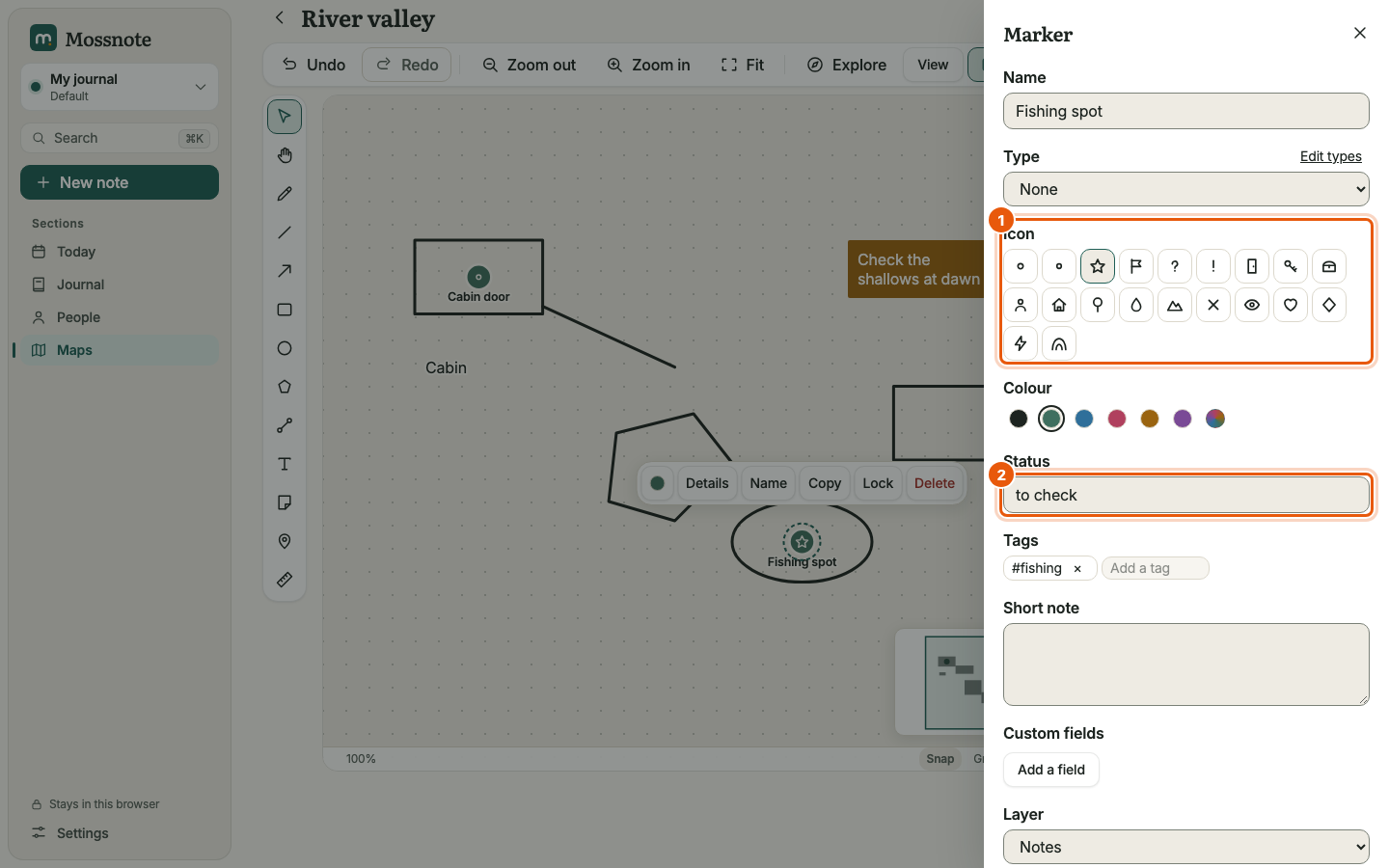
- Name
- Up to 80 characters.
- Type
- Pick one of your marker types to give the marker that type's icon and colour. None by default. Edit types opens the type list.
- Icon
- One of 20 plain symbols: pin, dot, star, flag, question mark, exclamation mark, door, key, chest, person, house, tree, water, mountain, cross, eye, heart, diamond, bolt and cave.
- Colour
- The six named colours or a custom one.
- Status
- A short word of your own, up to 30 characters, such as to check or done.
- Tags
- Up to 10 tags on the marker. Marker tags are searchable but are separate from the tags on notes.
- Short note
- Up to 5,000 characters.
- Custom fields
- Up to 10 label-and-value pairs.
- Layer
- Which layer the marker is on. Shown when the map has more than one layer.
- Link
- See below.
Choose Done to close the panel, or Delete marker to remove it.
Linking a marker to a note, person or farm entry#
Under the details, the field Link to a note, person or farm entry (worded with your template's terms) searches everything you have written.
- Type a few letters. Matching notes, people and farm entries are listed, each labelled with its kind.
- Choose one to link it. The marker now shows Linked to … with a link to the record and an Unlink button.
- Or write something new: type the text and choose Save “…” as a new note and link it. Mossnote creates the note, dated with today's in-game date, and links it, so a thought never needs a second screen.
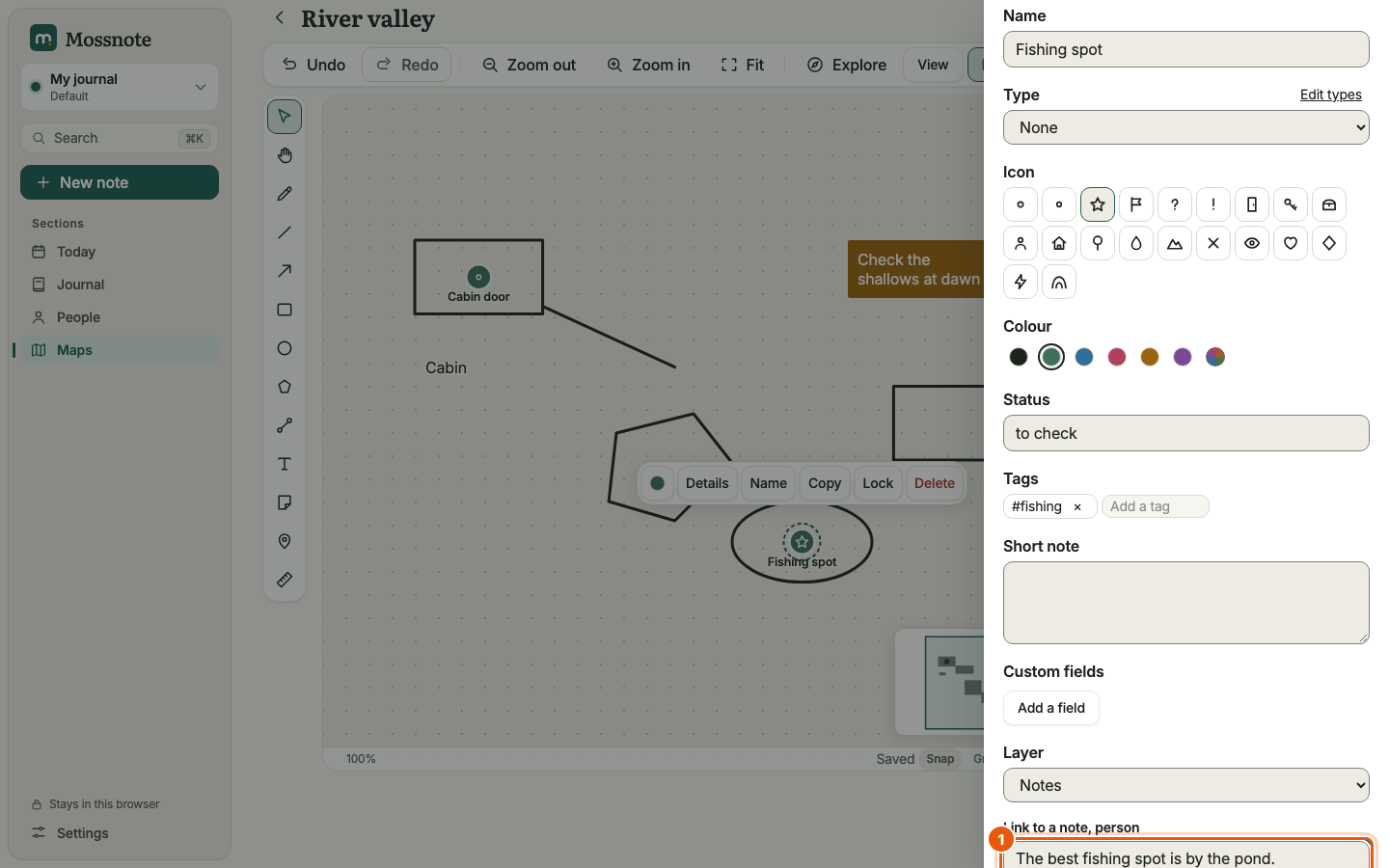
A linked record then shows an On maps list: on a person's page, a farm entry's page and a note's page. Each item opens the map with that marker selected.
Marker types#
A marker type is a name with an icon and a colour, for things you drop often, such as Entrance or Blocked. Types belong to the journal, so every map in it can use them. Open the list from the ⋯ → Marker types… menu, from Edit types in a marker's panel, or from the Marker types… button in Details.
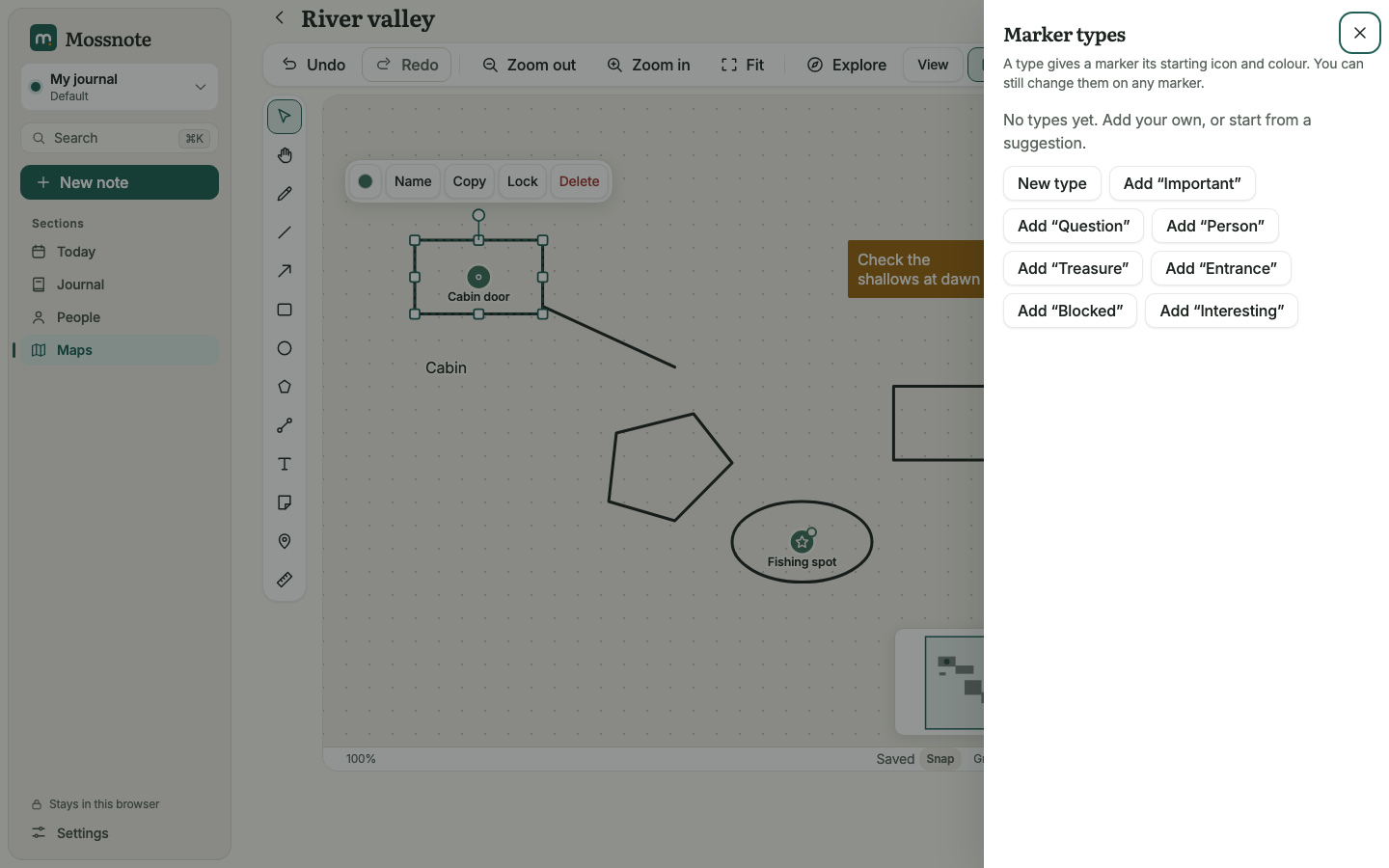
- New type adds an empty one: give it a name (up to 30 characters), an icon and a colour.
- One-click suggestions add plain-word types: Important (star, amber), Question (question mark, sky), Person (person, rose), Treasure (diamond, plum), Entrance (door, moss), Blocked (cross, rose) and Interesting (eye, sky). They appear only until you add them.
- You can have up to 50 types. Changing a type's look later updates the markers that use it. Not verified
- A type only sets a marker's starting look; you can still change the icon and colour on any marker.
Exploring mode#
When you are playing, you want to drop a marker, sketch the way you went and jot a note, again and again, without reaching for tools. Explore (the compass button, or E) gives you three big buttons for exactly that loop.
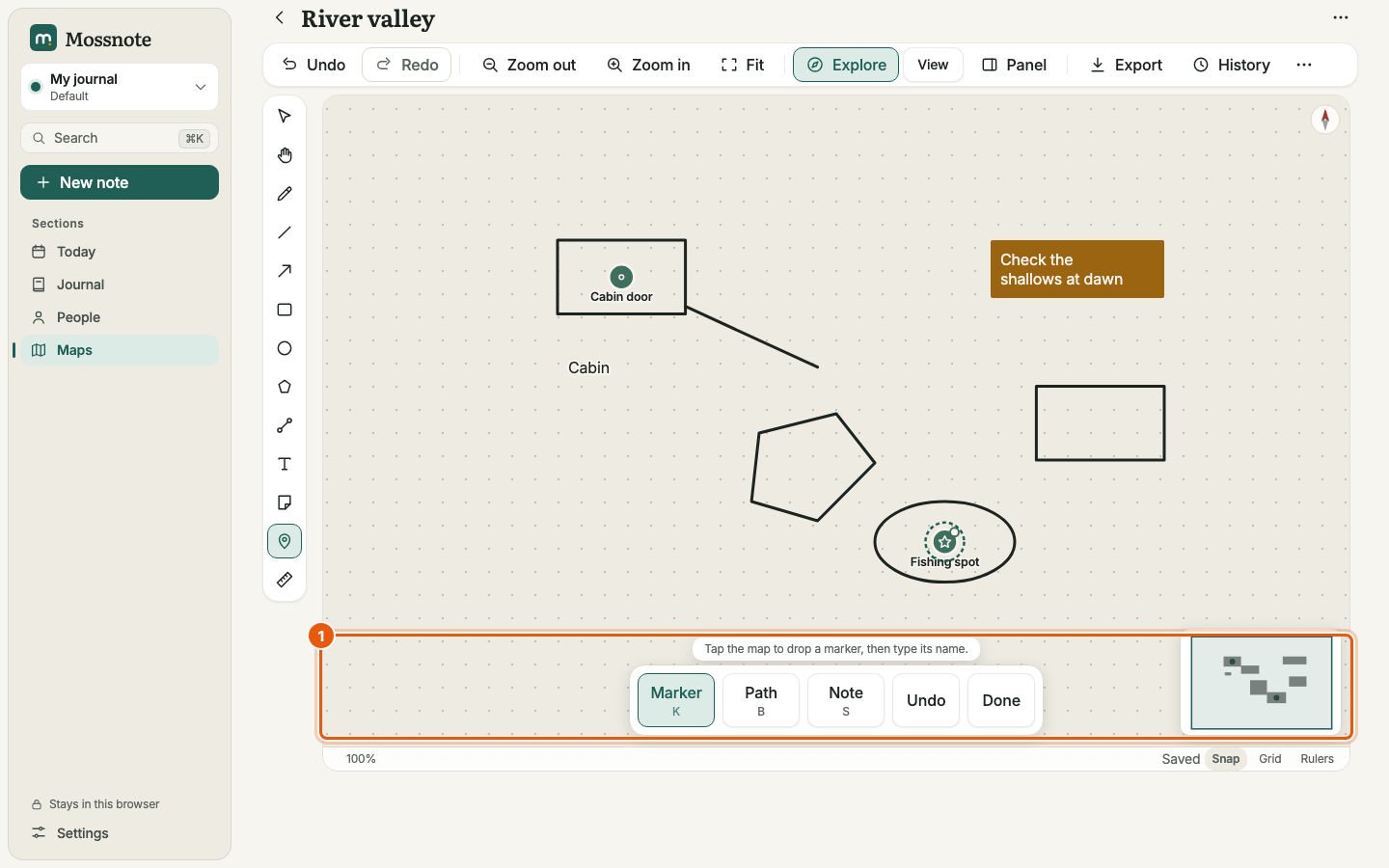
- Marker (K): tap the map to drop a marker, then type its name.
- Path (B): draw the way you went. It starts from your last marker. Draw the way you went. It starts from your last marker.
- Note (S): tap the map to put a sticky note down.
- Undo and Done. Done leaves exploring mode.
The chosen tool stays selected until you leave, so you can drop several markers in a row.
Finding markers again#
- Places on the Maps page lists every marker of every map, with a filter.
- Search matches marker names, notes and tags. See Search.
- On maps on a linked person, farm entry or note lists the markers that point at it.
- Opening a map from a Places or On maps link selects that marker.