Tutorials
"Tutorial: your first session"
A guided example, from an empty journal to one with dated notes, a person, a tag, a discovery and an open question.
This tutorial uses the Default template, so it works for any game. It takes about ten minutes. The example notes are made up; write your own as you go. You need an open Mossnote (see Getting started).
You will end up with: a journal with notes dated by in-game day, one person, one tag, one discovery and one open question, and you will know how to find each of them again.
1. Start a journal#
- On the first screen leave Default selected and name the journal after the game, for example Rainy Day Run.
- Choose Start my journal.
Expected: you are on Today, with an empty note box and the line Nothing written today.
2. Say what day it is in the game#
- Choose Set date under the page title.
- Type 1 and press Enter.
Expected: the chip now reads Day 1, and the Hide this tip message is gone. New notes will be stamped Day 1.
3. Write a note with a person and a tag#
- Click in the note box and type
Met a fisher by the river. @Mar. - A small list opens. It offers Create person ‘Mar’. Press Enter.
- Keep typing:
says the old bridge washed out. #lea. - The list offers Create #lea. Press Enter.
- Press ⌘Enter (CtrlEnter on Windows and Linux).
Expected: the note appears below the box with a tag chip and a link chip to the person. The text now reads Met a fisher by the river. Mar says the old bridge washed out. (the @ was replaced by the name and the #lea became a tag). The box is empty and ready for the next note.
4. Flag a discovery and a question#
- Type
Picked up a strange lantern near the ruins.and choose the ✦ button in the options row. It turns on. - Save with ⌘Enter. (After clicking a button in the options row, click back in the text before pressing the shortcut: the shortcut only works with the cursor in the note box.)
- Type
Found a locked door behind the waterfall. Need a key?, choose ?, and save.
Expected: the lantern note has a ✦ beside it. The door note has a ? and says open since Day 1 with a Mark solved button. A new section Recent discoveries shows the lantern, and a link 1 open question appears at the bottom.
5. Move to the next day#
- Choose the › button next to the date.
- A message says Now Day 2 with Undo. Write one more note, for instance
Rain all day. Stayed inside.
Expected: the new note is dated Day 2. Today lists the notes of the day you are on, so it shows only this note (the Recent discoveries and open questions sections below it still show items from Day 1).
6. Look back#
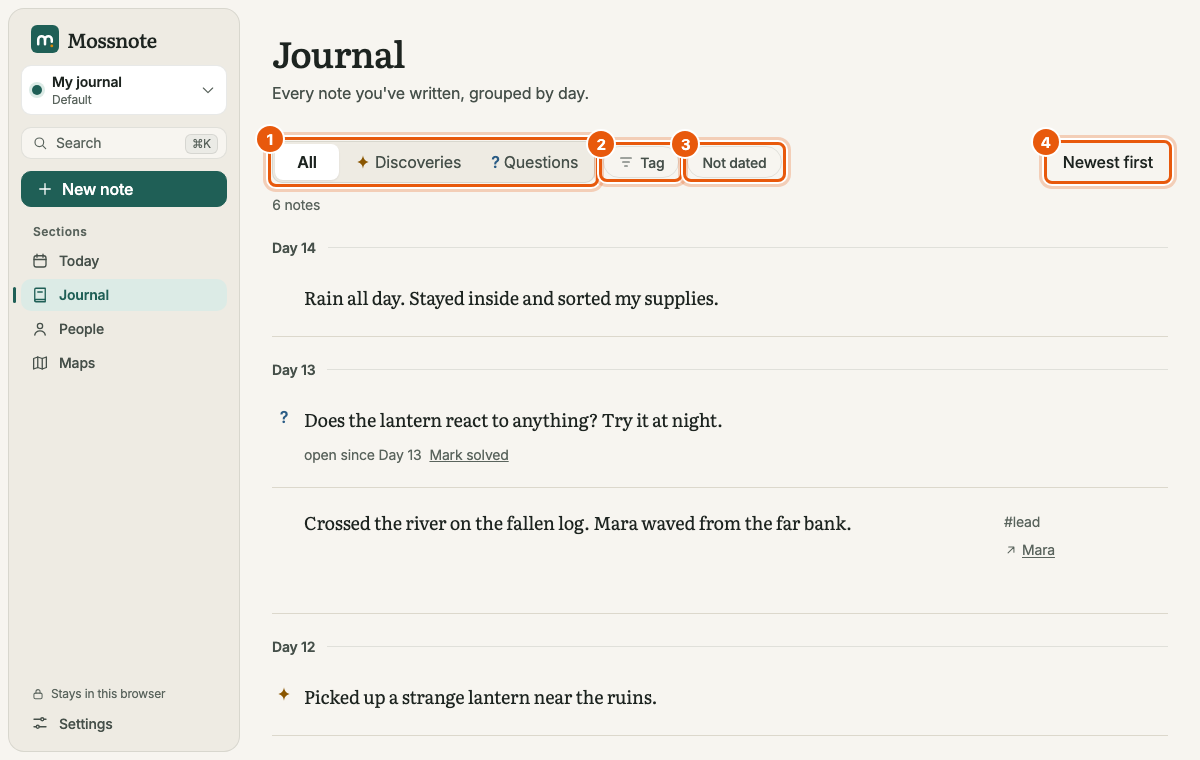
- Choose Journal in the sidebar. You see both days, newest first.
- Choose Questions. Only the door note is shown, as an open question.
- Choose People, then the person you made. Their page lists the note that mentions them.
- Press Esc, then ⌘K, type
lantrn(a typo on purpose) and see the lantern note appear.
7. Answer the question later#
When you find the key, go to the door note (Journal → Questions), choose Mark solved, type The key was in the lighthouse and press Enter. The note shows a ✓ and Solved Day 2. If you were wrong, Reopen turns it back into an open question.
8. Make sure it is safe#
Open Settings → Data & backup and choose Export JSON to download a copy. In the web version, do this every now and then, because the journal lives only in your browser. See Data and backups.
What next#
- Tutorial: solve a mystery uses links, questions and search together.
- Tutorial: map an area adds a map with markers linked to your notes.
- Writing notes covers the note box in full.