Start here
Getting started
Open Mossnote on a computer or in a browser, choose a template, and write your first note.
What Mossnote is#
Mossnote is a private journal for the games you play. You write what you discover, who you meet and what you wonder about. It knows nothing about any game: there are no names, items, places or mechanics built in, so a new journal is empty and nothing can be spoiled. It has no accounts, no analytics and no sync. Your notes stay on your own device unless you export a file yourself.
Choose how to run it#
The same app comes in two forms. They look and behave the same, apart from the differences listed in the table.
| You play on | Use | Your journal is kept |
|---|---|---|
| A PC or laptop, with notes on the same machine | The computer version (runs from Node or as a downloaded program) | In a folder on the computer |
| A PC or laptop, with notes on a phone or tablet | The computer version with phone access turned on | In a folder on the computer |
| A console, with notes on a phone | The web version on the phone | In the phone's browser |
A journal kept on a computer and one kept in a browser are separate. To move one, export it from one side and import the file on the other.
Open the web version#
The web version is a website with the journal built into the page. Open the address where it is published (the Open Mossnote button at the top of these pages goes there). Use an up-to-date Safari, Chrome, Edge or Firefox in a normal, not private, window. Nothing is installed and nothing is uploaded. Read more about the web version.
Install the computer version#
- From source. You need Node.js 22.14 or newer. In a terminal:
git clone https://github.com/rahulkaushal04/mossnote.git
cd mossnote
npm install
npm start
npm startbuilds the app if needed, starts it and opens your browser athttp://127.0.0.1:4317. - With Node. You need Node 22.14 or newer. A beta is installed by name:
npx mossnote@betato try it, ornpm install -g mossnote@betaand thenmossnote. Press Ctrl+C to stop it. Updating or removing it never touches your journals, which live in your data folder. - With Python (no Node needed).
pipx install --pre mossnoteand thenmossnote, orpipx run --pre mossnoteto try it. You need Python 3.10 or newer; the package brings its own Node.js. It takes the same options and keeps your journals in the same folder. Partly implemented The package is built and tested but not on PyPI yet. - As a program. Download the file for your system from the releases page:
mossnote-v<version>-linux-x64.tar.gzor-linux-arm64.tar.gz(glibc 2.34 or newer: Ubuntu 22.04, Debian 12, Fedora 35, RHEL 9 or newer), ormossnote-v<version>-win-x64.exe(Windows 10 or 11). On Linux, check it withsha256sum -c, unpack it withtar -xzfand run./mossnote. On Windows, double-click the file. The program is not code-signed yet, so Windows SmartScreen may warn: after checking the checksum, choose More info, then Run anyway. It has Node.js inside, keeps your journals in the same folder as the other routes, and unpacks a copy of the app (about 60 MB) into a cache folder on its first start, which is safe to delete. There is no macOS download; macOS users use the Node or Python route. Alpine and other musl systems are not supported. See the troubleshooting page.
Run mossnote --help for the options --port, --data-dir, --journal, --no-open and --lan. See Options.
Make your first journal#
The first time you open Mossnote it asks one question: Which template?
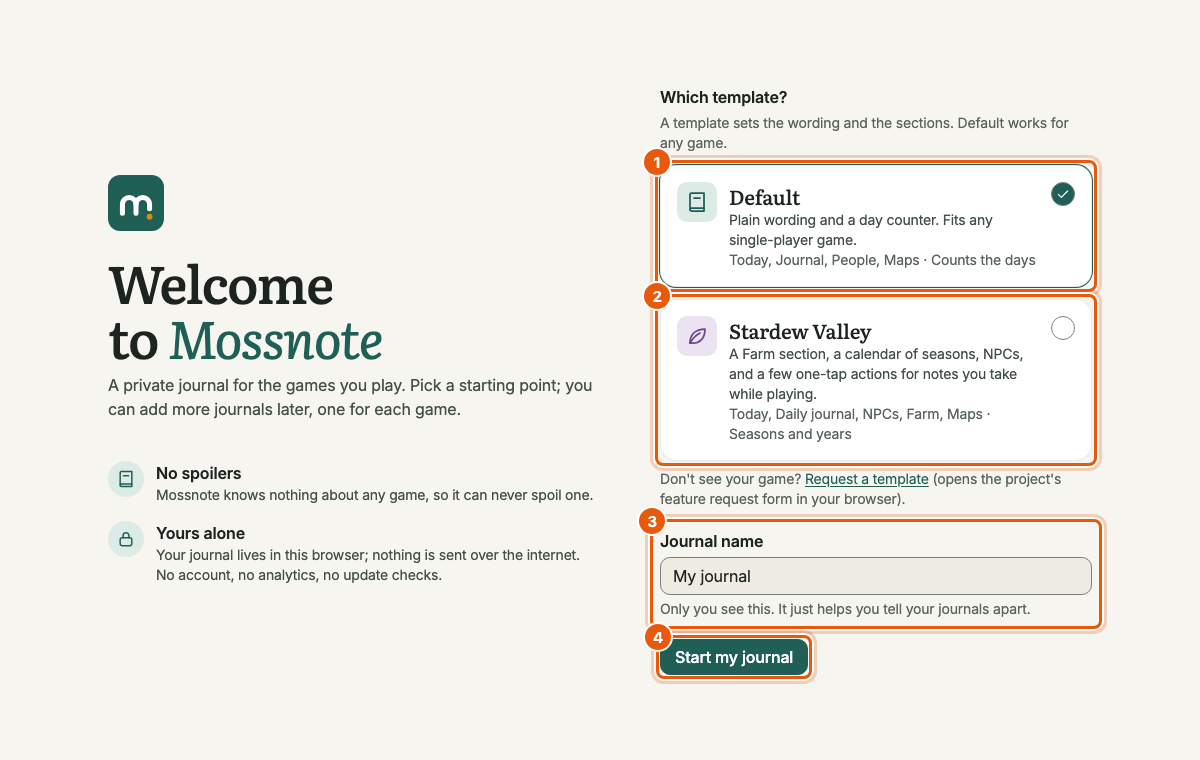
- Pick a template. Default fits any game; Stardew Valley adds a Farm section and a calendar of seasons. A template only changes wording and structure, never facts about a game. See Templates. A journal keeps its template for good, so to use the other one later you make another journal.
- Type a name for the journal (up to 60 characters). Only you see it; it helps you tell journals apart.
- Choose Start my journal. You land on Today with the note box ready.
The same screen links to Request a template, which opens the project's feature-request form on GitHub in a new tab.
Write your first note#
- Click in the note box on Today (it is already focused when the page opens) and type something you just found out.
- Press ⌘Enter (CtrlEnter on Windows and Linux), or choose Save.
- The note appears under the box at once, the box empties and stays focused, and the next note can follow straight away.
Your text is kept as a draft while you type, so a refresh or an interrupted connection does not lose it.
Tell it the in-game day#
Choose Set date above the note box. With the Default template you type a day number (Day 12); with Stardew Valley you pick a year, a season and a day. Every note you save from then on is stamped with that date, and your journal groups notes by game day. You can skip this: notes without a date still work, and you can add dates later. See Dates and the calendar.
Where to go next#
- A tour of the screen to learn where everything is.
- Writing notes to use tags, people and links as you type.
- Tutorial: your first session for a worked example.
- Data and backups, so you know how your journal is kept safe.