Tutorials
"Tutorial: map an area"
Sketch a place, drop markers, link a marker to a note, explore in play, and export the result.
You will draw a small area, mark places in it, link a marker to a note so the two stay together, and export the map. About fifteen minutes. The names are made up. You need a journal; see Getting started.
1. Create the map#
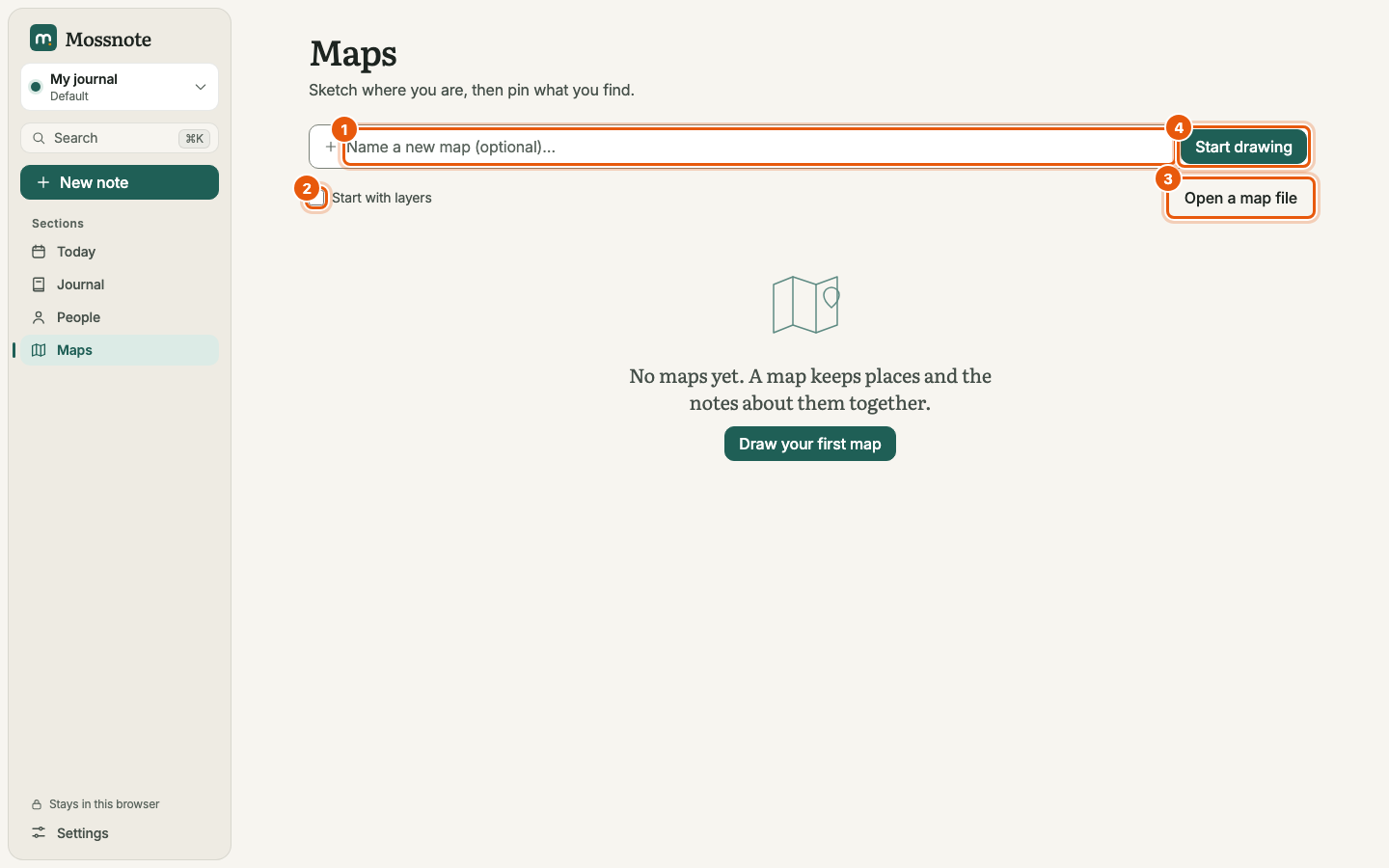
- Choose Maps in the sidebar.
- Type
River valleyin Name a new map (optional)…. Tick Start with layers if you like to keep terrain and notes apart. - Choose Start drawing.
Expected: the map editor opens with a dotted canvas, the tool strip on the left and the side panel on the right. The status bar says Saved.
2. Draw the area#
- Choose Box (or press R) and drag a rectangle for the cabin.
- Choose Circle (O) and drag a pond.
- Choose Area (Y), click four or five corners for a field, then press Enter.
- Choose Draw (B) and sketch a rough rectangle by hand. When you let go it snaps to a clean box and says Tidied up as rectangle. Choose Keep my drawing if you prefer your wobbly one.
- Choose Text (T), click near the cabin, type
Cabinand press Enter.
Expected: each shape appears where you drew it, and you are back on the Select tool after each one. ⌘Z undoes the last step if you made a mistake.
3. Mark places#
- Choose Marker (K) and click the cabin's door. Type
Cabin doorand press Enter. - Click the pond's edge, type
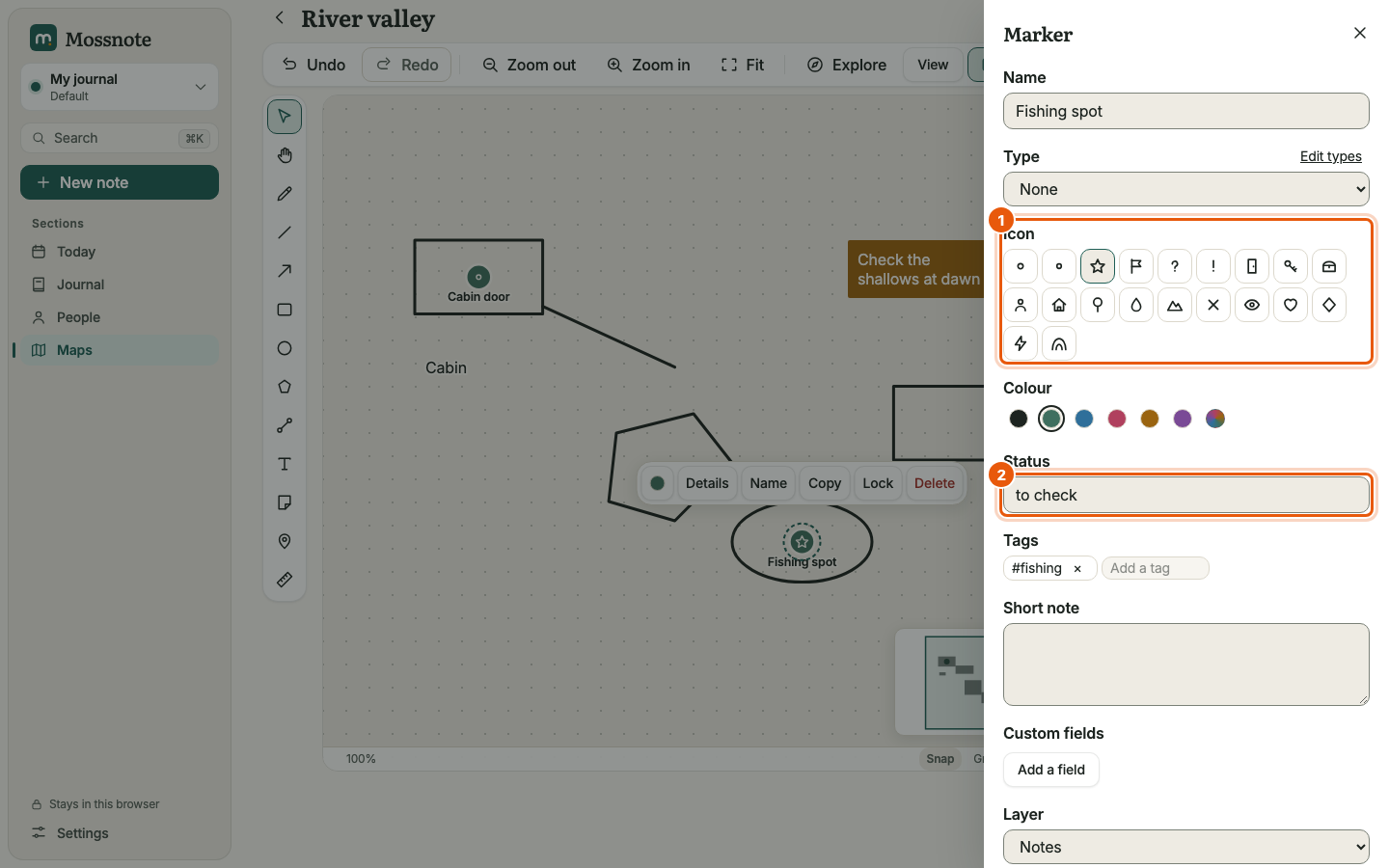
Fishing spot, press Enter. - Choose Select (V), click the Fishing spot marker and choose Details… in the quick bar.
- Pick the star icon, type
to checkas the Status and add the tagfishing.
4. Link a marker to a note#
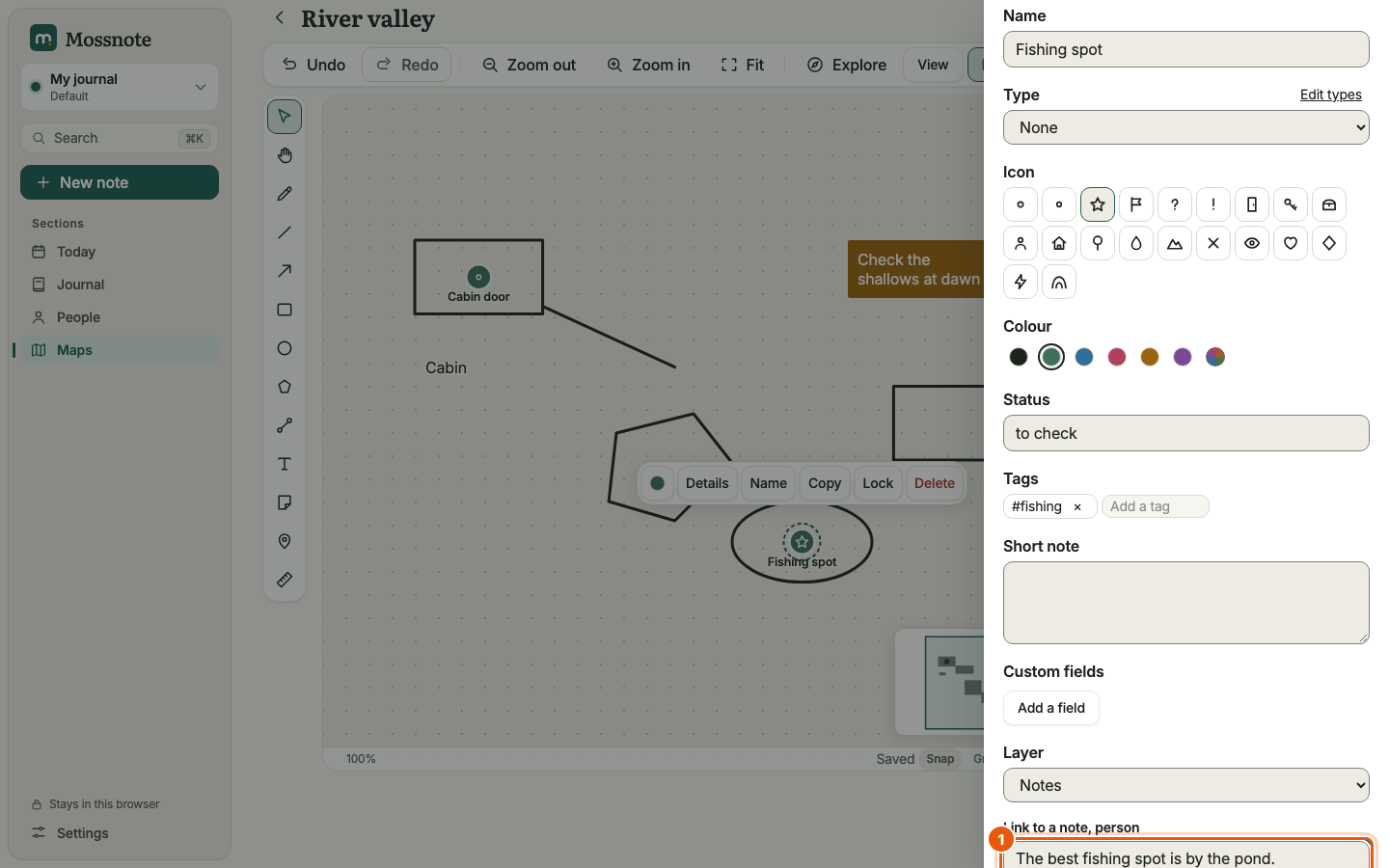
- In the marker panel, click the Link to a note, … field and type
The best fishing spot is by the pond. - Choose Save “The best fishing spot…” as a new note and link it.
- Choose Done.
Expected: the marker panel shows Linked to The best fishing spot is by the pond. In the Journal there is a new note with that text. Open it: under On maps it lists Fishing spot · River valley, and choosing it takes you back to the marker.
5. Try exploring mode#
When you are playing and do not want to hunt for tools, use Explore.
- Choose Explore (or press E).
- Tap the map to drop a marker, type its name, press Enter.
- Choose Path and draw the way you went. It starts from your last marker.
- Choose Note, tap the map and type; ⌘Enter finishes the note.
- Choose Done to leave exploring mode.
6. Tidy up#
- Open the Layers tab to hide or lock groups of objects. See Layers.
- Turn on View → Grid and Rulers and guides, and use Measure with your own units. See Measuring.
- Select several objects and use Align and Space across in Details.
7. Save a history point and export#
- Choose History, type
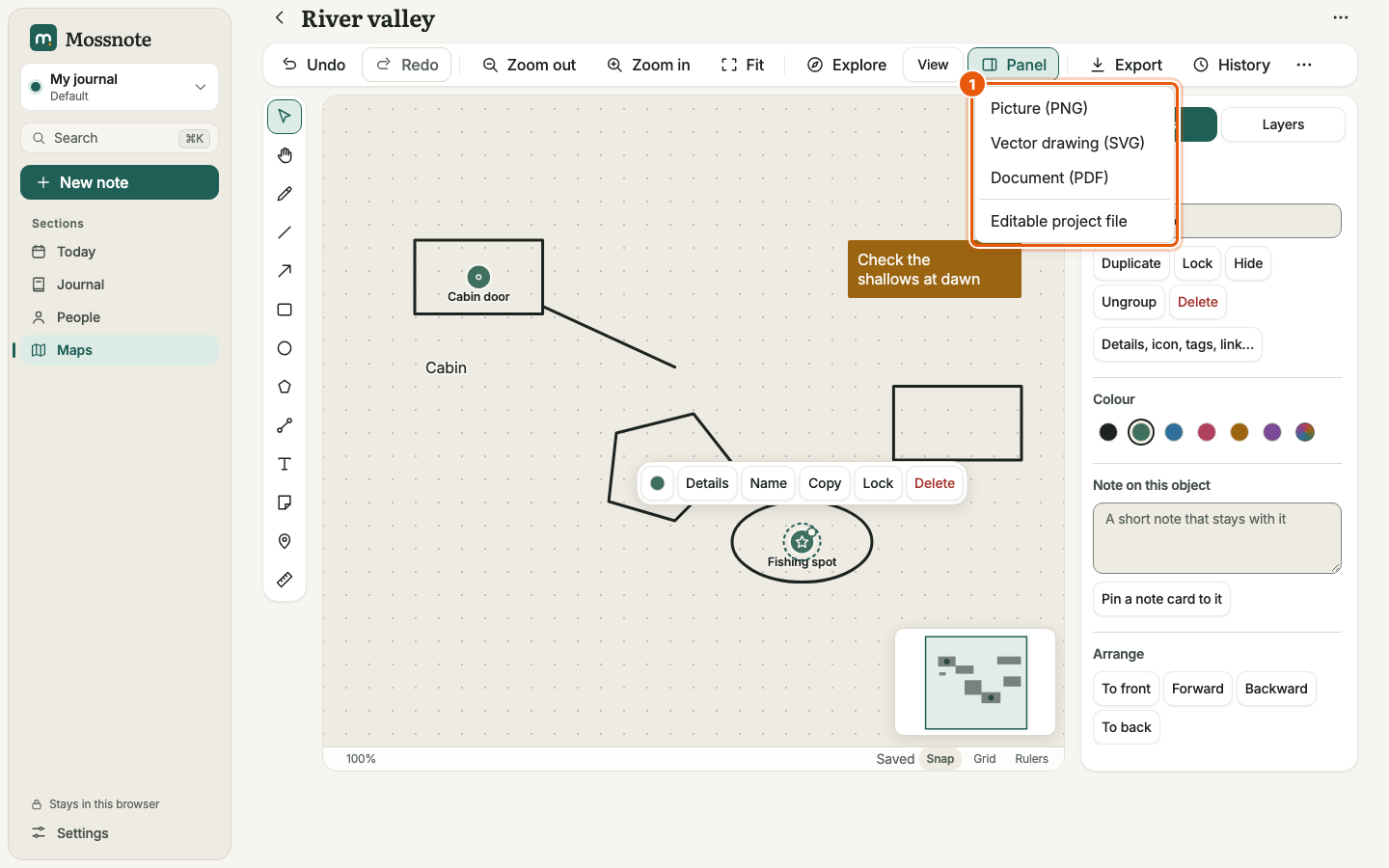
first draftand choose Save version. - Choose Export and pick Picture (PNG) to share a picture, or Editable project file to keep the map itself.
Expected: a file named after the map (River valley.png or River valley.mossmap.json) downloads. You can open the project file later with Open a map file on the Maps page.
8. Find it again#
Back on the Maps page, Places lists every marker. Search for fishing and the marker, its note and the tag all turn up. See Finding markers again.