Maps
Drawing tools
Every map tool, how to select and edit objects, tidy-up drawing, snapping, styles, text and connectors.
The tools#
Choose a tool in the strip on the left, or press its letter when the cursor is not in a text box. A short hint for the current tool appears when you point at it.
| Tool | Key | How to use it |
|---|---|---|
| Select | V | Click an object to select it, drag it to move it, drag on empty canvas to select several. Hold Shift to add to a selection Not verified |
| Pan | H | Drag to move around the map. |
| Draw | B | Draw freehand. Rough shapes are tidied up for you (see below). |
| Line | L | Drag from one point to another. |
| Arrow | A | Drag from the tail to the head. |
| Box | R | Drag a rectangle. Hold Shift for a square. |
| Circle | O | Drag an oval. Hold Shift for a circle. |
| Area | Y | Click each corner of a shape. Double-click or press Enter to finish. |
| Connect | C | Drag from one object to another to join them with a connector that follows them when they move. |
| Text | T | Click to type a label. Enter finishes; Esc cancels. |
| Note | S | Click to place a sticky note. ⌘Enter finishes (plain Enter adds a new line); Esc cancels. |
| Marker | K | Click to drop a marker, then type its name. See Markers. |
| Measure | M | Drag to measure a distance. See Measuring. |
After you draw something the editor switches back to Select, unless you turn on View → Keep the tool after drawing.
Tidy-up drawing#
With the Draw tool, a rough stroke that looks like a line, an arrow, a rectangle, a circle or a polygon is replaced by the clean shape. A message appears: Tidied up as rectangle. with Keep my drawing, which puts your original stroke back.
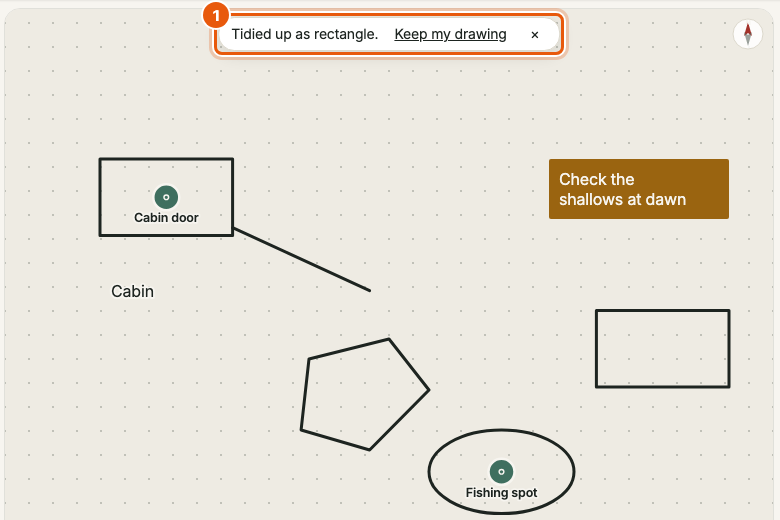
Turn the behaviour off in View → Tidy up rough shapes; strokes then stay exactly as you drew them.
Selecting and editing#
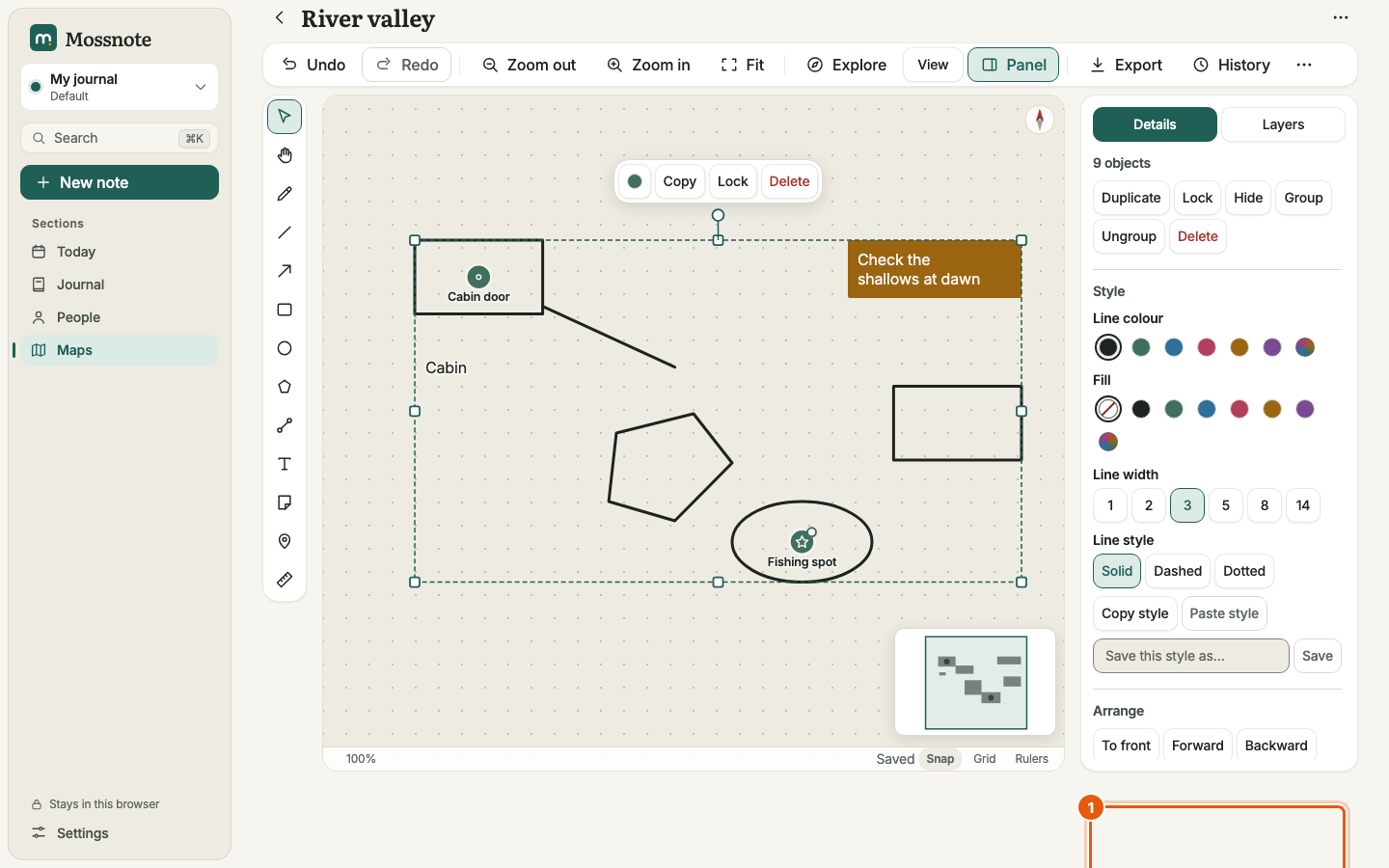
Select an object to see handles on it. Drag the corners to resize, the round handle above it to rotate, and the body to move. When something is selected, a small quick bar floats near it, and the Details tab fills with options.
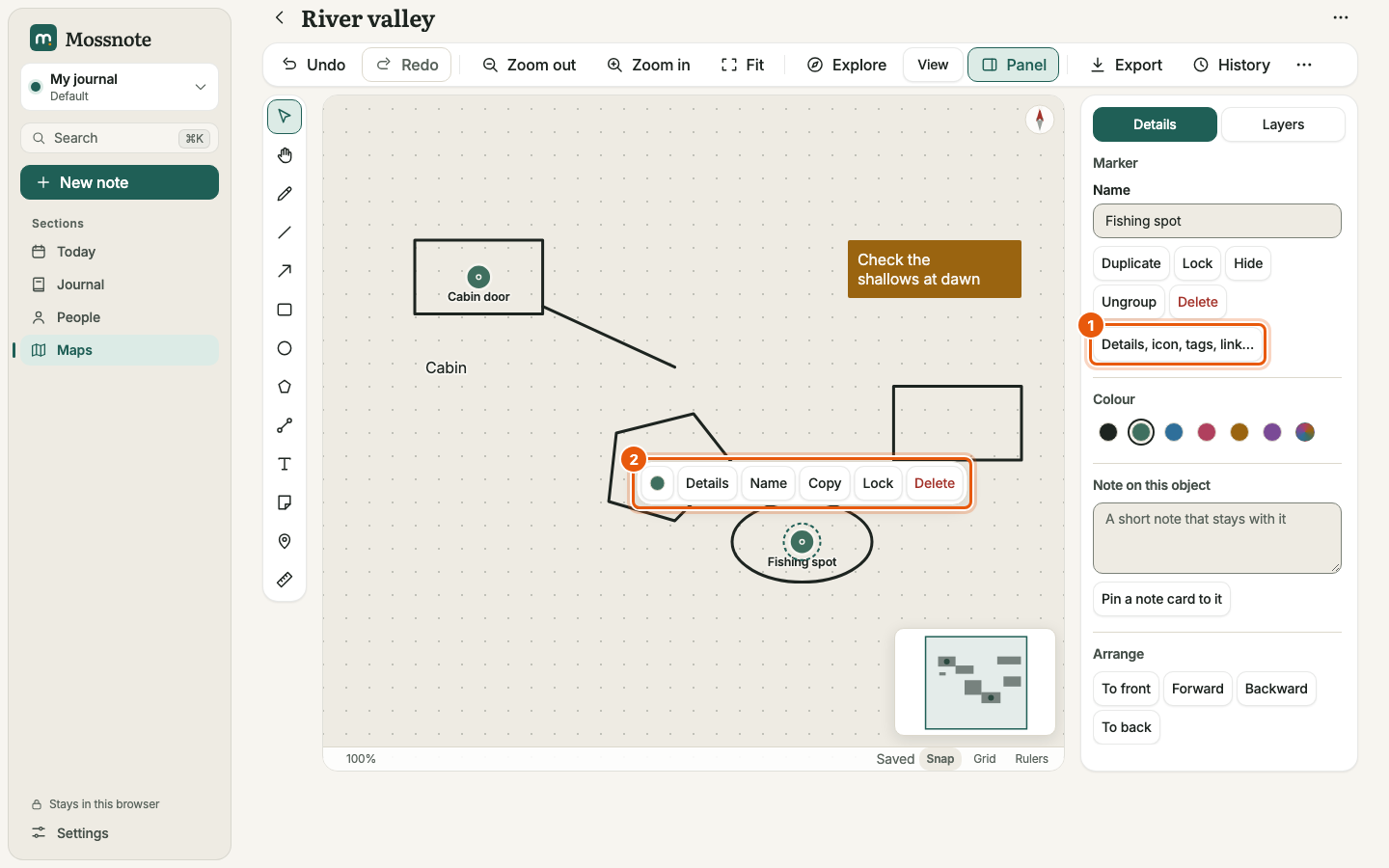
| What | How |
|---|---|
| Move | Drag. Hold Shift to move in one direction only. The arrow keys nudge by 1; Shift with an arrow nudges by one grid step. |
| Resize, rotate | Drag the handles. Shift keeps proportions. |
| Rename | F2, the Name field in Details, or Rename in the right-click menu. The name shows in the Layers list and, for markers, on the map. |
| Copy, cut, paste, duplicate | ⌘C, ⌘X, ⌘V, ⌘D. These use an in-app clipboard, not your system clipboard: it holds copied objects (and copied styles) while the app stays open, so you can copy in one map and paste in another. |
| Group, ungroup | ⌘G, ⌘ShiftG. |
| Order | To front / Forward / Backward / To back in Details, or ⌘] and ⌘[ (add Shift for front and back). |
| Lock, hide | Lock protects an object from accidental changes; Hide removes it from view. Both also live in the Layers list, for single objects and whole layers. |
| Delete | Delete or the Delete button. |
| Select all | ⌘A. |
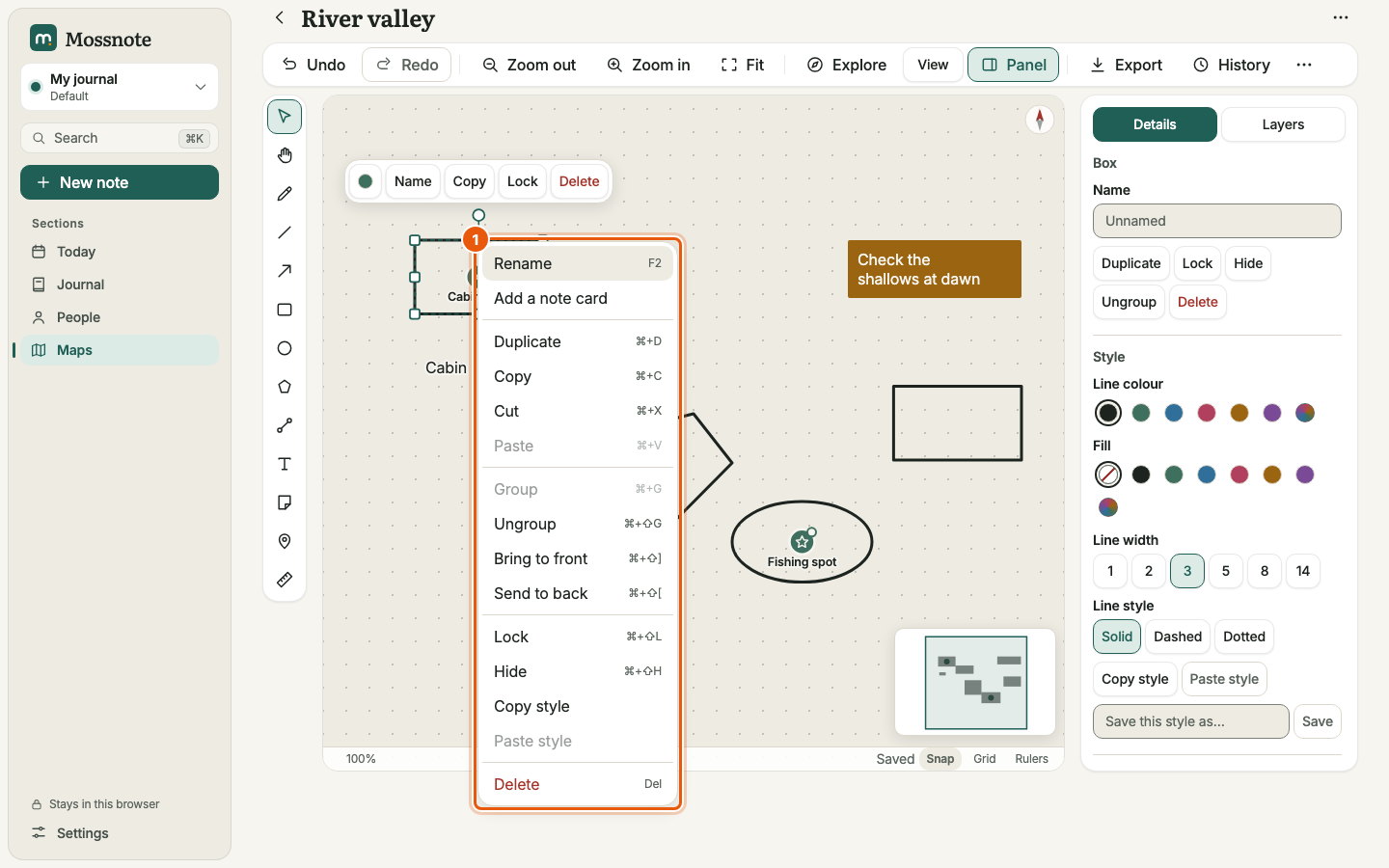
Right-click an object for a menu with the same actions plus Add a note card, Copy style and Paste style. Right-clicking empty canvas offers Paste, Select all, Fit the whole map, and toggles for the grid and snapping.
Several objects at once#
Select two or more objects and the Details tab adds Align (left, centre, right, top, middle, bottom) and Space across / Space down (needs three), Same width and Same height.
Style#
With nothing selected, Details → New drawings sets the style used for the next things you draw. With something selected, the same controls change that object.
- Line colour and Fill: six named colours (ink, moss, sky, rose, amber, plum) that adapt to light and dark themes, plus a Custom colour picker. Fill can be none.
- Line width: 1, 2, 3, 5, 8 or 14.
- Line style: Solid, Dashed or Dotted.
- Copy style / Paste style moves a look from one object to another.
- Save this style as… names the current style and keeps it as a preset you can apply later.
- Boxes also have a Corners setting for rounded corners.
Text, notes and cards#
The Text tool, the Note tool and Add a note card all make text objects. In Details, Kind switches an object between Text (a plain label), Card, Callout and Sticky, and Size changes the type size. Any object (not only text) can have a Note on this object, a short note up to 500 characters that stays with it. Pin a note card to it places that text on the map as a card.
Lines, arrows and connectors#
A line or arrow drawn between two objects with the Connect tool stays attached and follows them. In Details you can choose the route (Straight, Curved or Elbow), the arrowheads (None, One end, Both) and reverse its direction.
Snapping, grid and guides#
While you draw or move, Mossnote can snap to points and edges of other objects, to alignment lines with other objects, to the grid, and to angles every 15°. Turn the master switch with Snap in the status bar or ShiftS, and each kind in View → Snapping. Hold Alt to pause snapping while you drag.
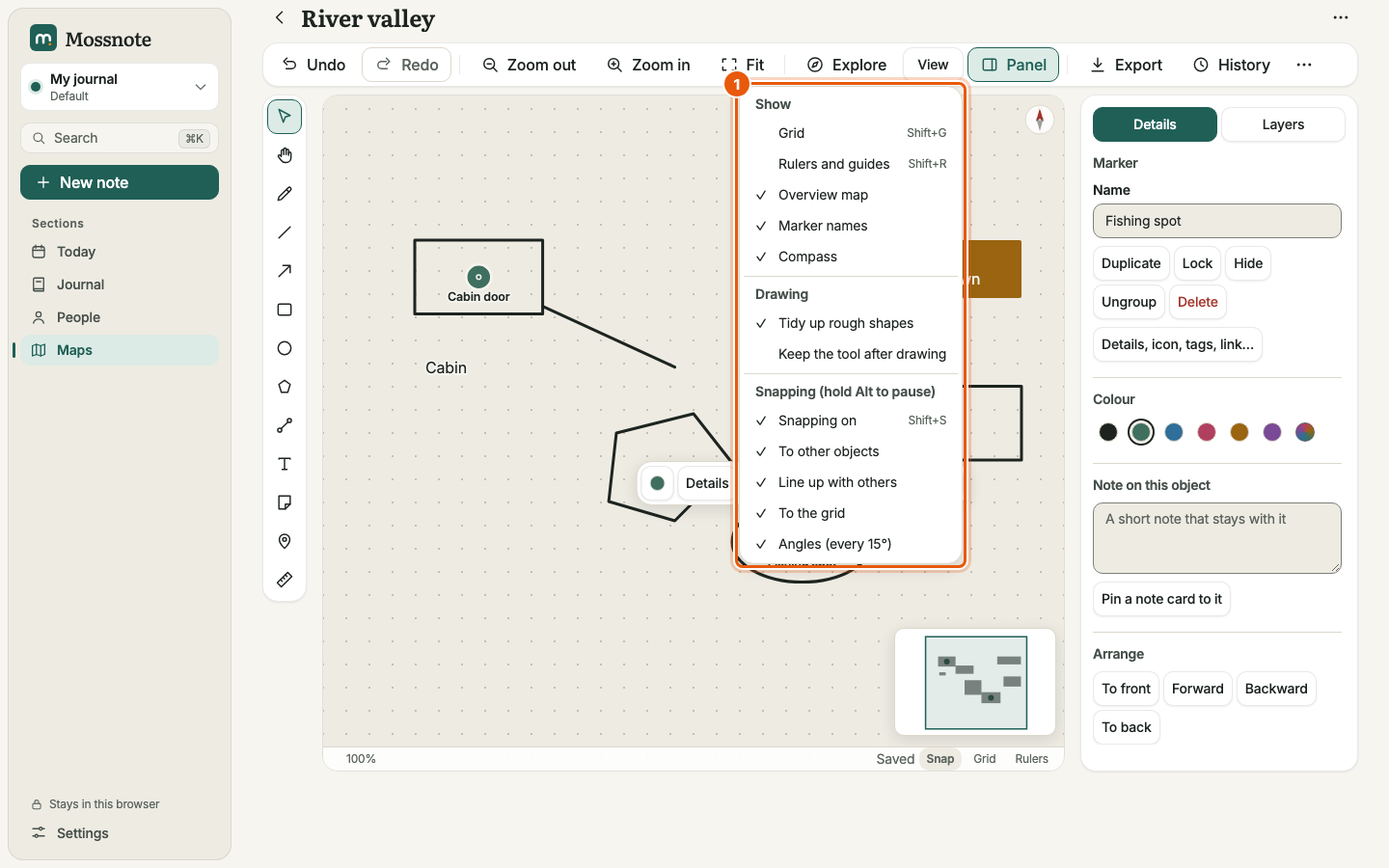
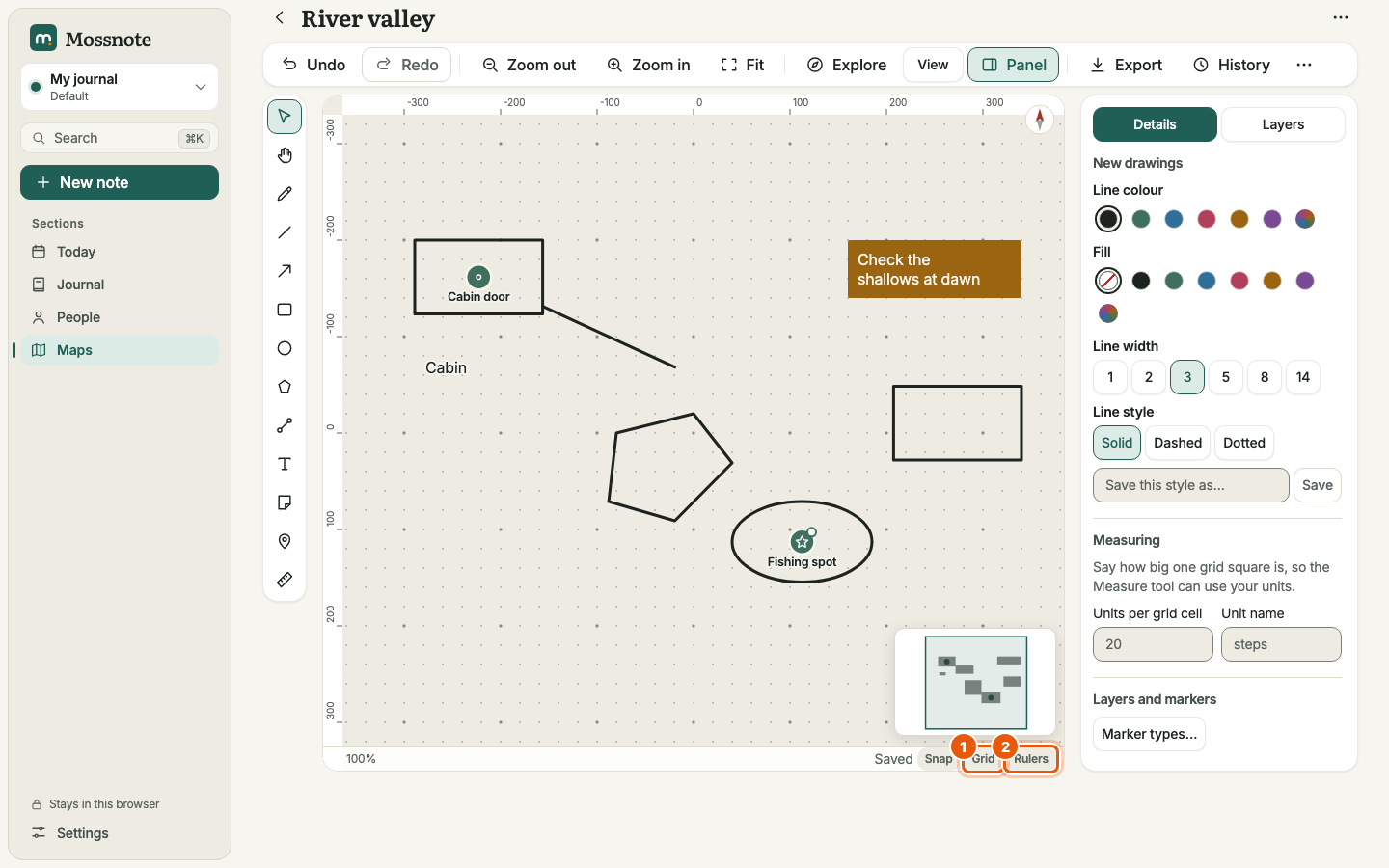
- Grid (ShiftG) shows a grid. With it off you see a quiet dot lattice instead.
- Rulers and guides (ShiftR) shows rulers along the top and left. Drag from a ruler onto the canvas to create a guide line that objects snap to (up to 50 per map). Drag a guide to move it.
- Overview map, Marker names and Compass toggle those items.
Measuring#
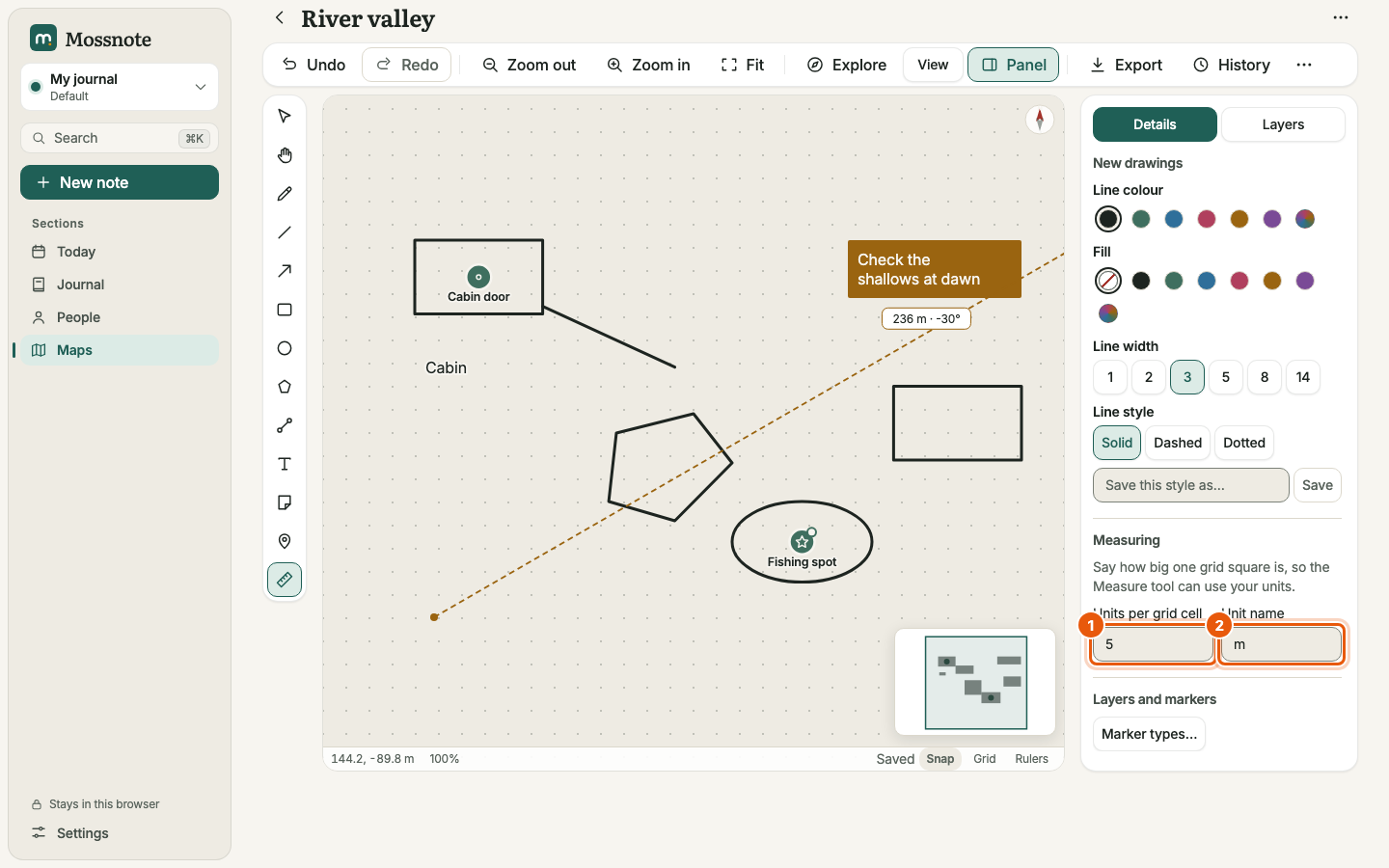
The Measure tool shows a distance and an angle while you drag. By default one grid square is 20 steps. To use your own units, open Details with nothing selected and fill in Units per grid cell and Unit name under Measuring. The readout then uses them, for example 236 m. The reading disappears when you let go; it is not saved on the map. Selecting a polygon also shows its area in the Details panel.