Everyday use
People
Keep a page for everyone you meet, with progress, tags, your own fields and every note that mentions them.
The People section holds one page per person. In the Stardew Valley template it is called NPCs. A person's page is built only from what you record: Mossnote has no built-in characters.
Add people#
There are three ways to create a person:
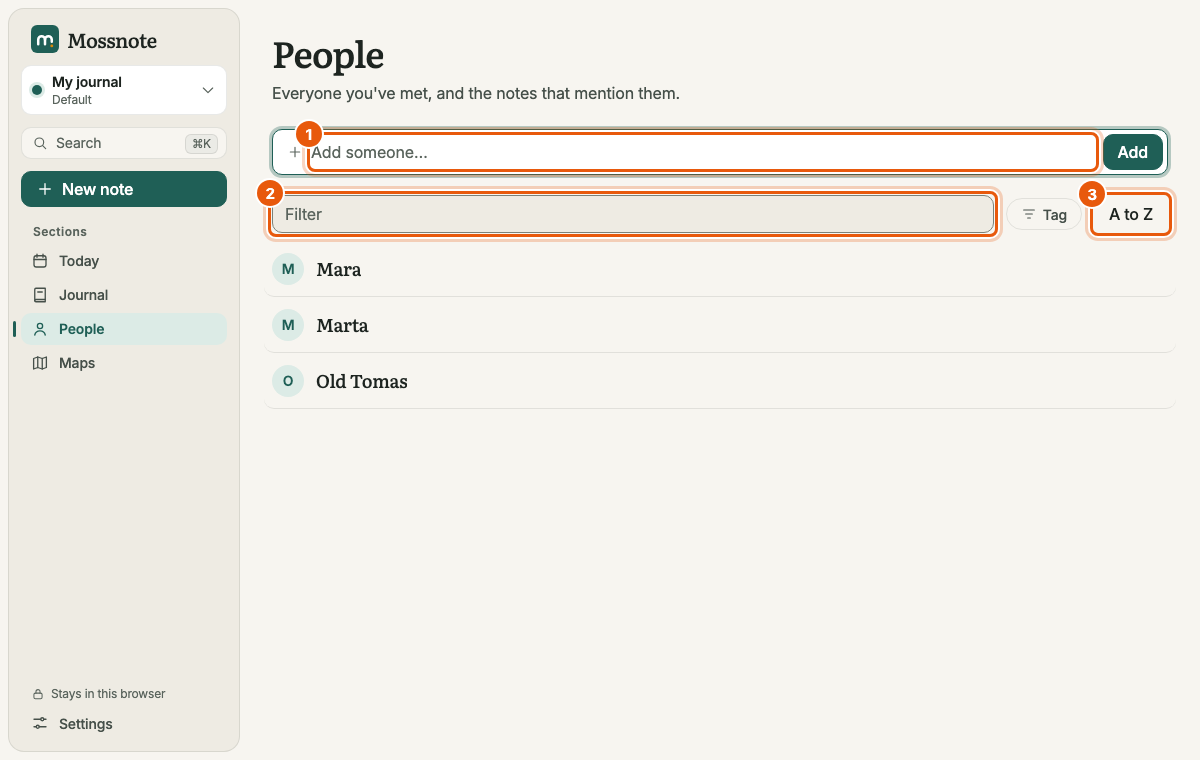
- Type a name in the Add someone… row at the top of the People page and press Enter (or Add). Names can be up to 80 characters. If someone with that name already exists, the row says so and offers Open them.
- Type
@and a name in a note, then choose Create person ‘Name’. See Writing notes. - Use Link in the note box and choose a person.
The list#
- Each row shows a monogram, the name, a progress indicator if you track one, and the person's tags.
- Filter narrows the list as you type.
- Tag filters to one tag. The tag then shows as a chip you can remove.
- The sort button switches between A to Z and Recently updated.
- With no one yet, the page says No people yet. Add someone above, or type @ in a note.
A person's page#
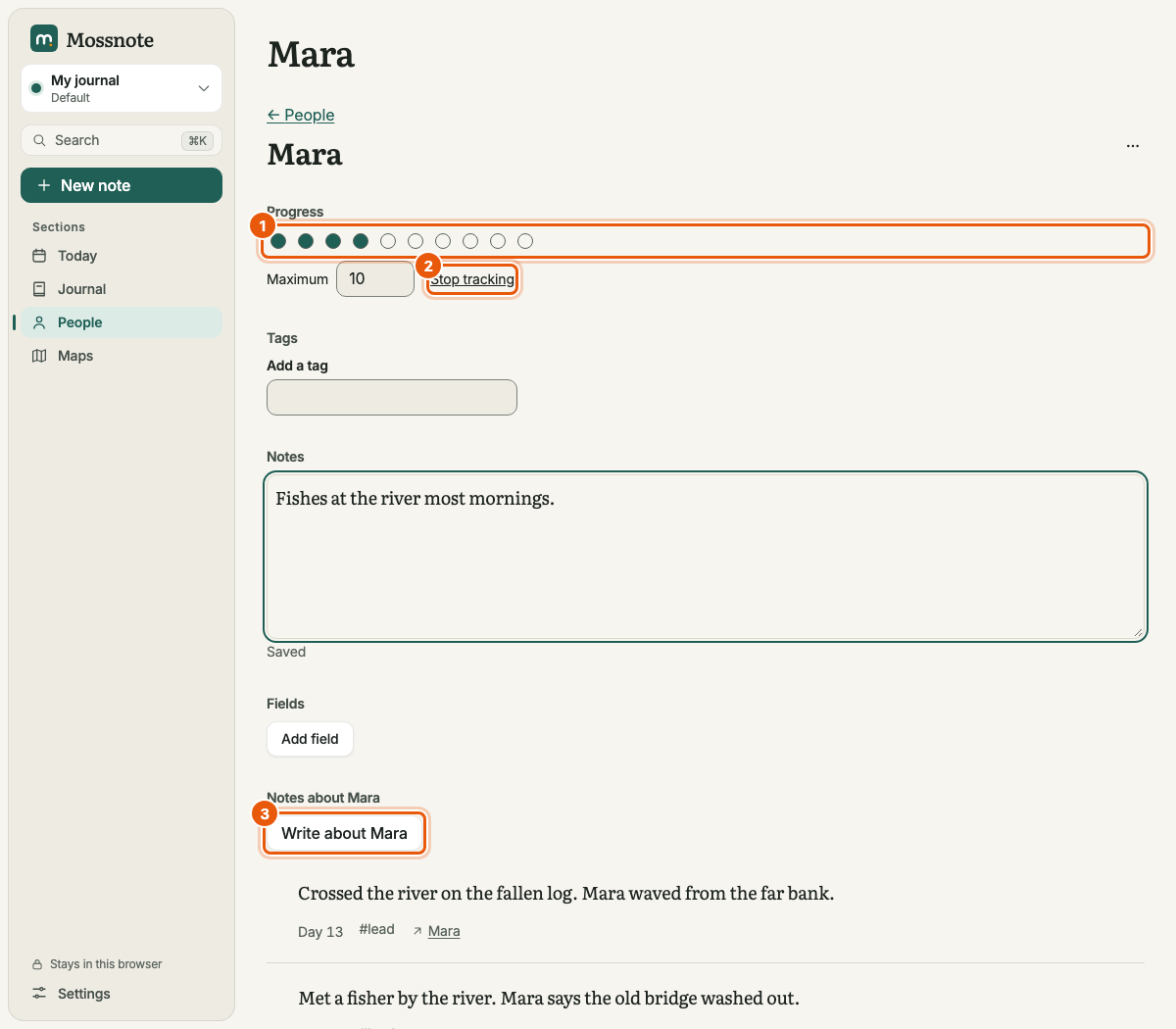
- Name
- Click the name to edit it. It saves when you press Enter or click away. A name cannot be empty.
- Progress
- Choose Track progress, enter a maximum from 1 to 99 and choose Set. A row of dots appears. Click the nth dot to set progress to n; click the current dot again to clear it to zero. With the keyboard, use the arrow keys to move. You can change the maximum later (lowering it below the current progress asks first) or choose Stop tracking. Progress is just a counter you define. Use it for anything: friendship hearts, trust, a quest that has several steps.
- Tags
- Type a tag and press Enter to add it. Tags on a person use the same list as tags on notes. See Tags.
- Notes
- A free-text description (up to 20,000 characters) that saves by itself a moment after you stop typing and shows a quiet Saved.
- Fields
- Your own label-and-value pairs, for example Birthday and Spring 5. Add field adds a row. Up to 30 fields per person, labels up to 40 characters, values up to 500. Label suggestions come from labels you already used on other people. A label cannot repeat on the same person.
- Notes about this person
- Every note that links to them, newest first. Write about … opens a note window with the link already attached.
- On maps
- If a map marker is linked to this person, a list of those markers appears here and each opens the map at that marker.
Deleting a person#
Open the ⋯ menu on a person's page and choose Delete. The person goes to Recently deleted for 30 days, where you can restore them. If you open a deleted person's address, the page says This person isn't here and links to Recently deleted.