Journals and templates
Stardew Valley template
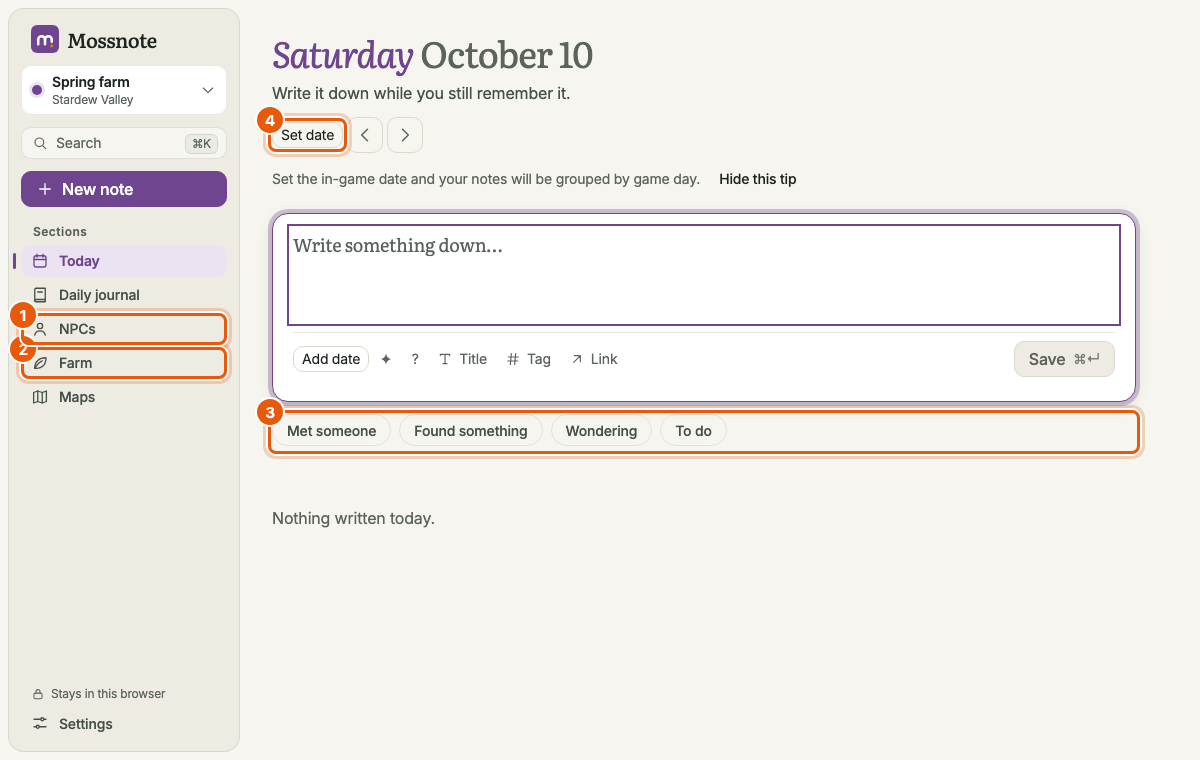
The Farm section, the calendar of seasons, NPCs and the four quick actions that the Stardew Valley template adds.
The Stardew Valley template is the Default template plus a Farm section, a calendar of four seasons, four quick actions under the note box, and different names for two sections. Its tint is plum. Like every template it contains no game information: the seasons are just names you can change, and every crop, villager and place in your journal is something you typed.
What is different#
| Area | Default | Stardew Valley |
|---|---|---|
| Journal section is called | Journal | Daily journal |
| People section is called | People | NPCs |
| Farm section | No | Yes, called Farm; its entries are called crops |
| Calendar | Day counter | Four seasons of 28 days, editable |
| Quick actions | None | Met someone, Found something, Wondering, To do |
| Today extras | Recent discoveries, open questions | Also Growing |
The calendar of seasons#
Dates look like Spring 3 · Year 1. The Farm list leaves the year out when it is the current year. Set today's date with the picker (how); moving to the next day rolls Summer 28 over to Fall 1 and Winter 28 into Spring 1 of the next year. Rename seasons or change their lengths in Settings → Calendar.
Quick actions#
Four pill buttons sit under the note box. Each one sets a flag or tag on the note you are writing, so a note taken in the middle of play takes one tap instead of several.
| Button | Sets |
|---|---|
| Met someone | The tag #met |
| Found something | The discovery flag ✦ |
| Wondering | The question flag ? |
| To do | The tag #tasks |
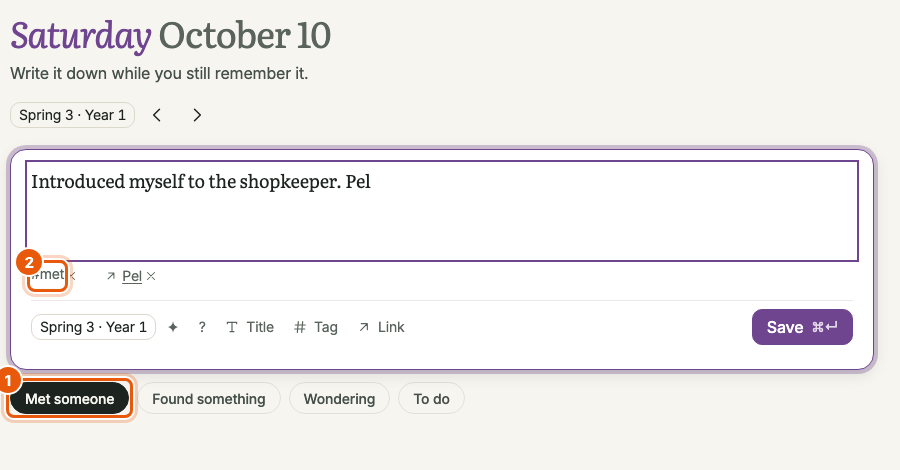
#met tag has been added to the note.- Tap a button again to turn it off. Several can be on at once. We confirmed that the flag buttons toggle the flags and that Met someone and To do add and remove their tags.
- The tags are created the first time you use them. The buttons never create anything on their own.
- To hide the row, untick Show quick actions above the note box in Settings → Template and sections.
NPCs#
This is the People section under another name. Use Track progress on an NPC's page to count anything you like with a row of dots, such as friendship steps. Mossnote does not know how many steps a game has: you set the maximum, from 1 to 99.
The Farm#
The Farm lists what you have planted. An entry is "a crop" in this template's words, but you can record anything that has a planted date and a harvested date.
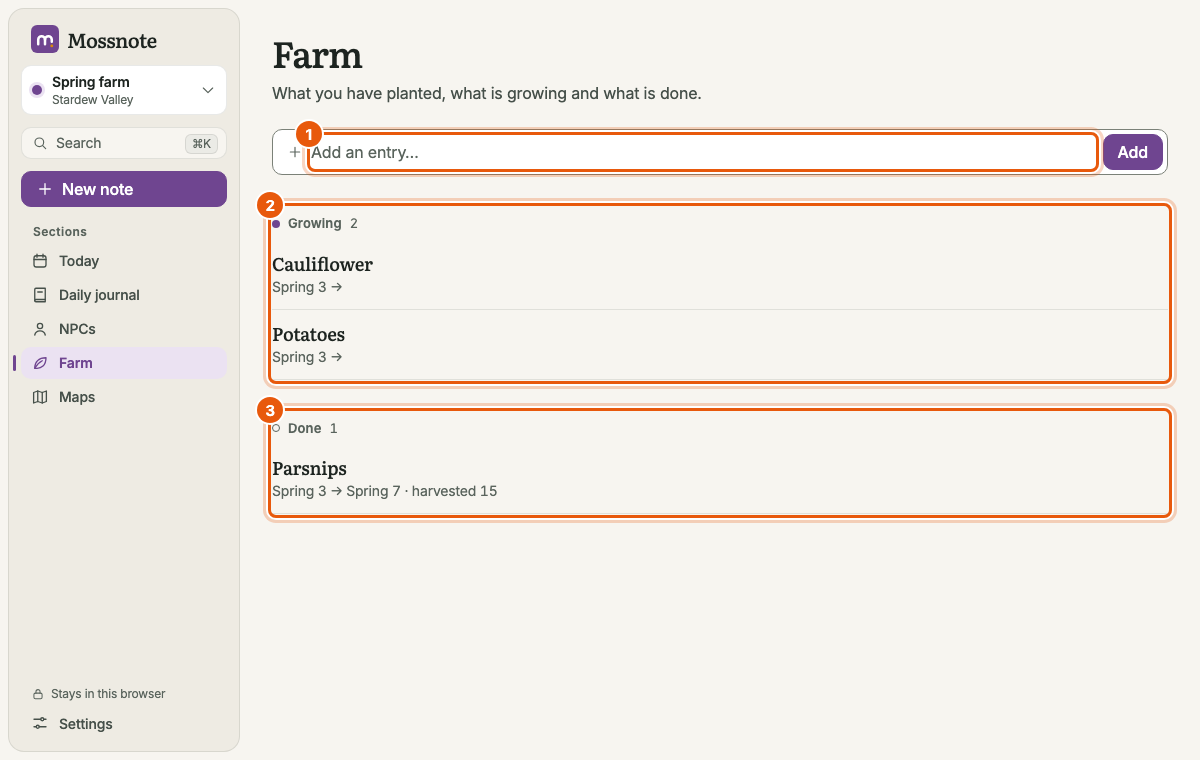
- Add an entry by typing a name (up to 80 characters) in Add an entry… and pressing Enter. Names you used before are suggested as you type. If an in-game date is set, the entry starts as planted on that date.
- Entries are grouped. Growing has a planted date and no harvest. Done has a harvest date. Noted has neither (you recorded it but have not planted it, or no date was set). Each group shows a count.
- Each row shows its name, then its dates (for example Spring 3 → Spring 7, with the year added when it differs from the current year) and counts (planted 20, harvested 15), and its tags on the right.
Harvesting and planting again#
Point at (or focus) a row to reveal its quick action. On a touch screen the action is always shown.
- On a Growing entry choose Harvested today. It records the current in-game date as the harvest date. (With no date set, a date picker opens instead.)
- A Harvested count box opens. Type a whole number from 0 to 999,999 and press Enter or Save, or press Esc to skip it.
- The entry moves to Done. A harvest date earlier than the planting date is refused: Harvest can't be before planting.
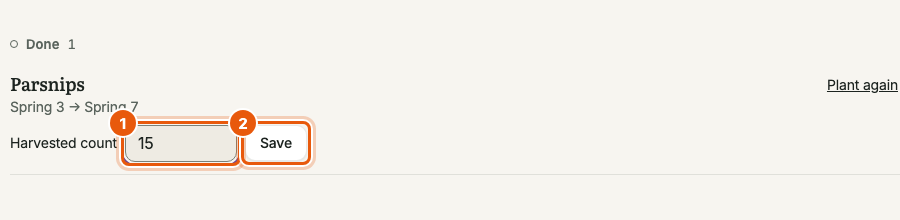
On a Done entry, Plant again creates a new entry with the same name and tags, planted on the current in-game date, so you can track the next round.
An entry's page#
Choose an entry to open its page. On a wide screen it slides in from the right over the list; on a narrow screen it is a full page. It has its own address, closes with Esc or Back, and can be bookmarked.
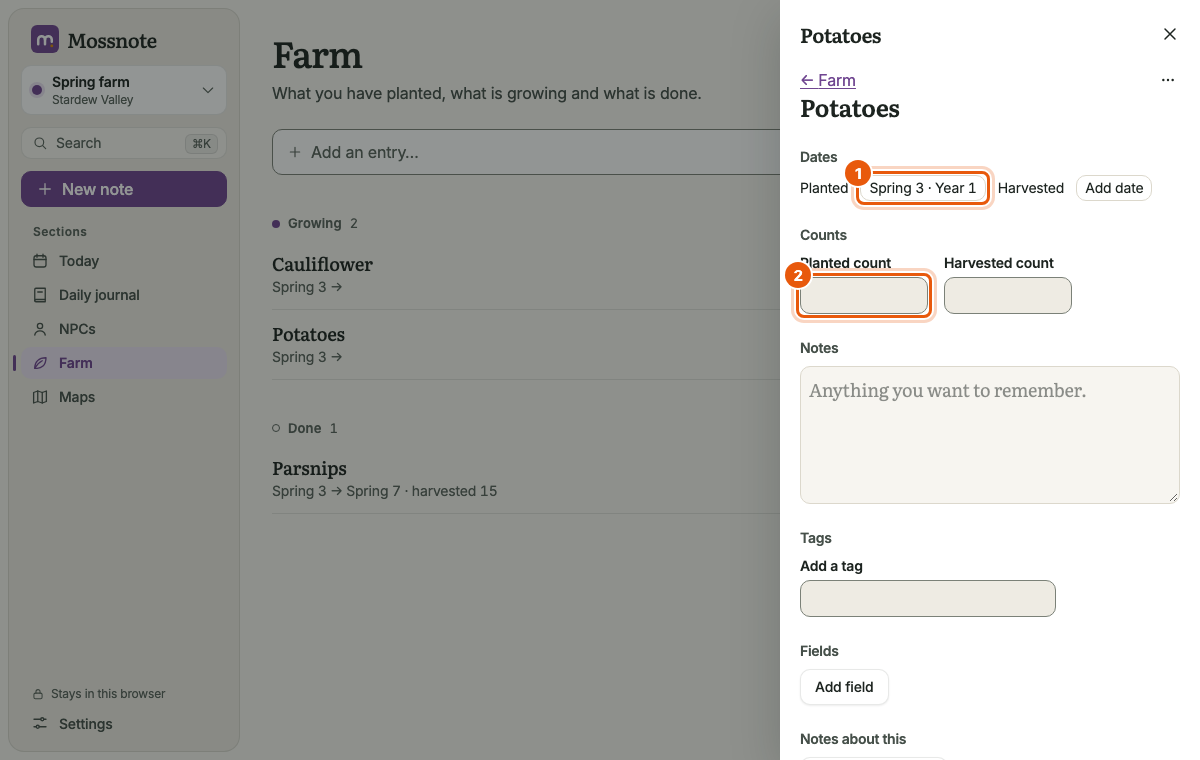
- Name
- Edit it in place.
- Dates
- Planted and Harvested, each a date chip you can set or clear.
- Counts
- How many you planted and harvested (whole numbers up to 999,999).
- Notes, Tags, Fields
- As on a person's page: free text, tags and your own label-and-value pairs.
- Notes about this
- Every note that links to the entry. Write about this opens a note with the link attached.
- On maps
- Map markers linked to the entry.
- ⋯ menu
- Delete, which sends it to Recently deleted.
On Today#
Up to three Growing entries appear on Today with their planted date, and a link to the Farm.
Suggested tags and sections#
The template suggests two tags, tasks and custom notes. Under Settings → Template and sections → Extra sections, a click creates the tag and pins it, so it shows up in the sidebar under Pinned. Neither tag exists until you click.
Things you might expect that are not there#
- No game data. There is no crop list, villager list, gift guide or calendar of events. Mossnote will not suggest one; the project excludes it on purpose.
- No automatic harvest times. Growing is a label, not a timer.
- No completion tracking, statistics or checklists. These are deliberately out of scope.
See Tutorial: a season on the farm for a walkthrough.