Everyday use
Dates and the calendar
How Mossnote tracks the in-game day, how notes get dates, and how to set up or change the calendar.
Mossnote groups your notes by in-game day, not by the real day you wrote them. That way "what happened on Day 12" is one click away even if you played it three weeks ago. Dates are optional: a note without one is simply not dated.
Two kinds of calendar#
| Day counter | Seasons and years | |
|---|---|---|
| Which template | Default | Stardew Valley |
| A date looks like | Day 12 | Spring 3 · Year 1 (the Farm list leaves the year out when it is the current year) |
| Picking a date | Type a number | Choose a year, a season and a day |
| Can you edit the calendar? | No: it just counts days | Yes: rename seasons, set days per season, add or remove seasons |
The current in-game date#
Each journal remembers today's in-game date. It is shown in the date controls under the title on Today. Every note you save from the Today box is stamped with it.
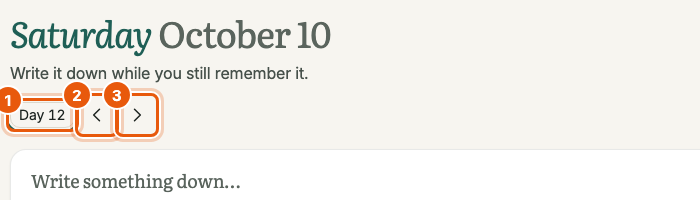
- Set it by choosing the date chip (it reads Set date until you have set one). Press d then s outside a text box, or use Set in-game date in the search window.
- Move it on a day with the › button, or d then n. Go back with ‹ or d then p. The calendar rolls over: Summer 28 is followed by Fall 1, and a season-and-year calendar moves into the next year after the last season.
- Moving the day shows a message such as Now Day 13 with an Undo button.
- Stop dating new notes. The picker has a Stop dating new notes button that clears the current date. Notes you save afterwards have no date until you set one again.
Picking a day number (Default template)#
- Choose the date chip. A small panel opens with a number field.
- Type a day number, or use −, + or the arrow keys.
- Press Enter or choose Set date.
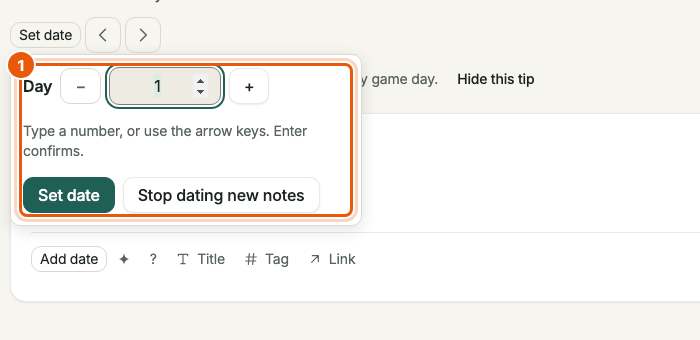
On a phone the picker opens as a sheet from the bottom of the screen instead of a small panel.
Picking a season and day (Stardew Valley template)#
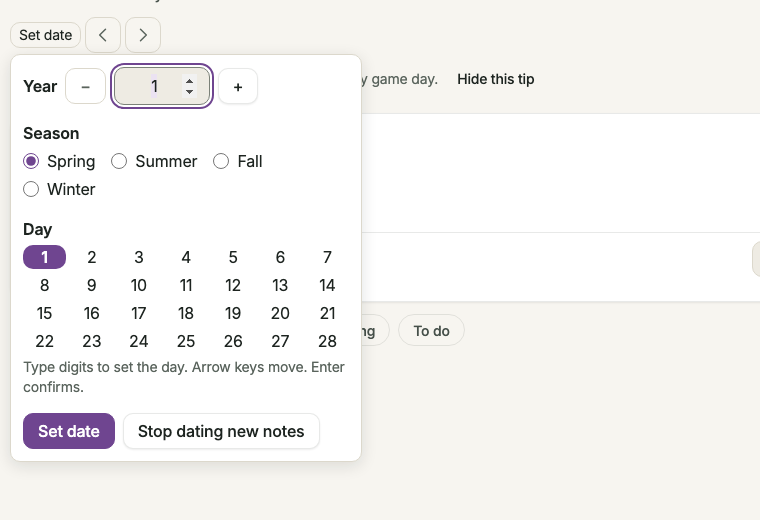
- Choose the date chip. The panel shows Year (with − and + buttons), Season (radio buttons) and Day (a grid).
- Change the year with the number field or the buttons, choose a season, then click a day. With the keyboard, move around the day grid with the arrow keys; typing digits sets the day.
- Choose Set date (or press Enter).
Dates on individual notes#
- A new note gets the current in-game date. Use the date chip in the note box to give it a different one, or Clear date for none.
- For an existing note, use Set date in its ⋯ menu.
- Notes written on a Day page default to that day.
- When no in-game date is set, Today lists the notes you wrote on the real calendar day instead, and shows the tip Set the in-game date and your notes will be grouped by game day. Choose Hide this tip to dismiss it for good.
Editing the calendar (Stardew Valley)#
Open Settings → Calendar. A Default-template journal shows only a note that it just counts days.
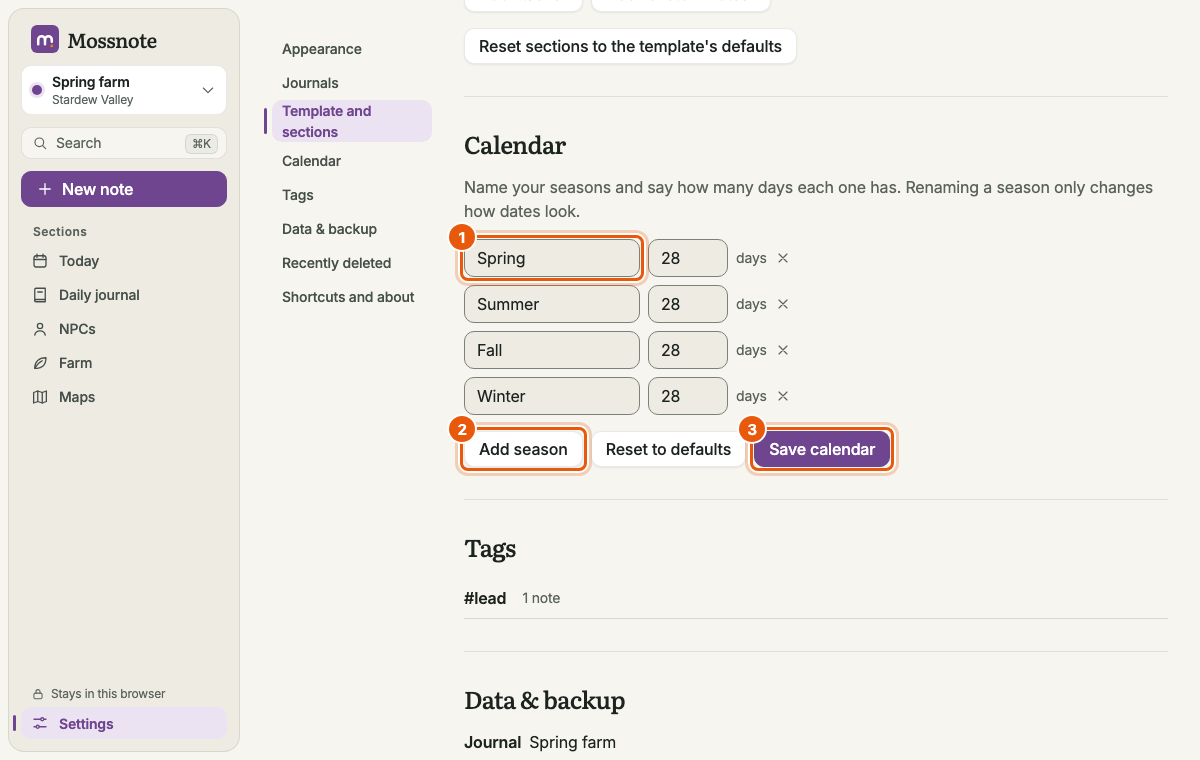
- Each season has a name (1 to 20 characters, different from the others) and a number of days (1 to 99).
- You can have 1 to 12 seasons. Add season and the ✕ button change the list; Reset to defaults restores four seasons of 28 days.
- Save calendar applies the changes. Renaming a season only changes how dates look.
- A change that would leave existing dates without a valid day is refused, and nothing changes. The message says how many records are affected, for example 3 notes use day 3 of Spring.
Dates in search#
You can type a date into search: day 12 with the Default template, or spring 3, y2 summer or year 1 fall 12 with seasons. A season name only needs its first three letters if that is unique.
Good to know#
- Limits. Years run from 1 to 99,999. Days per season: 1 to 99.
- Day counter and "year". The counter calendar is stored as one period of 99 days, so Day 100 is stored as day 1 of year 2. You still see Day 100, and a journal can count to day 9,899,901.
- Exports write each date as year, season and day numbers, plus the season's name for notes. See Export format.