Your data
Phone access
Write in your journal on a phone or tablet while the journal stays on the computer that runs Mossnote.
If you play on the computer that runs Mossnote, you can write on a phone or tablet instead of switching windows. The journal stays on the computer; the phone opens it over your home network. This is only in the computer version. The web version has no Phone section, because it has no server to connect to.
Turn it on and pair a phone#
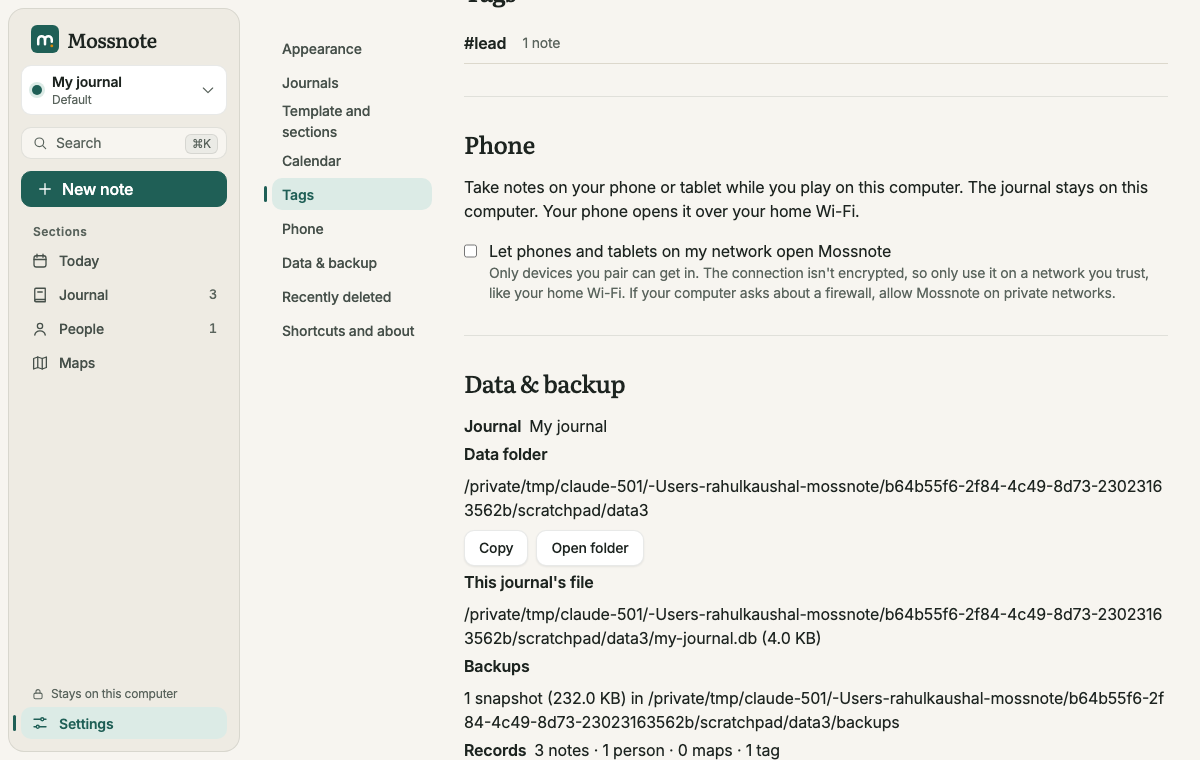
- On the computer, open Settings → Phone.
- Tick Let phones and tablets on my network open Mossnote. If the computer asks about a firewall, allow Mossnote on private networks.
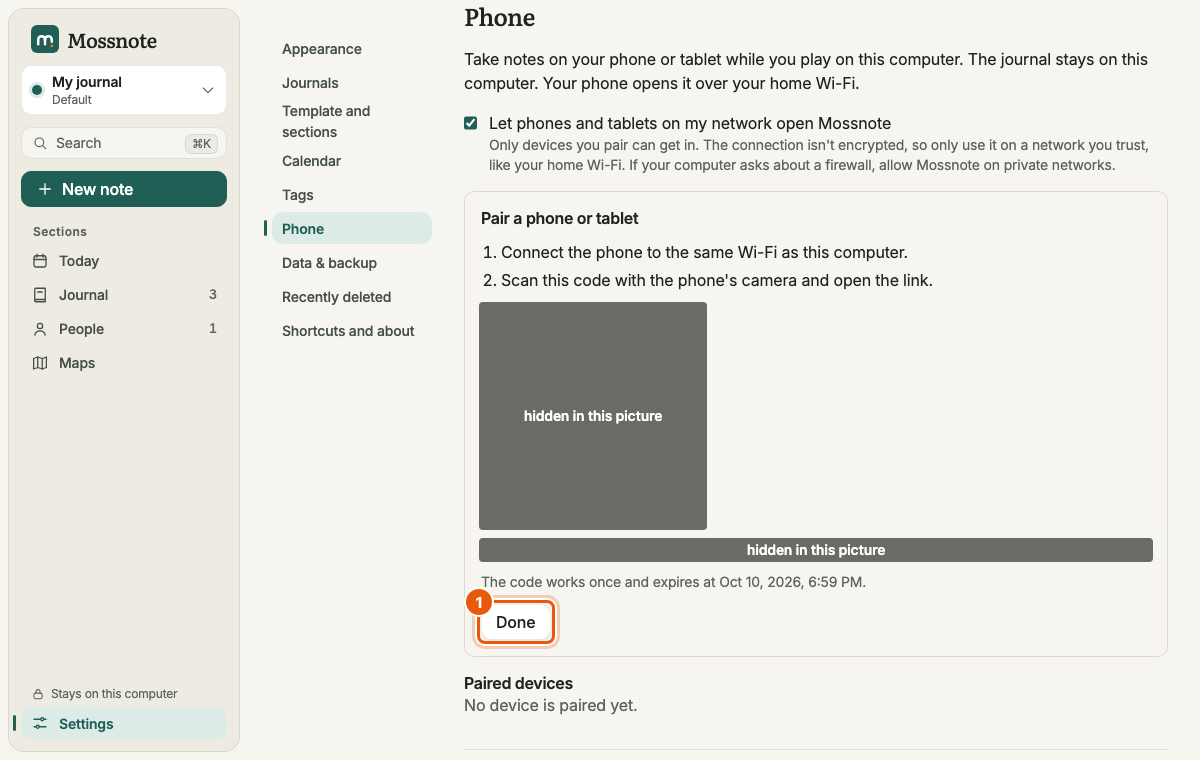
- Choose Show pairing code. A QR code appears with the steps Connect the phone to the same Wi-Fi as this computer and Scan this code with the phone's camera and open the link.
- Scan the code with the phone. Or, if you cannot scan it, open the address shown (
http://<computer>:4317/pair) on the phone and type the code. Codes look likeABCDE-FGHJK. - The phone is paired. Add it to the Home Screen if you like. Choose Done on the computer.
How it stays safe#
- Off by default. Mossnote listens only on the computer itself until you turn this on.
- Only paired devices get in. Anything else is answered with This device is not paired with this computer, or sent to the pairing page. The computer itself is always trusted.
- A code works once, expires after ten minutes, and only one code is live at a time. Ten wrong guesses within a minute lock pairing for a minute.
- Paired phones cannot change phone access or manage the list of devices. That can only be done on the computer.
- The connection is plain HTTP. It is not encrypted, so use it only on a network you trust, such as home Wi-Fi.
Paired devices#
The Paired devices list in the Phone section shows each paired device's name and when it was last seen. Remove unpairs one device, and Remove all devices (after Remove every paired device?) unpairs them all, so each needs pairing again. With none, the list says No device is paired yet. A removed phone sees This device isn't paired anymore with a button to pair again.
Turning it on from the command line#
mossnote --lan(orMOSS_LAN=1) turns phone access on at start.MOSS_LAN=0keeps it off whatever the setting says.- Unset, the choice saved in Settings applies.
If the phone cannot connect#
- The computer must be on and running Mossnote. The phone shows Can't reach your journal with a Retry button and keeps trying every few seconds.
- The phone must be on the same Wi-Fi. A guest network or one with "client isolation" is the usual cause when it will not connect.
- Allow Mossnote through the computer's firewall on private networks.
- If you switch journals on the computer, a phone that is still open on the old one says You switched journals in another window. Reload to keep working here.
See also Troubleshooting.