Start here
A tour of the screen
Every part of the Mossnote window, on a computer, a tablet and a phone, and what each control does.
On a wide screen#
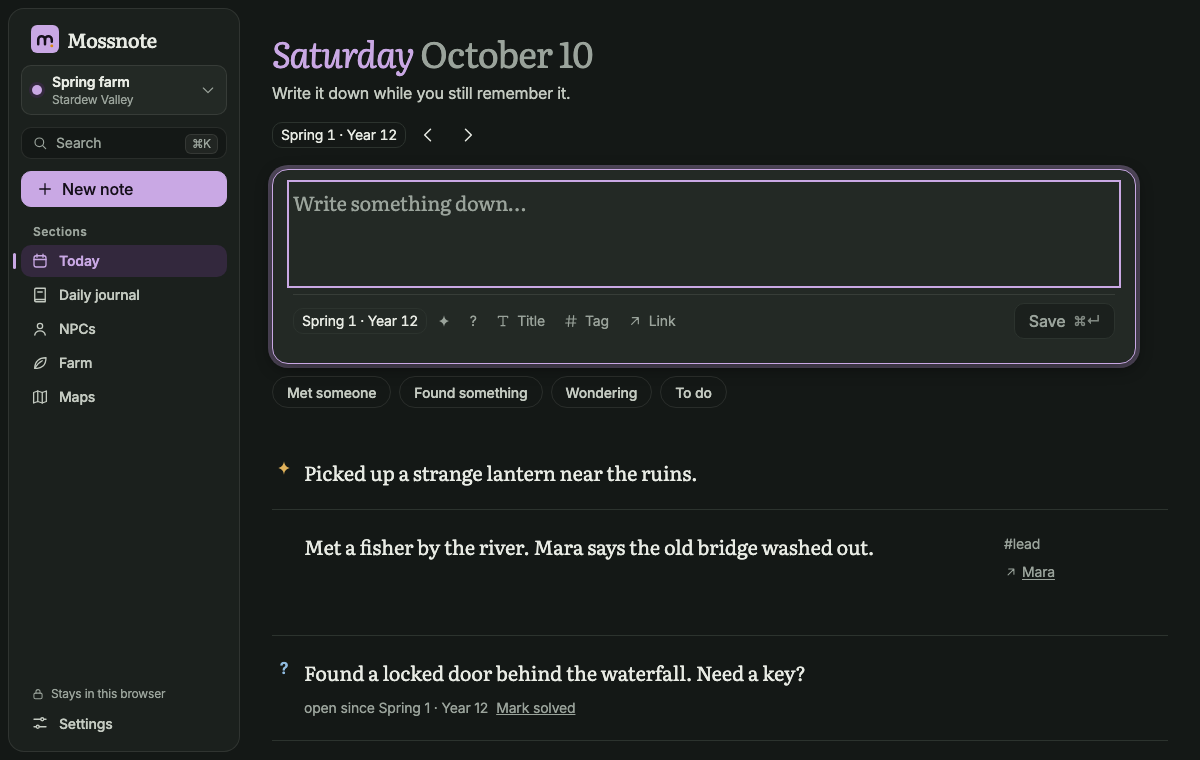
From 900 pixels wide up, Mossnote shows a floating sidebar on the left and one centred column of content.
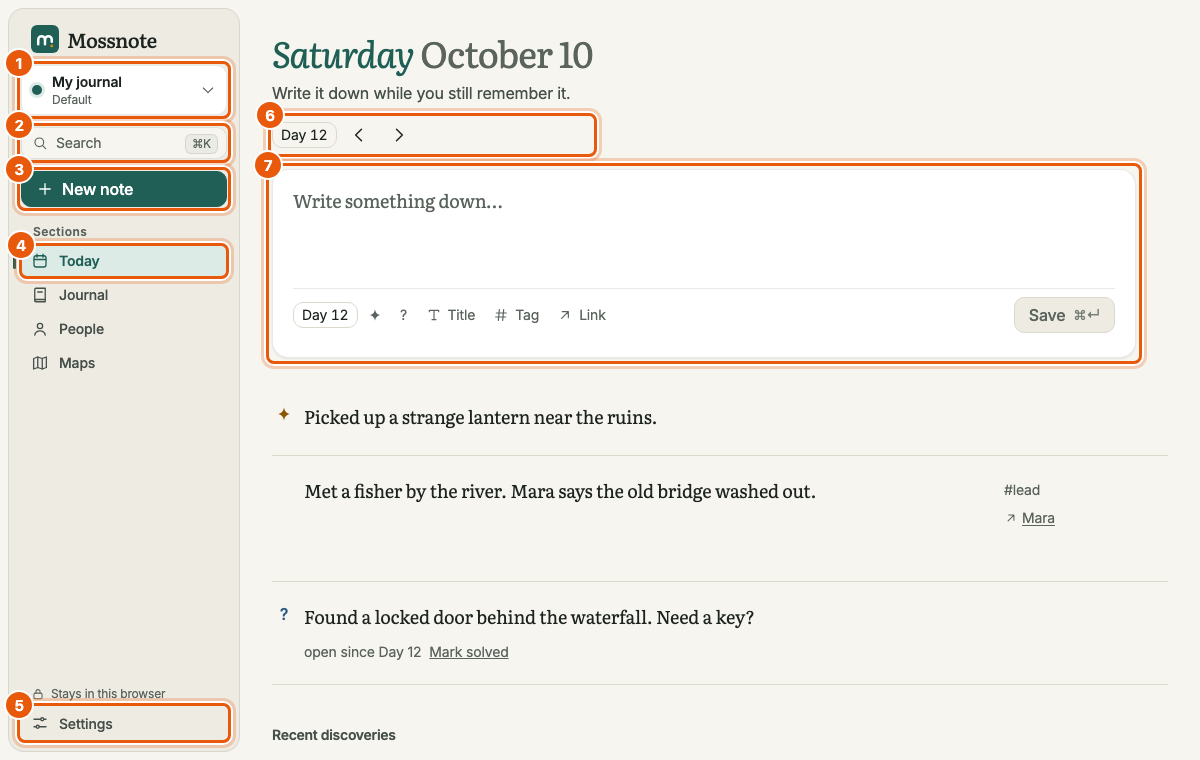
- Journal switcher. Shows the journal you are in and its template. Open it to switch journals, make a new one, rename this one, or go to Manage journals. See Journals.
- Search. A search field with its shortcut (⌘K or CtrlK). See Search.
- New note. On Today it moves you to the note box. On other pages it opens a small New note window to write in.
- Sections. Today, Journal, People and Maps, plus Farm in the Stardew Valley template. The Journal, People, Farm and Maps entries show how many records you have (no number is shown when there are none). The numbers can run a little behind right after you add something, and catch up as you move around. The current page is tinted with a marker beside it. You can rename, hide and reorder sections in Settings.
- Pinned tags. Below the sections, up to eight tags you have pinned appear under Pinned. Choosing one opens the Journal filtered to that tag. See Tags.
- Where it is kept. A small line near the bottom says Stays on this computer or Stays in this browser.
- Settings. Opens Settings.
The page itself has a title, a short line of help, and the controls for that page. On Today, the title is the real weekday and date; the in-game date controls sit under it.
On a tablet#
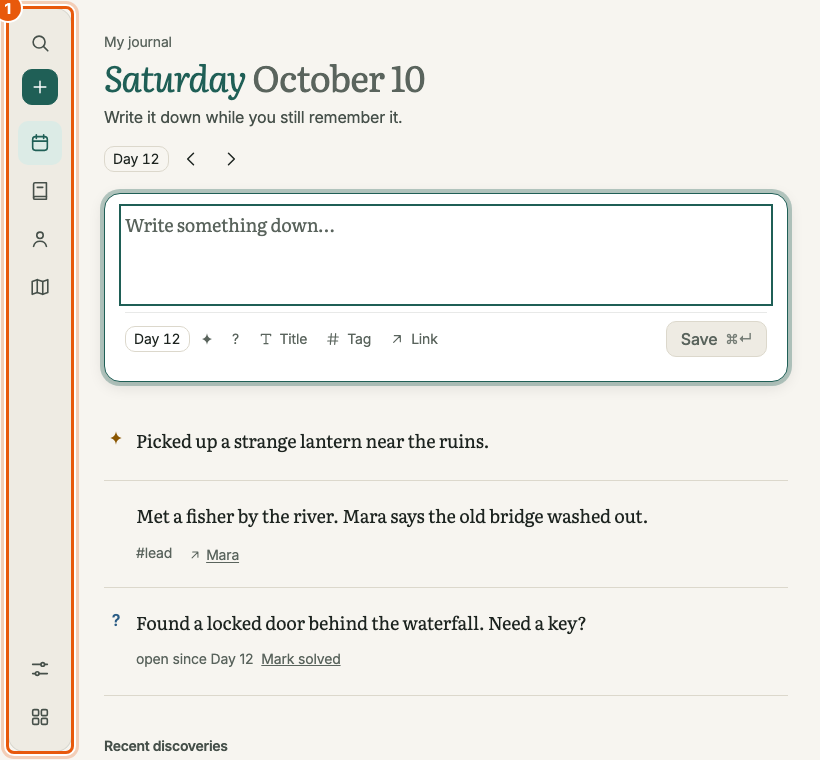
Between 640 and 899 pixels the sidebar becomes a slim rail of icons: search and new note at the top, then the sections, and Settings and a More button at the bottom.
On a phone#
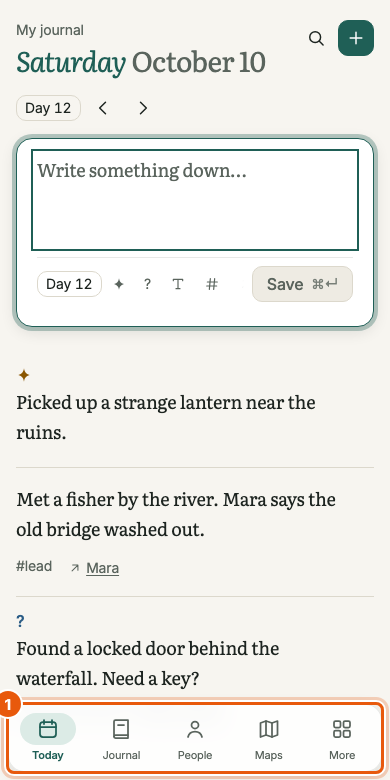
Below 640 pixels there is a floating bar along the bottom with Today, Journal, People, Maps and More (and Farm in the Stardew Valley template). The journal's name, a search button and a + new-note button sit at the top of each page.
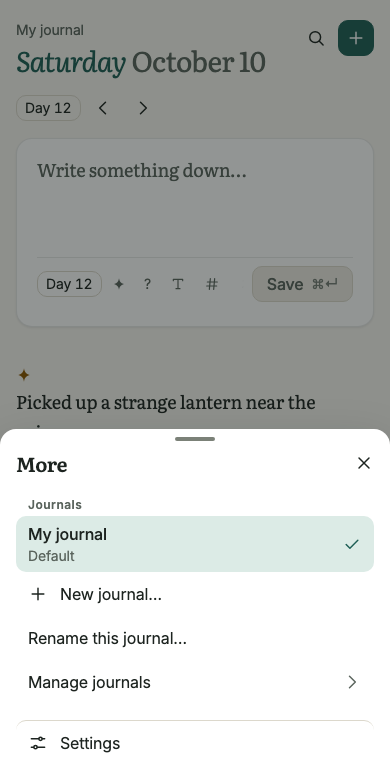
More opens a sheet with your journals (switch, New journal…, Rename this journal…, Manage journals), your pinned tags, and Settings.
The bar hides while the on-screen keyboard is open and on the map editor, which uses the whole screen. On a phone the note box's row of options scrolls sideways, Save stays beside it, and keyboard hints such as ⌘Enter are hidden on a touch screen. The note box stays in view when the on-screen keyboard opens. Touch targets are at least 44 pixels.
Look and feel#
- Themes: System, Light or Dark, in Settings → Appearance.
- Reading size: Comfortable or Large.
- Tint: each template has its own accent colour, moss green for Default and plum for Stardew Valley. The tint replaces buttons, the current item and the italic word in titles. Colours that carry meaning, such as red for a warning, never change.
Small things worth knowing#
- Toasts. Short messages appear at the bottom and fade after about eight seconds, for example Note deleted or Now Day 13. When a toast has an Undo button, pressing u also undoes it.
- Skip to content. Press Tab once on a fresh page to reveal a Skip to content link.
- Keyboard. Everything can be done from the keyboard. Press ? outside a text box to list the shortcuts. See Keyboard shortcuts.
- Printing. The app has print styles, so printing a page leaves out the navigation. Not verified We did not print-test it.