Journals and templates
Journals
Keep one journal per game or playthrough, switch between them, rename them, download them and delete them safely.
A journal is one self-contained notebook: its own notes, people, maps, calendar, tags and settings. Keep one per game, or one per playthrough, so notes about one never mix with another. Where it is stored depends on the version you use: in its own file in your data folder (computer version) or in its own database in the browser (web version).
Each journal keeps the template it was made from. To use another template you make another journal.
Switching journals#
The journal switcher is at the top of the sidebar (under More on a phone). It shows the journal you are in with a check mark.
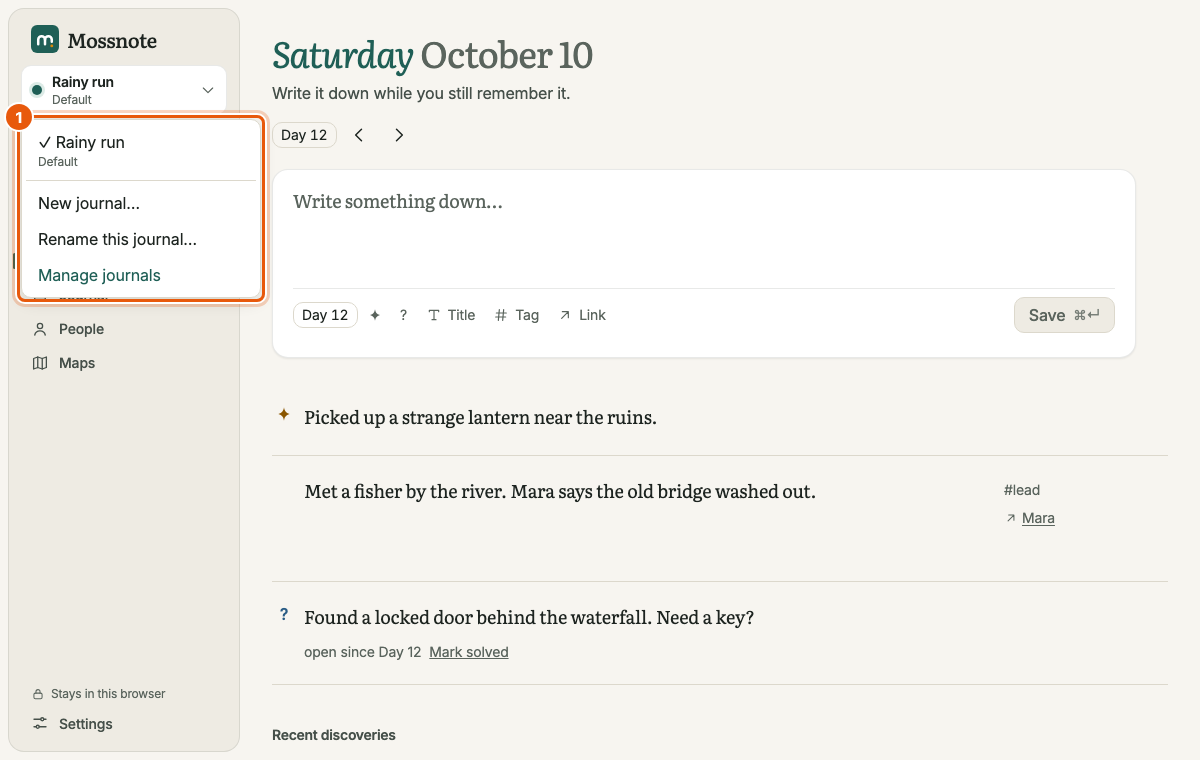
- Choose another journal to open it. The app reloads on it, so screens, caches and drafts never mix between journals. A failure shows a short message.
- New journal… opens the new-journal window (below).
- Rename this journal… changes its name.
- Manage journals goes to Settings → Journals.
The computer version remembers the last journal you used and opens it next time. You can also choose one when starting: mossnote --journal rainy-run (the file name without .db) or MOSS_JOURNAL. If that journal cannot be opened, Mossnote says why and stops; it never opens a different one in its place.
Making a new journal#
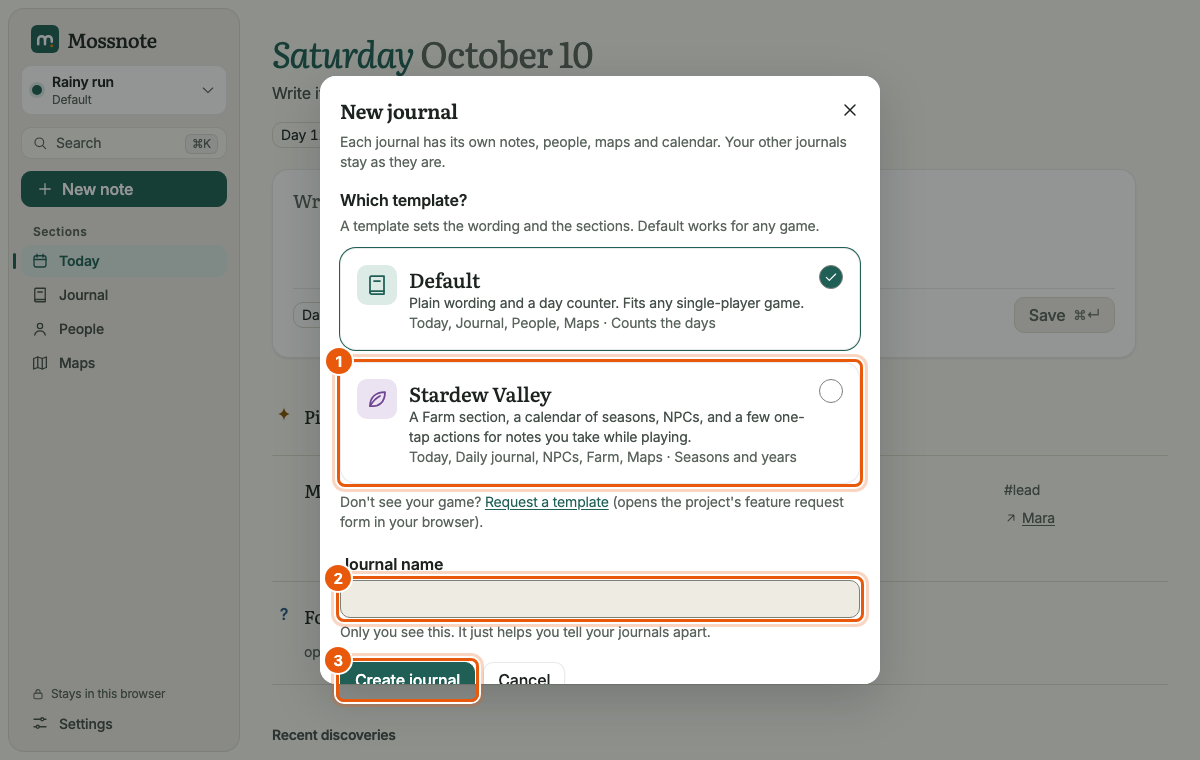
- Choose New journal… in the switcher, in Settings → Journals, or in Settings → Template and sections.
- Pick a template and type a name (up to 60 characters).
- Choose Create journal. Mossnote opens it, empty.
Managing journals in Settings#
Settings → Journals lists every journal with its template, counts of notes, people and maps, and its size.
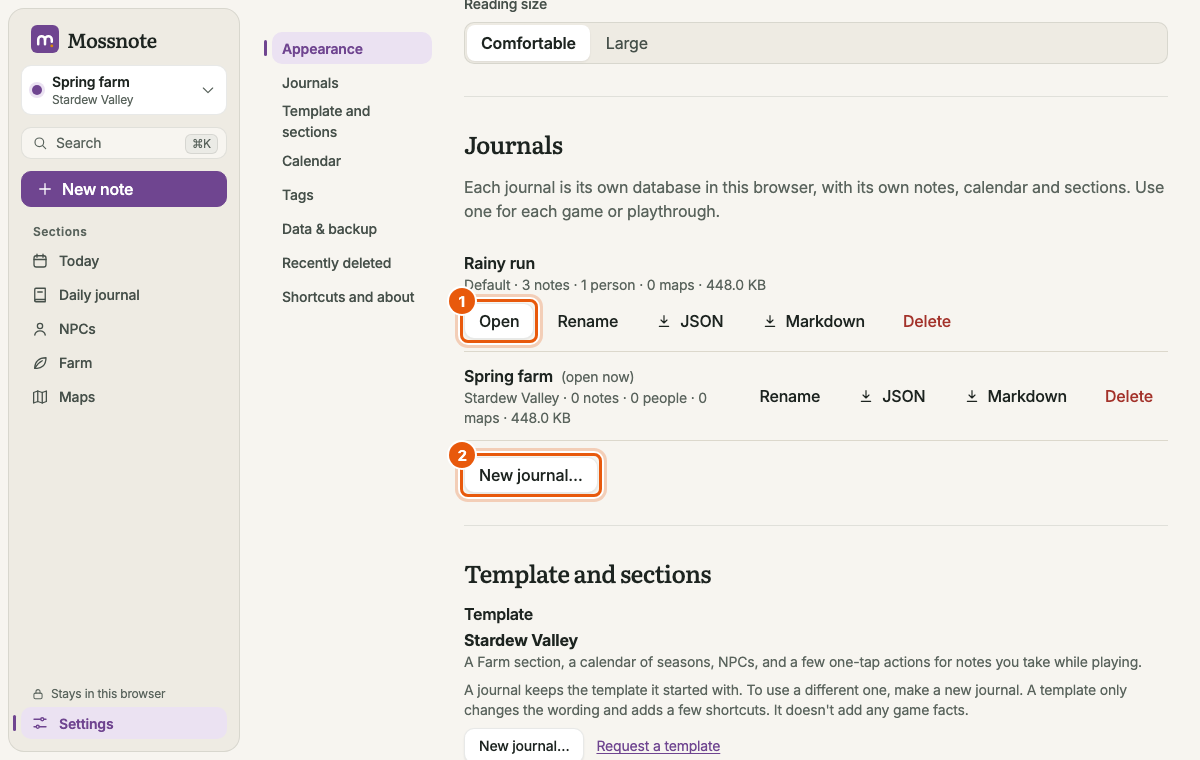
| Button | What it does |
|---|---|
| Open | Switches to that journal. Not shown for the one that is open. |
| Rename | Changes the name shown in Mossnote. The journal's file name on disk does not change. |
| JSON, Markdown | Downloads that journal, even if it is not the open one. See Export. |
| Delete | Removes the journal, after you confirm. See below. |
A journal that was made by a newer version of Mossnote than yours is listed but cannot be opened: Made with a newer Mossnote. Update the app to open it. Nothing was changed. One that cannot be read says Mossnote can't read this file. Nothing was changed.
Deleting a journal#
Deleting is deliberately hard to do by accident.
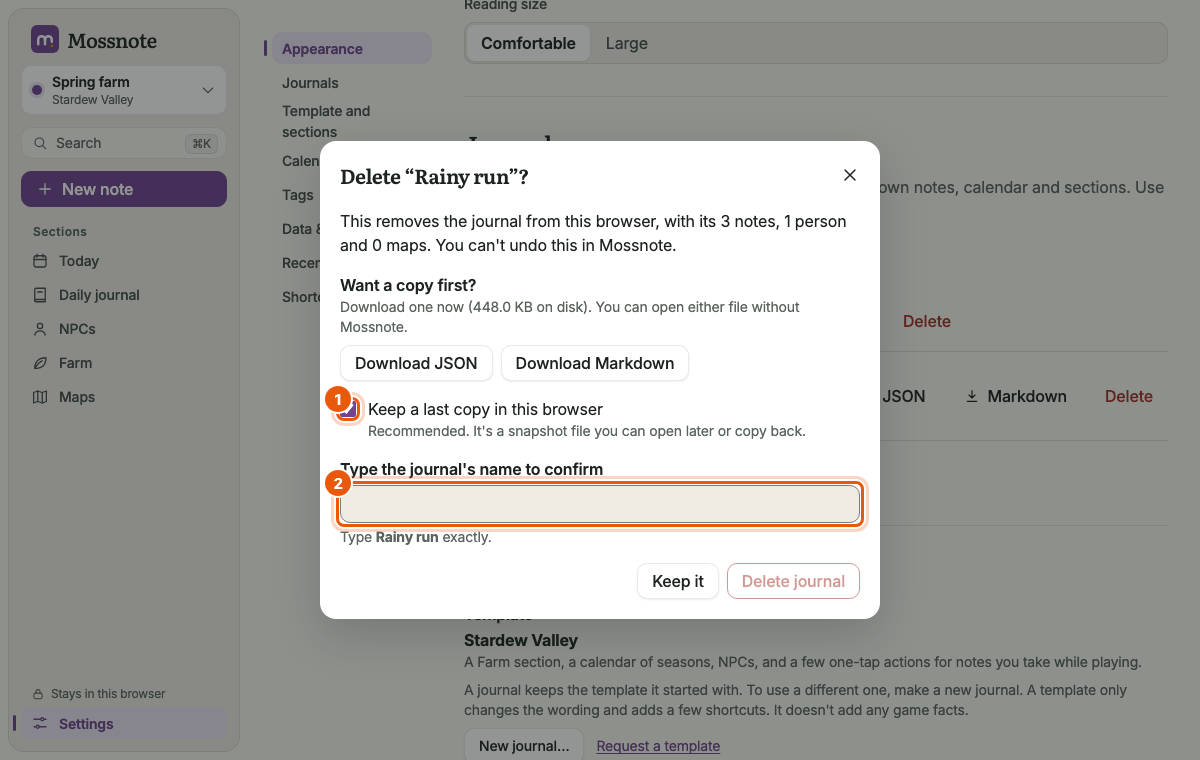
- Choose Delete next to the journal in Settings → Journals.
- Optionally download a copy first (JSON or Markdown).
- Leave Keep a last copy ticked (it is, by default) to save a final snapshot: in your
backupsfolder on the computer, or in the browser in the web version. - Type the journal's name exactly. Delete journal stays disabled until it matches.
This removes the journal from Mossnote. Mossnote has no undo for it; the last-copy snapshot and any file you downloaded are how you get it back.
Two windows#
If you switch journals in one window, any other open window says You switched journals in another window. Reload to keep working here. with a Reload button, instead of quietly writing into the wrong journal.