Maps
Maps overview
Create, name, open, duplicate and delete maps, find a place across all your maps, and learn the parts of the map editor.
Maps are a small drawing tool for the places you explore. You sketch rooms, paths and landmarks by hand, then drop markers that link back to your notes, people and farm entries. Mossnote has no map of any game: every map is drawn by you, and you cannot import a background picture (images are deliberately left out).
The Maps page#
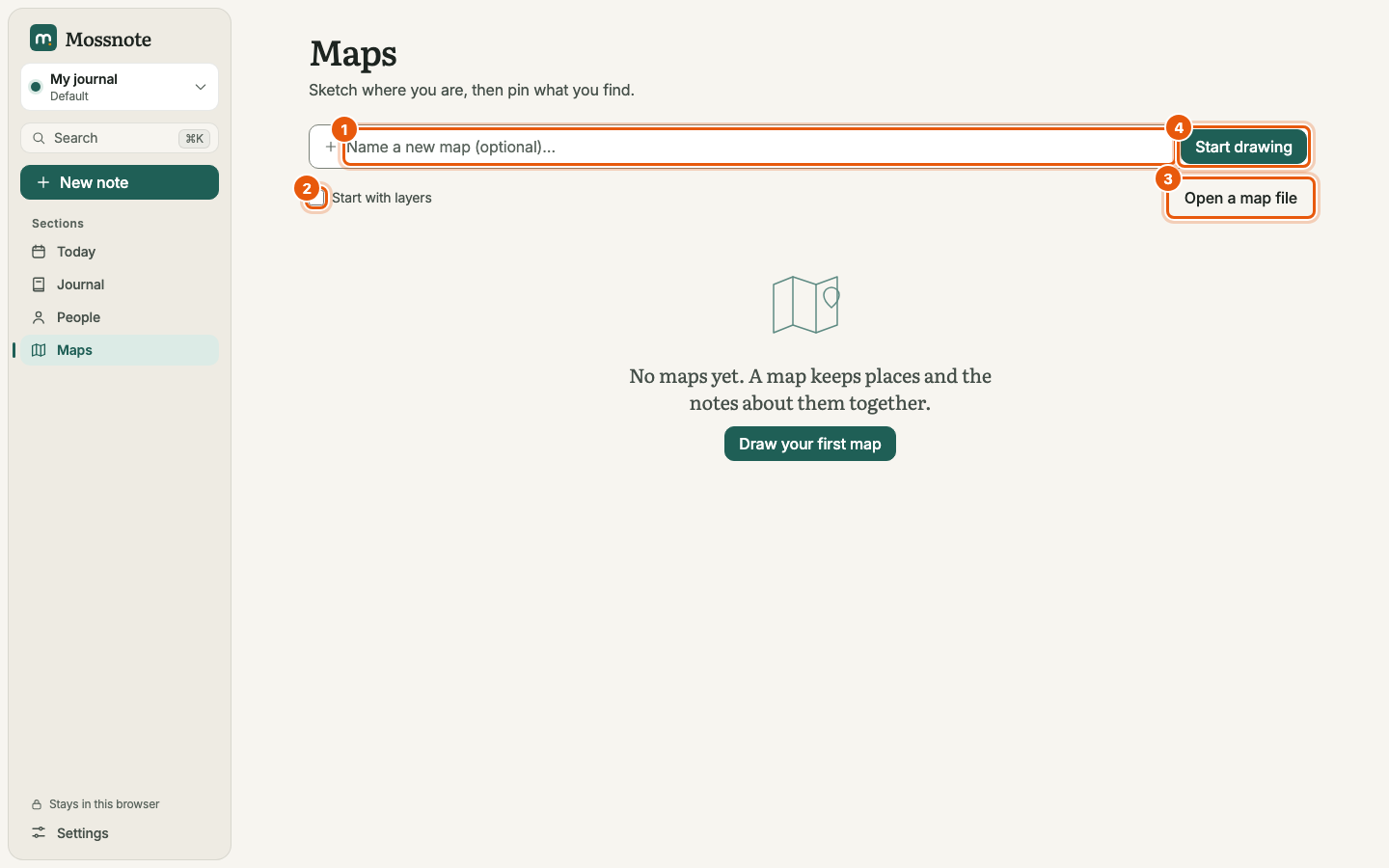
- New map. Type a name (optional, up to 80 characters; an unnamed map is called Untitled map) and choose Start drawing. You go straight into the editor.
- Start with layers. Tick this box to begin with five empty layers named Background, Terrain, Paths, Locations and Notes. Without it you get one layer, Layer 1. See Layers.
- Open a map file. Imports an editable project file (
.mossmap.json) that you exported earlier, as a new map. A file that is not a map Mossnote can open gives That file isn't a map Mossnote can open. - The list. Each map shows its name, how many markers it has and when it last changed. Duplicate makes a copy (named … copy) and opens it.
- Places. Once any map has markers, a Places list shows every marker from every map, with its map's name and note. A Filter field narrows it. Choosing a place opens that map with the marker selected.
A journal can have many maps. Each map holds up to 3,000 shapes, 500 markers and 30 layers.
The map editor#
Opening a map shows the editor. A back arrow returns to the Maps page, the map's name is a field you can edit, and the ⋯ menu at the top right has Delete map (the map goes to Recently deleted for 30 days).
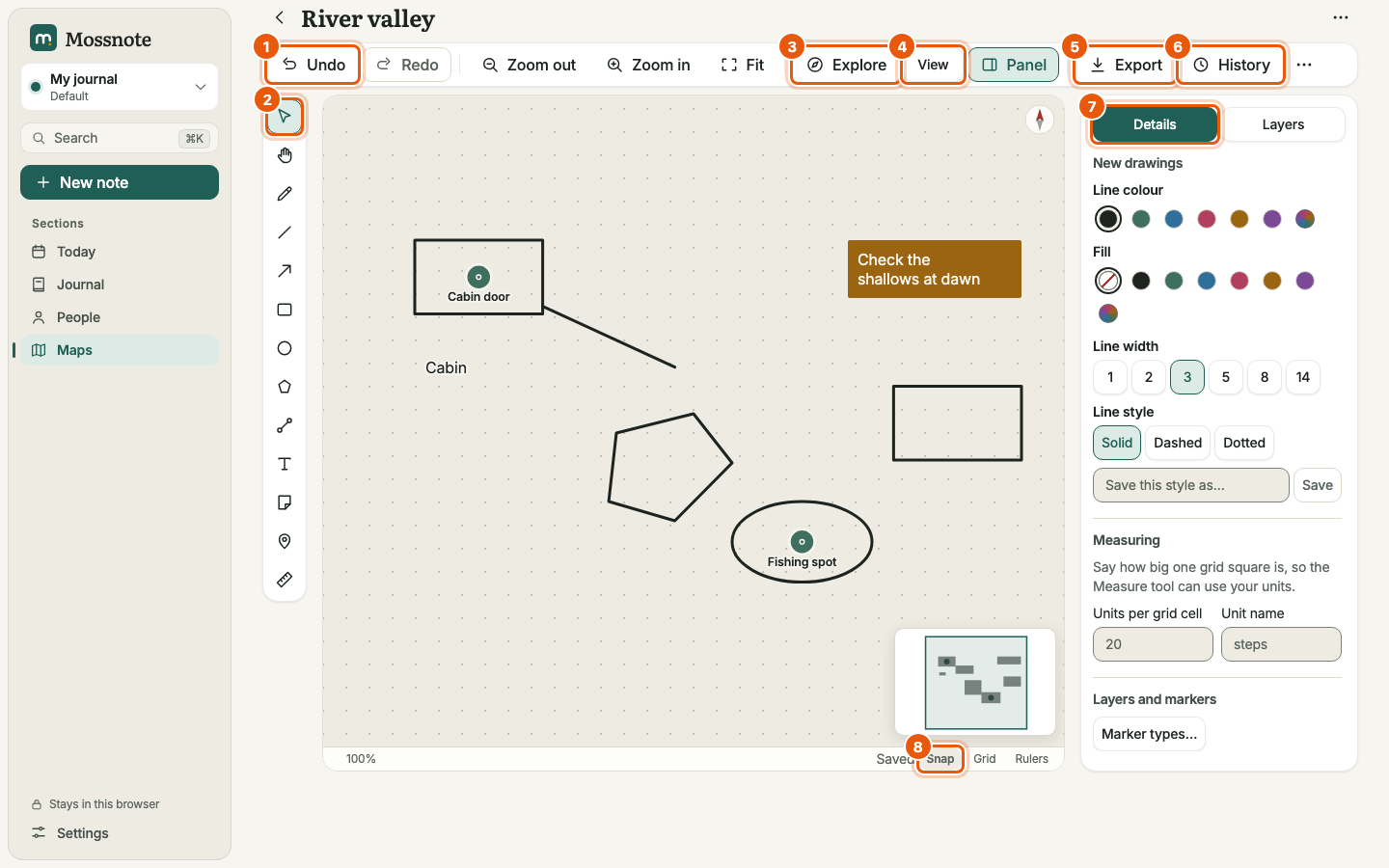
- Top row of controls
- Undo, Redo, Zoom out, Zoom in, Fit (zoom to show the whole map), Explore (exploring mode), View (what to show and how drawing behaves), Panel (show or hide the side panel), Export, History and a ⋯ menu with Duplicate this map, Marker types… and Full screen. On a narrow screen the buttons show only icons; press and hold one to see its name.
- Tool strip
- The vertical strip on the left holds the drawing tools. See Drawing tools.
- Canvas
- The dotted drawing area. It also shows a compass and, in a corner, an overview map. The dots move and scale with the drawing.
- Side panel
- Two tabs. Details shows options for what is selected, or, with nothing selected, the style for new drawings, the measuring units and a Marker types… button. Layers lists layers and objects. See Layers.
- Status bar
- Shows the pointer's position, the zoom level and Saved, and has the Snap, Grid and Rulers toggles.
Saving and undo#
- Autosave. Your drawing is saved as you work, in a single request, and the status bar shows Saved. There is no Save button.
- Undo and redo. ⌘Z and ⌘ShiftZ, or the buttons.
- History. Older versions of the map can be restored. See Version history.
Moving around the map#
| To | Do this |
|---|---|
| Pan | Choose the Pan tool (H) and drag; or hold Space and drag; or scroll with a trackpad. |
| Zoom | Mouse wheel or a trackpad pinch zooms around the pointer. Or use Zoom in / Zoom out, or the + and - keys. 0 goes to 100%. |
| See everything | Fit or Shift1. Shift2 fits the selection. |
| Full screen | ShiftF or ⋯ → Full screen. |
On a touch screen a two-finger pinch zooms and pans. Not verified Touch gestures exist in the code but were not tested on a real touch device here.
The next pages go through the drawing tools, markers and exploring mode, and layers, history and export.