Maps
Layers, history and export
Organise a map into layers, restore older versions, and export a map as a picture, a vector drawing, a PDF or an editable file.
Layers#
Layers are named groups of objects, stacked in order, that you can hide or lock together. A map can have up to 30. Every object lives on one layer, and new drawings go on the active layer.
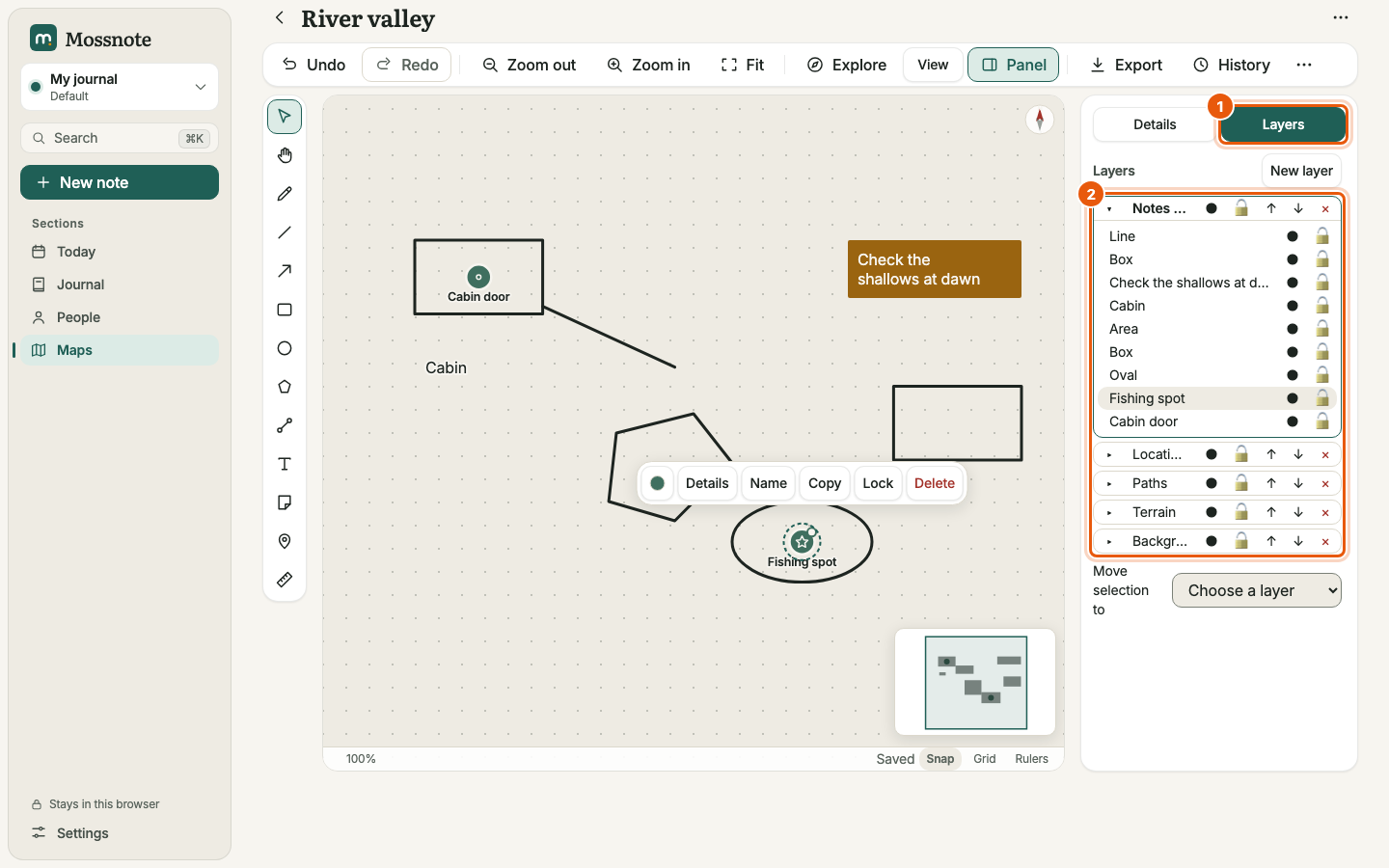
- A new map has one layer, Layer 1, unless you ticked Start with layers (Background, Terrain, Paths, Locations and Notes). In a map that does not have them, Details → Layers and markers → Add suggested layers adds the same five.
- Choose the active layer by clicking its name. Click again, or double-click, to rename it.
- Each layer row has buttons to show or hide it, lock or unlock it, move it up or down in the stack, and delete it. New layer adds another.
- The small triangle expands a layer to list its objects. Each object has its own hide and lock buttons, and you can click it to select it or double-click to rename it.
- Move selection to sends the selected objects to another layer.
Use layers however suits you: terrain apart from paths, one layer per floor of a building, or a layer of your own notes that you can hide when you want a clean view.
Version history#
Mossnote keeps older versions of each map so you can go back.
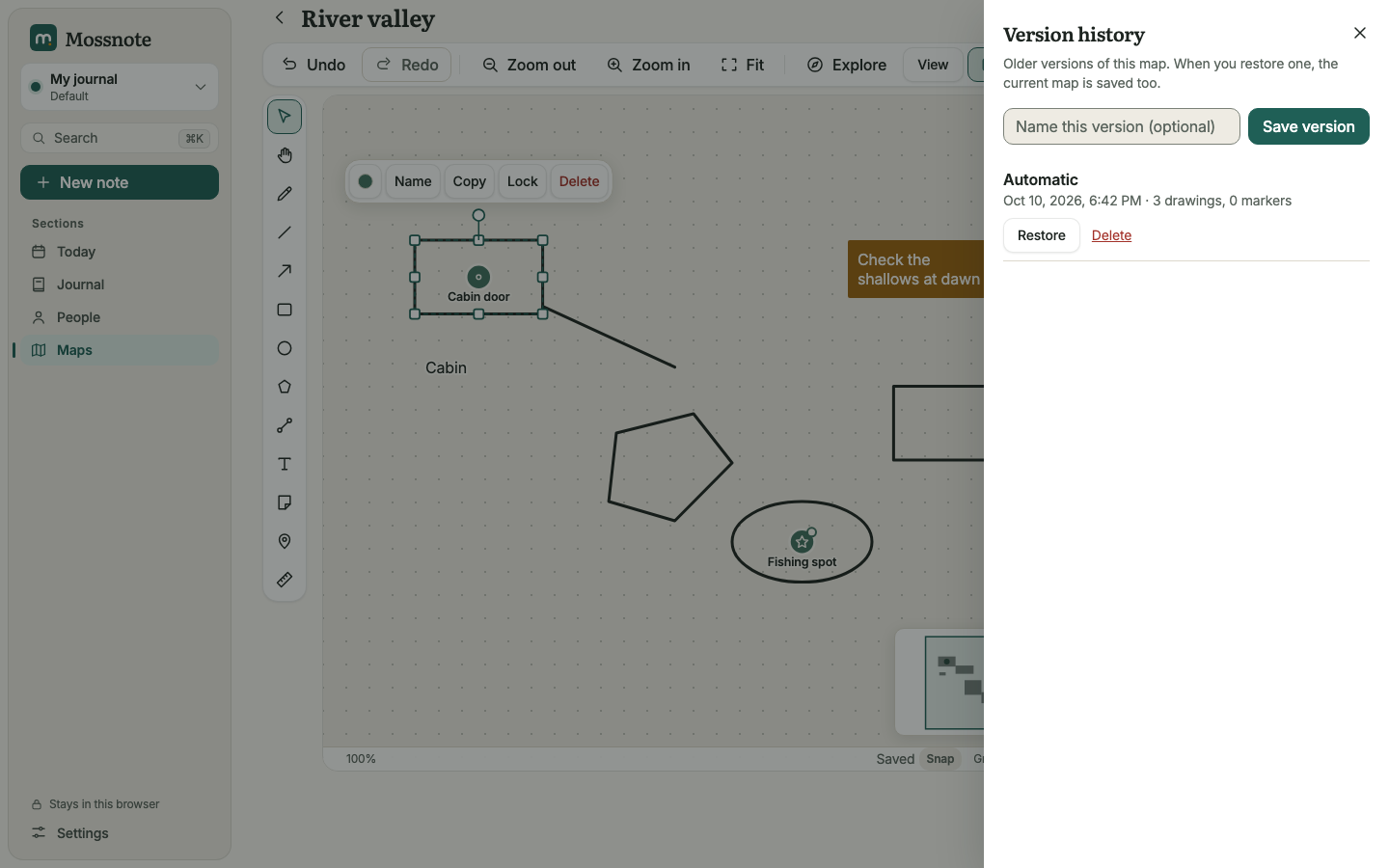
- Automatic versions. While you draw, Mossnote keeps a version about every ten minutes, and holds the latest 30.
- Named versions. Type a name (optional) and choose Save version any time, for example before changes. You can keep up to 50.
- Restore brings a version back. The map as it is now is saved as a version first, so a restore can itself be undone.
- Delete removes one version.
Exporting a map#
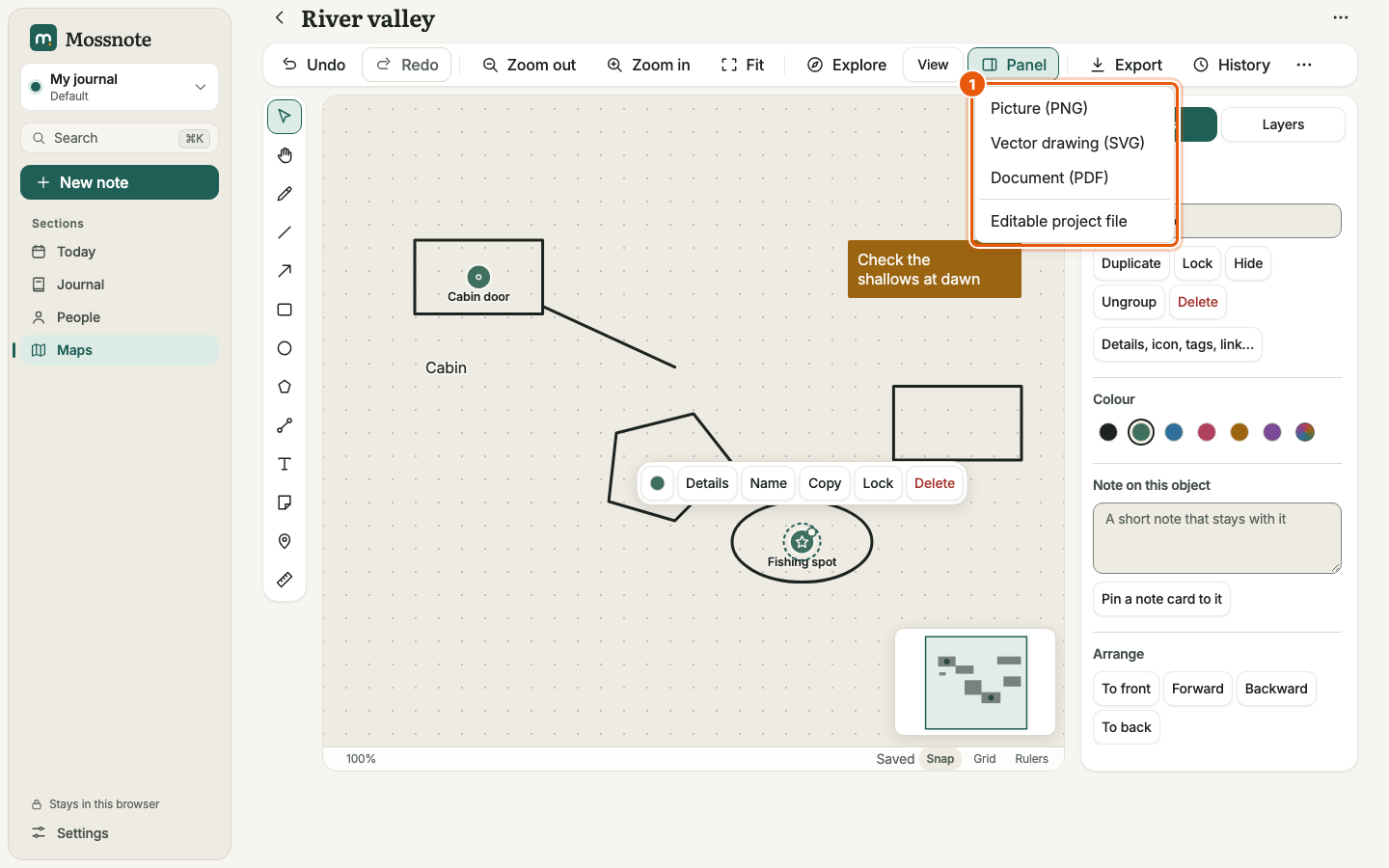
Choose Export in the toolbar.
| Choice | File | Use it for |
|---|---|---|
| Picture (PNG) | Map name.png | Sharing or printing a picture of the map. |
| Vector drawing (SVG) | Map name.svg | Editing in a drawing program, or a sharp picture at any size. |
| Document (PDF) | Map name.pdf | Printing or sending as a document. The map is a picture inside the PDF. |
| Editable project file | Map name.mossmap.json | Backing up a single map, or moving it to another journal or version. Open it again with Open a map file on the Maps page. |
We exported all four from a test map and each downloaded a file of the expected type. The pictures show the whole drawing, trimmed to its contents, not just the part on screen, on a plain paper background with fixed colours (they do not follow the light or dark theme). Marker names are placed beside the markers. The SVG stays a vector drawing. The PDF holds the map as one picture (a 2× JPEG on a single page), so it prints well but its text cannot be selected. Nothing is uploaded anywhere.
More#
- Duplicate this map (the ⋯ menu, or Duplicate in the Maps list) makes a copy named … copy.
- Delete map (the ⋯ menu at the top right of the editor) moves it to Recently deleted.
- Full screen (ShiftF) gives the canvas the whole window.
- Shortcuts. The full map list is in Keyboard shortcuts.